
 Need help?
Do you have a question about the ClimateMaster iGate2.0 and is the answer not in the manual?
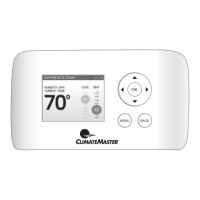
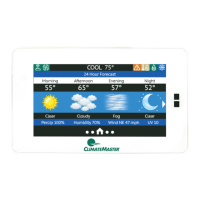
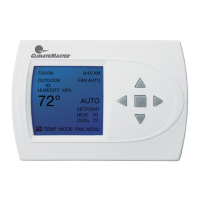
Describes the main screen interface and navigation methods.
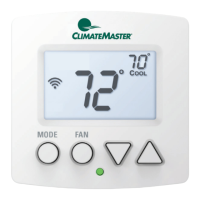
Displays the sensed space temperature in whole numbers.
Shows scrolling screen options and allows navigation by tapping.
Indicates signal strength or connection status.
Shows icon for heating or cooling calls.
Steps to create an account for remote access.
Message regarding website cookie usage and user acceptance.
Allows selection of the interface language for the web portal.
Process to access the myUplink account using credentials.
Guides the process of connecting the thermostat to a Wi-Fi network.
Detailed steps for Wi-Fi setup via the mobile app.
Steps to connect Wi-Fi directly using the thermostat's display.
Process to link the physical thermostat to the myUplink account.
Allows viewing and changing the current operating mode (e.g., Heat, Cool, Auto).
View and adjust heat/cool setpoints and occupancy modes.
Configure supply fan operation (ON or AUTO).
View the programmed daily schedule for temperature settings.
Adjust settings for the hot water system.
Displays 24-hour or 4-day weather forecasts.
Adjust humidification and dehumidification settings.
Customize which options appear in the thermostat's banner.
Displays thermostat software version and serial number.
Adjust screen brightness for active and dormant states.
Configure system parameters like time zone and screen timeout.
Monitor and reset the air filter reminder timer.
Enable or change a PIN to restrict thermostat access.
Temporarily stops touchscreen interaction for cleaning.
View logged system events and faults.
Guidance on disconnecting the thermostat when moving.
Procedure to disconnect the thermostat from the Wi-Fi network.
Steps to remove the thermostat from the online account.
Navigate through the myUplink portal's system options.
Steps to create and customize a weekly heating/cooling schedule.
Adjust settings for system alerts like filter reminders.
Access settings specific to the Trilogy Unit.
Configure settings for the Smart Tank Water Heater.
Detailed guide on editing the weekly schedule and copying settings.
Procedure to set up and manage vacation periods.
The ClimateMaster iGate2.0 User Manual describes a smart thermostat designed for geothermal heating and cooling systems. This device, the iGate Connect Thermostat, offers advanced control and monitoring capabilities, accessible both directly on the unit and remotely via the myUplink web portal or mobile application.
The iGate2.0 thermostat serves as a central control unit for geothermal heating and cooling systems. Its primary function is to regulate indoor temperature based on user-defined setpoints and schedules. It supports various operating modes including OFF, HEAT, COOL, AUTO, and E-HEAT (Emergency Heat). The device also manages fan operation, offering continuous ON mode with selectable run times (15, 30, 45 minutes per hour, or always) or AUTO mode, which cycles the fan with heating/cooling demand or humidification/dehumidification needs.
Beyond basic temperature control, the iGate2.0 integrates with the myUplink platform, allowing users to create and manage weekly schedules, set vacation modes, and monitor system performance remotely. It displays real-time indoor temperature, outdoor temperature (when connected to the internet), and a 24-hour or 4-day weather forecast for the registered location. The thermostat also includes features for humidity control, allowing users to set humidification percentages for heating and dehumidification settings for cooling.
The device provides alerts and reminders, such as filter change reminders based on supply fan runtime. It logs system events, faults, and software update history, which can be useful for troubleshooting and service. For security, a PIN lockout feature can be enabled to prevent unauthorized changes to settings.
 General
| Brand | ClimateMaster |
|---|---|
| Model | iGate2.0 |
| Category | Thermostat |
| Language | English |


 To Next Page