6
Enter the PIN for your network (if required)
This step is only needed if the SIM card for your EXPLORER 510 or your cellular modem
requires a PIN and you want to communicate on the BGAN or cellular network.
To enter the PIN do as follows:
1. Connect your smartphone to the
EXPLORER 510. See Connect to WLAN
on page 3.
2. Start the EXPLORER Connect app on
your smartphone and select Terminal
Access.
1
3. If a PIN is required, you are now
prompted for the PIN.
4. Type in the PIN and click OK.
If you do not enter a PIN code now, you can
enter it later from the alarm list.
Click
at the top of the page to access the
list.
Access the EXPLORER 510 web interface
If you are not using the EXPLORER Connect app, you can access the EXPLORER 510 using the
web interface. The web interface is used for configuration and daily use of the
EXPLORER 510. To access the web interface, do as follows:
1. Connect a PC, tablet or smartphone to
the EXPLORER 510, e.g. with WLAN.
2. Start your Internet browser.
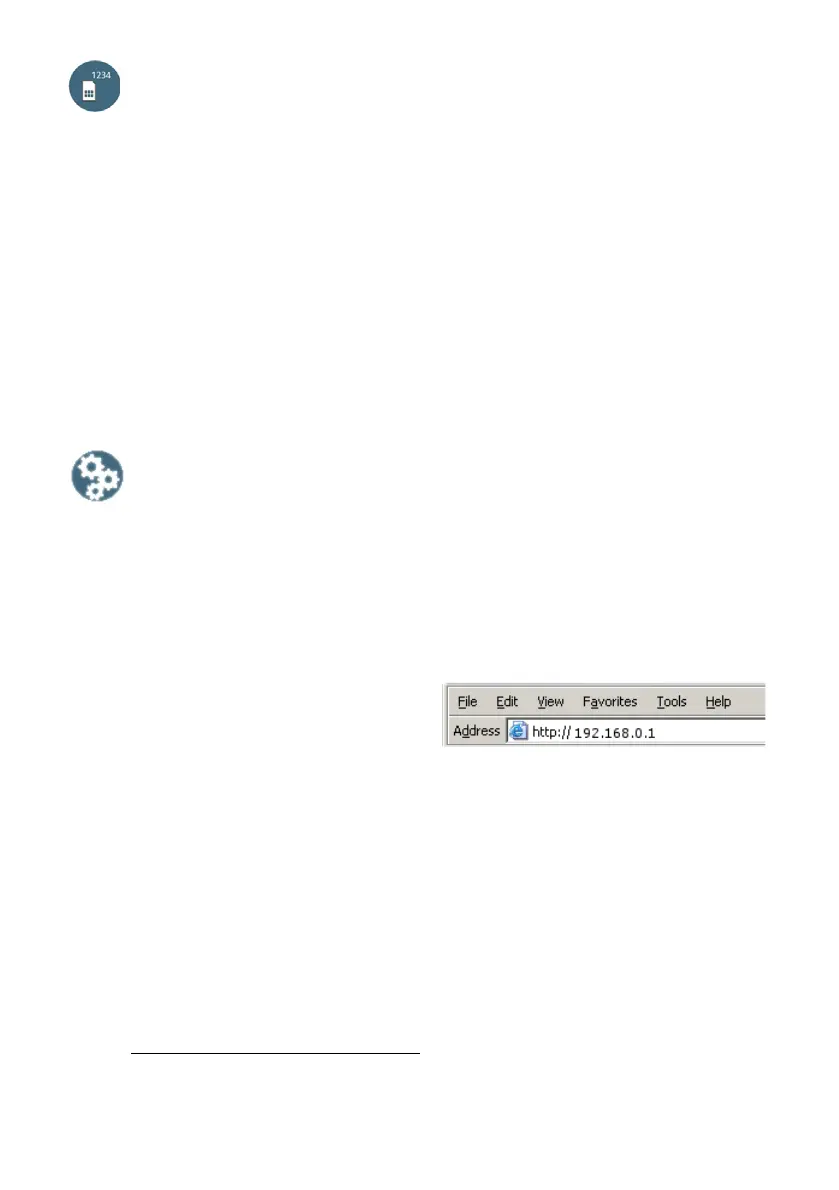
3. Enter the local IP address of the
EXPLORER 510 (default 192.168.0.1) in
the address bar.
The web interface now opens in your browser. For information on how to use the web
interface, click
on the screen to access the user manual.
NOTE: To change the language of the web interface, click , select Terminal settings
and select your language from the Language list.
1. Or access the web interface, see Access the EXPLORER 510 web interface on page 6.



 To Next Page