Page 28 Coby Electronics Corporation
English
Operation Modes
DVD/CD Discs
Press <SOURCE> to place the unit in DVD source mode (LOADING/1.
DVD-VIDEO will appear on screen).
Load a compatible DVD-video or CD-audio disc into the disc tray. A 2.
content menu will appear on screen.
Press <PLAY/PAUSE> to start playback.3.
Some discs may start playing automatically or display a DVD
menu specic to the disc. If a menu appears, use the <Navigation
Keypad> to select a desired feature or option and then press
<ENTER> to conrm.
Additional DVD Controls
See the Getting Started section for basic playback controls (Play/Pause,
Next/Forward, etc.)
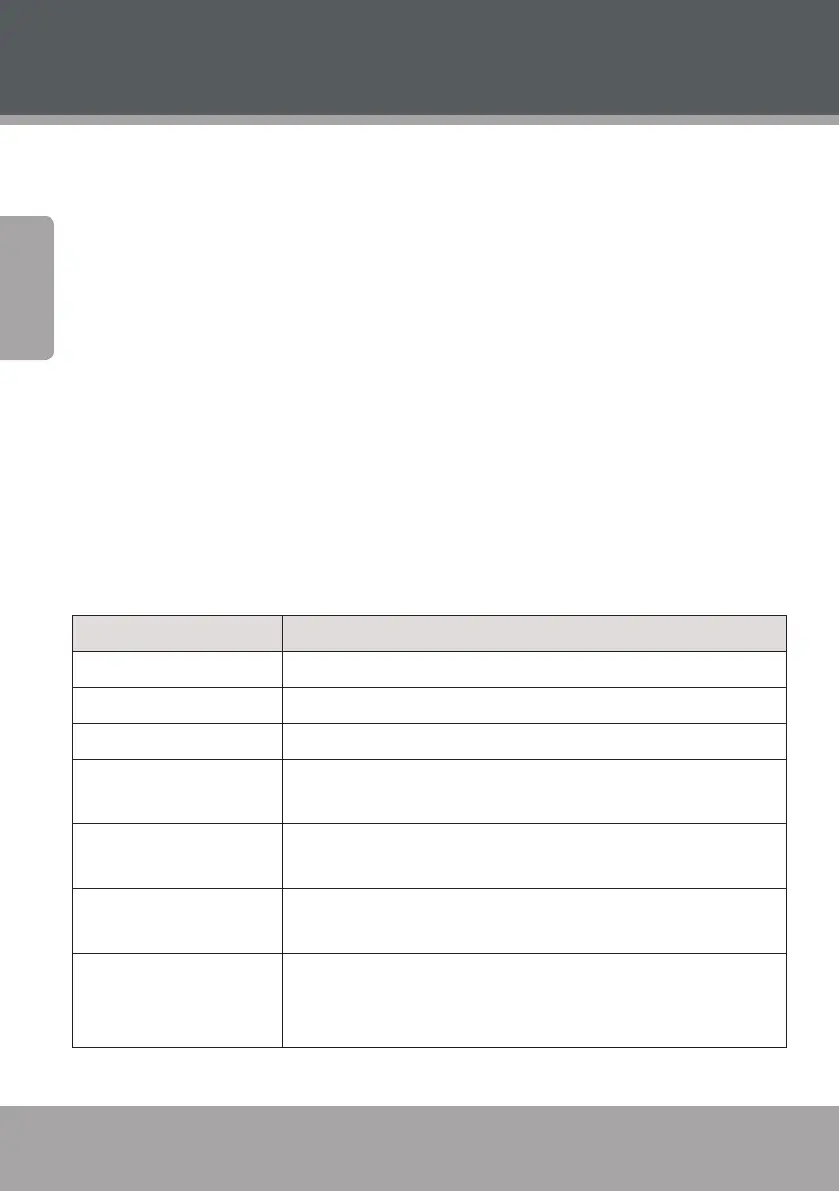
On the remote… Function
Press <TITLE> Access the title menu of the DVD.
Press <MENU> Return to the root menu of the DVD.
Press <OSD> Change the on screen display of information.
Press <SUBTITLE> Change the subtitle display (requires a DVD encoded with multiple
subtitles).
Press <AUDIO> Change the audio track (requires a DVD encoded with multiple
audio channels).
Press <ANGLE> Change the angle display (requires a DVD encoded with multiple
camera angles).
Press <ZOOM> Change the magnication level of the image. When the magnica-
tion level is greater than “1” (Zoom), use the Navigation Keypad to
pan across the image (up, down, left, right).


 To Next Page