HANGZHOU LIFESMART TECHNOLOGY CO.,LTD. www.cololight.com
3.3
PC SWITCH
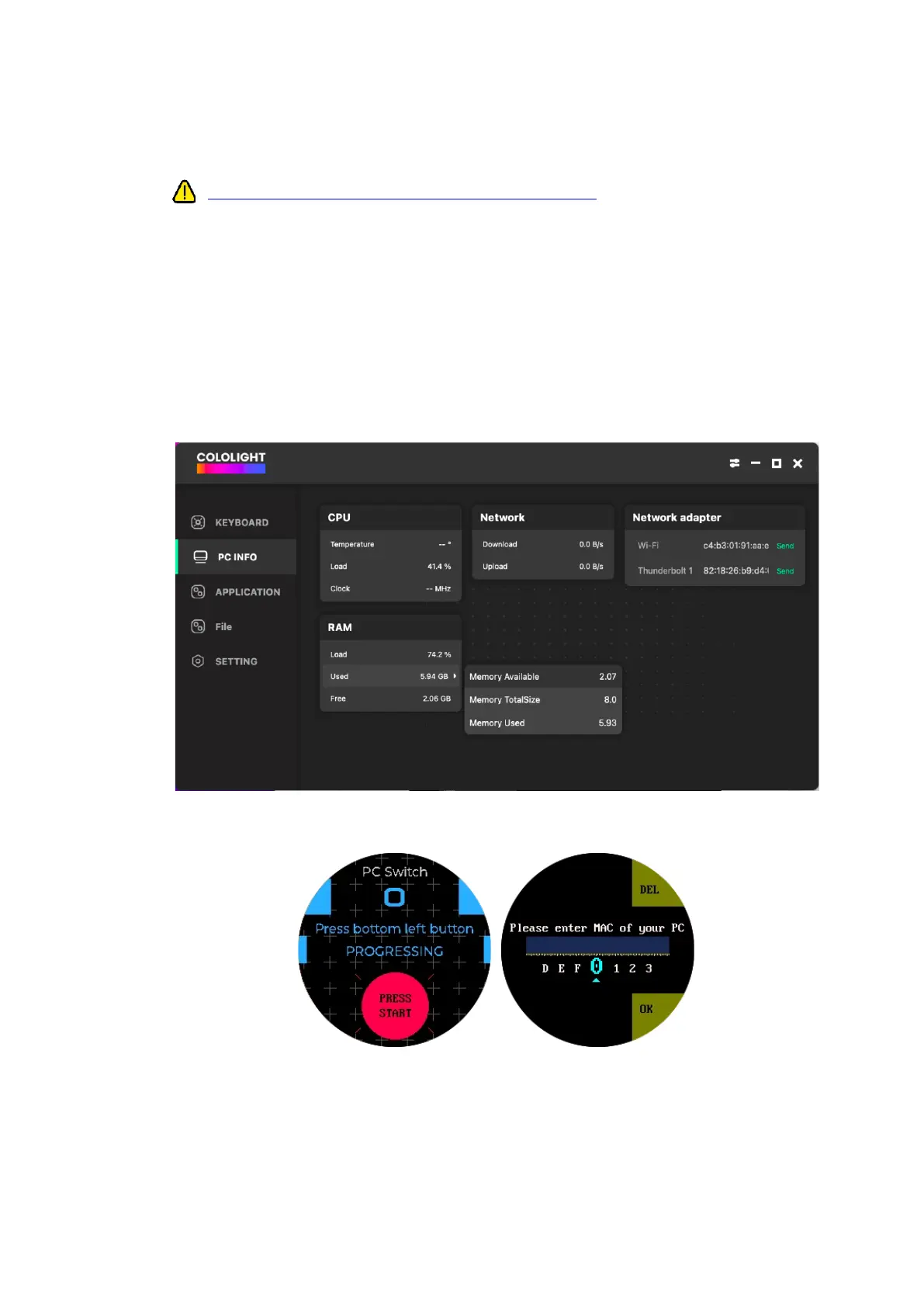
① PC Switch WoL (Wake on Lan) Start Tutorial The motherboard needs to
support the WoL function, and this function should be enabled in the BIOS
interface. If you use the USB port of the PC for power supply, you need to set
the USB port on the PC for continuous power supply.
② COLO PLAY is connected to the same Wi-Fi as the PC, and there is no
firewall or any settings block the network connection between them.
③ Select the [COLO PLAY Desktop >> PC INFO] to view the network card
information and configure the MAC address of the PC Switch.。
④ Or [Short press bottom left] Enter the MAC address of the host computer.
⑤ After completing the Wake-on-LAN (WoL) configuration, press and hold the
knob to achieve one-touch boot.
⑥ [Short press the "function button"] on the back of the device to [select
cololight on enable]. You can choose to turn on the quantum light when
booting up.



 To Next Page