8 Using Your On-Screen Guide
DVR
Watch your favorite programs and movies on your time. Your new XFINITY set-top box is also your Digital
Video Recorder (DVR). Recording, deleting and playing back recorded programs is simple using your
on-screen guide. Record a program that’s on right now, one that’s coming up, or an entire series.
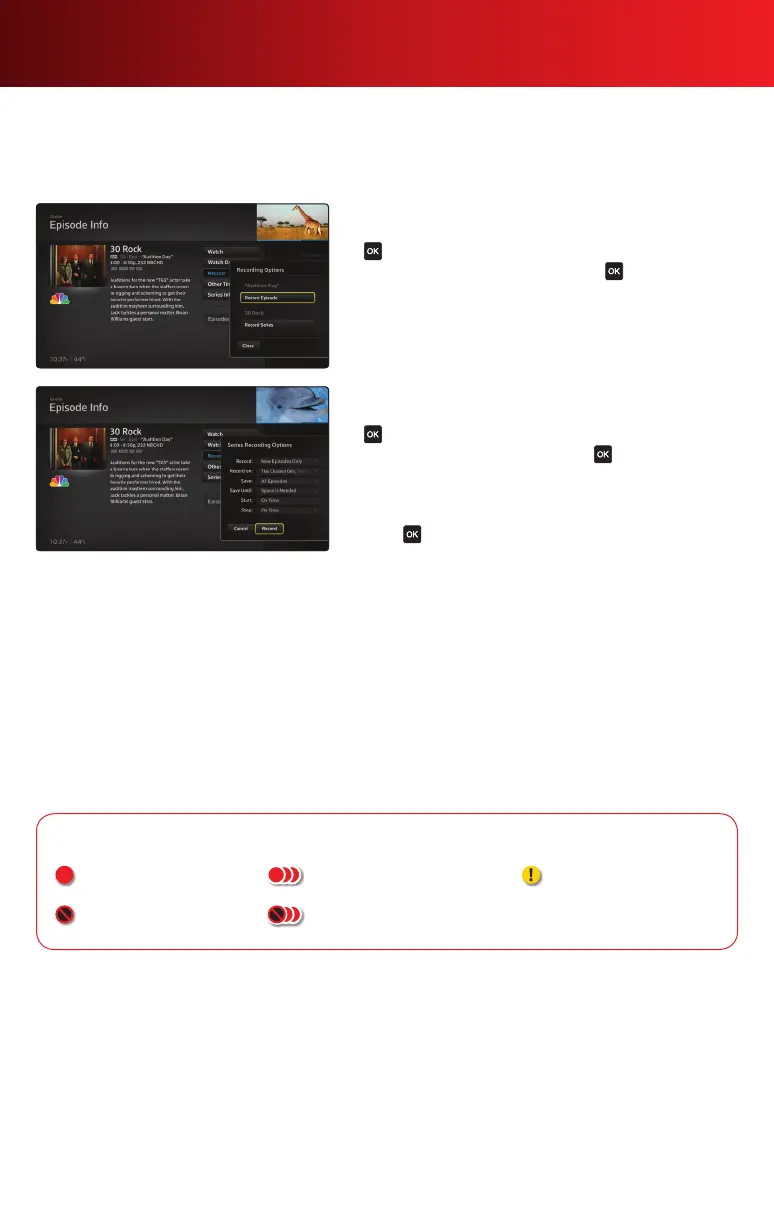
Record a Single Program
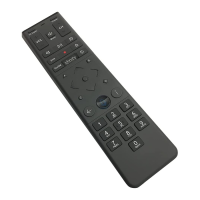
1. On the program’s Info panel, highlight Record and press
on your remote.
2. Highlight Record Episode and press . The recording
will either begin immediately or can be scheduled for a
future airing. When the programs are available, you’ll find
them in the DVR area of the Main Menu.
Record a Series
1. On the program’s Info panel, highlight Record and press
on your remote.
2. Highlight Record Series and press . The Record
Options panel will appear. You can change the Record
Options at any time before the program is recorded.
3. Once the Record Options are set, select Record and
press . When the programs are available, you’ll find
them in the DVR area of the Main Menu.
Record Multiple Programs
You can record up to two programs simultaneously and even watch a third program, whether it’s a pre-
recorded show, a live program or an XFINITY On Demand program.
If there’s a scheduling conict, the recording with the highest priority is recorded. Recordings are prioritized
as follows:
• More recently scheduled one-time recordings have a higher priority than less recently scheduled one-time
recordings.
• Less recently scheduled series recordings have a higher priority than more recently scheduled series
recordings.
• One-time recordings have a higher priority than series recordings.
Recording Icons Guide
Record
Will not record
Record series
Will not record series
Soon to be deleted



 To Next Page