11Using Your On-Screen Guide
GUIDE SETTINGS
Use your Settings screen to adjust your audio or video preferences, enable Parental Controls, turn
recommendations on or off and more.
Getting More Help
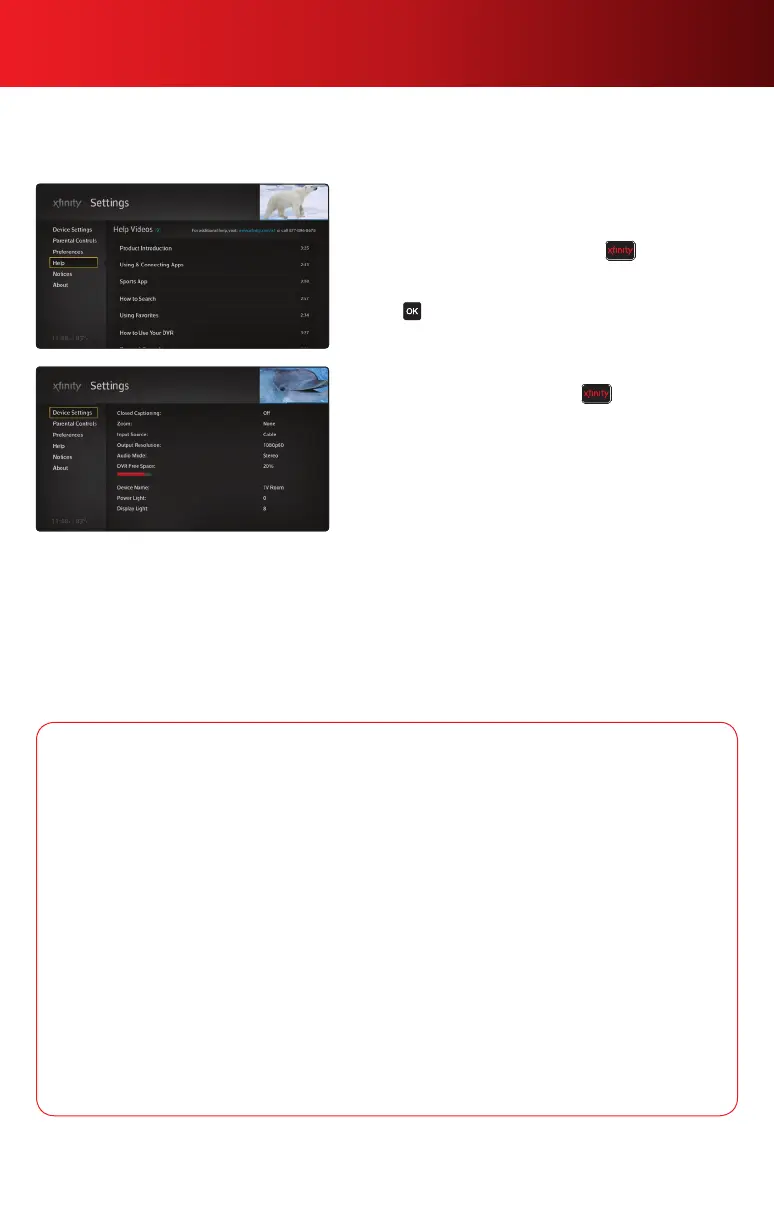
You can view short Help Videos to learn more about the
X1 Platform features.
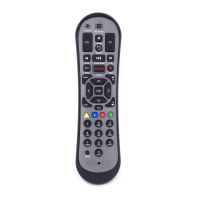
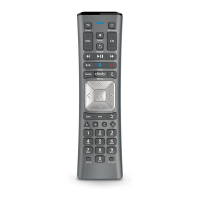
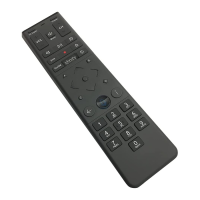
1. To access the Help Videos, press the button on your
remote, go to Settings, then Help.
2. Highlight the Help Video you would like to watch, and
press .
Getting Started
1. To adjust your settings, press the button on your
remote, then select the Settings icon.
2. Use the
buttons to navigate to the settings you
want to change:
• Preferences
• Device Settings
• Parental Controls
Preferences
Preferences let you retain information about shows you have watched. This information allows your TV to list
your most recently watched programs and video content. If you turn these settings off, the Recent section
will not contain any information. You can also go to Preferences to turn the pop-up bubbles on or off.
Device Settings
Device Settings allow you to turn closed captioning on or off, modify your DVR settings, name the location of
your set-top box and restart your device, if necessary, for troubleshooting.
Device Settings Options
Overview — View a snapshot of all your current Device Settings. You can also see how much DVR
space is available for future recordings.
Video Display — Turn closed captioning on or off, watch programming in HD only and select the
screen resolution that best matches your TV. Selecting “Full” Zoom magnifies your picture as large as
possible; this option may cut off horizontal or vertical edges or cause distortion of the image displayed
on your TV screen.
Audio Settings — Choose between Stereo or Surround mode for both HDMI and Component Audio.
Screen Saver — Activate the screen saver to prevent burn-in on your TV.
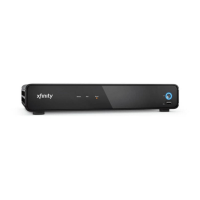
Device Name — Select a room location (for example: TV Room) for your set-top box. The device
name is used when you remotely schedule recordings from your computer.
Display Light Settings — Adjust the brightness of your TV screen to your preference.
Power Button Light — Adjust the brightness of the blue power button light on the front of your
set-top box to your preference.
Device Restart — Shut down and restart your set-top box during troubleshooting.



 To Next Page