5
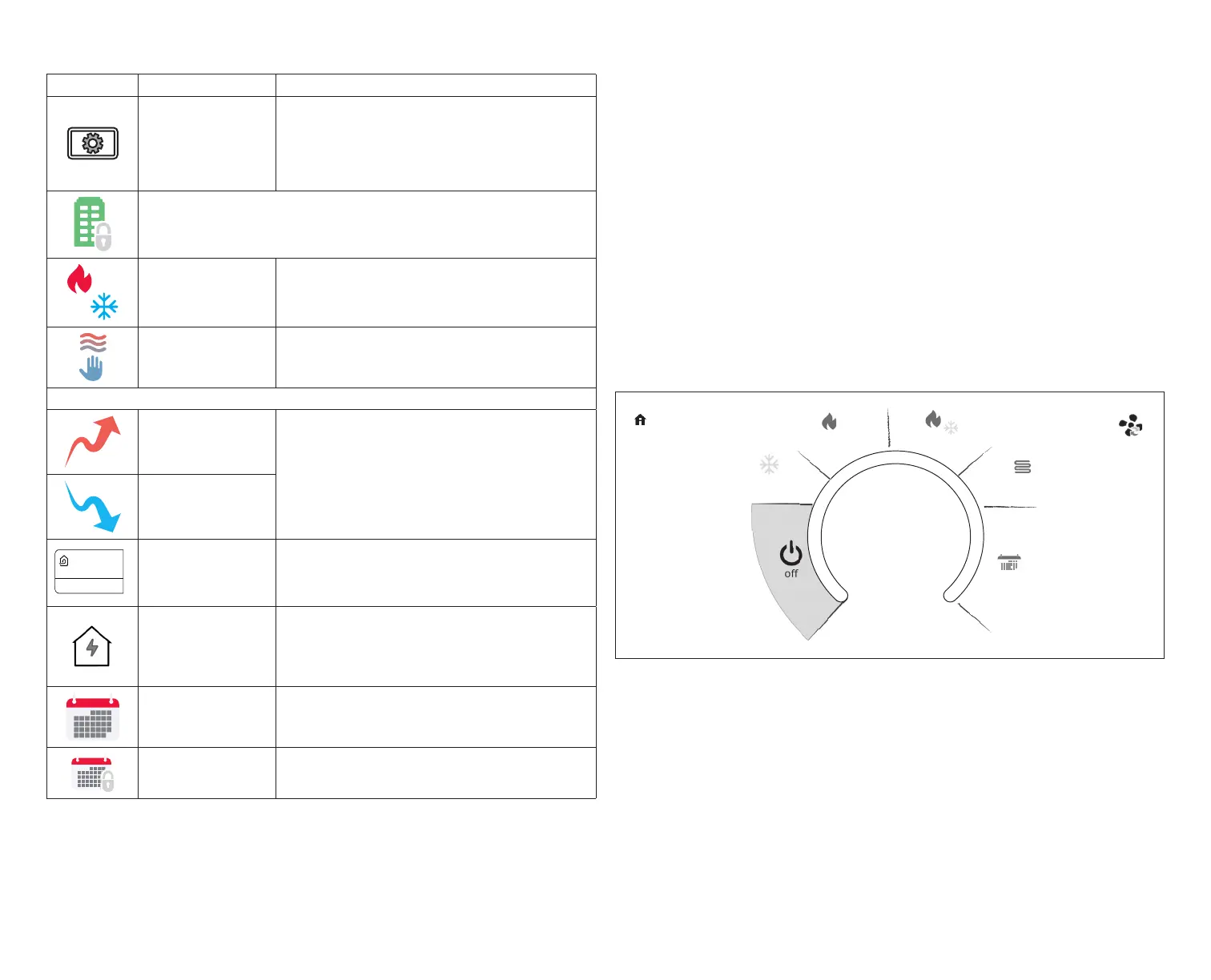
Table 1. Home Screen and System Status Icons
Icon Screen Text Purpose
System Under
Test
Typically occurs when the system has had a power
interruption. The thermostat starts to look for the indoor
and outdoor controls. Sometimes the outdoor control
takes longer to boot up and therefore does not respond
to inquiry by the thermostat. Recycle power to system
may resolve issue.
Load shedding, wait time 45 min
Changing set
point range
Temperature is being adjusted.
Turning True
Temp on
Indicating the system is transitioning to “True Temp”
mode.
System Status - Right Side of Screen
Coasting to
Temp Hold
Coasting allows the current temperature to reach the
desired single set-point without the system doing any
work. The red arrow indicates the temperature is less
than the desired set point. The blue arrow indicates is
greater than the desired set point.
Coasting to
Temp Hold
ventilating until
10:20 am
cancel
Ventilating unit
(specic Time)
This indicates the system is actively ventilating and the
precise time the cycle will end. Selecting cancel will
terminate the current ventilation session.
Energy Savings
until 5:00 pm
The utility company will automatically set the energy
savings time period. You can select cancel to exit this
mode. By canceling you will be opting the system out
of the current active energy savings events. A pop-up
screen will ask you to verify this is what you wish to do.
Transitioning to
next schedule
The system is following an active schedule and is
transitioning to the next temperature setting based on
a time indicator.
Schedule hold until
next period.
Along with this icon is the option to cancel the schedule
hold.
F. Away: Away Sync is used to set the temperature while the home is
unoccupied. Default low temperature setting of 62°F (16.5°C) and high
temperature setting of 85°F (29.5°C) . See “Away” on page 8 for further
details.
NOTE: Away Sync will be canceled when the system is enrolled in energy
savings with a utility provider.
G. Pressing on the heat-to area will allow the temperature setting to be
changed.
H. Pressing on the cool-to area will allow the temperature setting to be changed.
NOTE: If the system is running on a schedule, any adjustment will display
schedule will hold until next period or select duration of hold. Touch
hold or duration to select the desired time. The hold period can be
canceled by pressing the cancel icon on the right side of the Home
Screen.
I. Select Mode: Touch modes/schedules to select the system mode of
operation, run a schedule, fan mode operation and turn the system off. To
exit this screen, press the home icon.
“Figure 3. Select Mode” shows the various modes of operation that may
be available. To select a mode for the system or a specic zone, press
the desired operation. The gray shaded area indicates the item has been
selected.
NOTE: Options are dependent on system conguration. For example,
emergency heat will be auxiliary heat for heat pump systems only.
select mode
cool only
heat only
heat / cool
emerg heat
schedules
auto
Figure 3. Select Mode
• Off: System is off. In addition, if system is off, Alexa will be unable to adjust
the temperature.
• Cool Only: System will run only in cool mode.
• Heat Only: System will run only in heat mode.
• Heat • Cool: This is the auto-changeover mode. System will heat or cool
your home at the temperature set point you desire.
• Emergency Heat: Selecting this setting will run the air handler’s electric
heat or furnace instead of the heat pump for heating. This selection is only
available with systems using a heat pump.
• Fan Operations: There are three fan modes of operation, which are auto, on
and circulate. Pressing on the fan icon will allow selection of the desired fan


 To Next Page