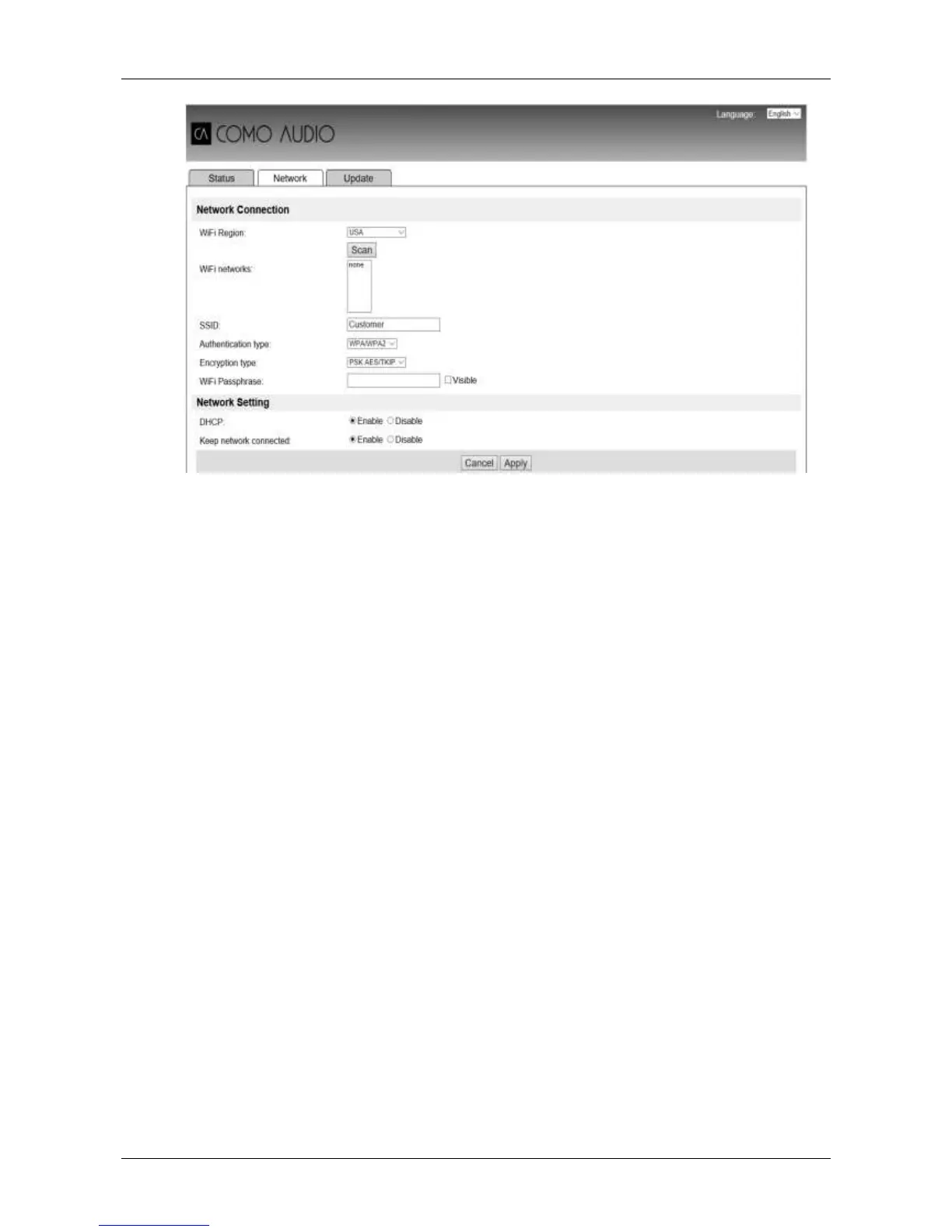
8. Select Wi-Fi as the Network Type.
9. In the Wi-Fi Region box, select your Wi-Fi region.
10. Click Scan.
11. The Wi-Fi Networks list updates to show available Wi-Fi networks.
12. Select your preferred network from the Wi-Fi Networks list. (Usually your normal home
network).
13. Type in the password (if required) for the network in the Wi-Fi Password box.
14. In the DHCP field, Enabled is selected by default to generate network settings automatically.
Only select ‘Disabled’ if you wish to set the following parameters manually:
a. IP Address
b. Subnet Mask Address
c. Gateway Address
d. DNS Address
15. Keep network Connected - When disabled the network connection is shut down when not in a
network mode. When enabled the network connection is maintained to allow activation/control
from network apps
16. Click Apply.
17. Click OK to confirm you wish to apply the selected settings. Solo or Duetto restarts and
connects to the preferred network.
18. Setup Complete
The Solo or Duetto’s wireless network is no longer be available. Reconnect your computer to the
same preferred home network as you just specified for your Solo or Duetto (this may happen
automatically dependent on the computer set up).


 To Next Page