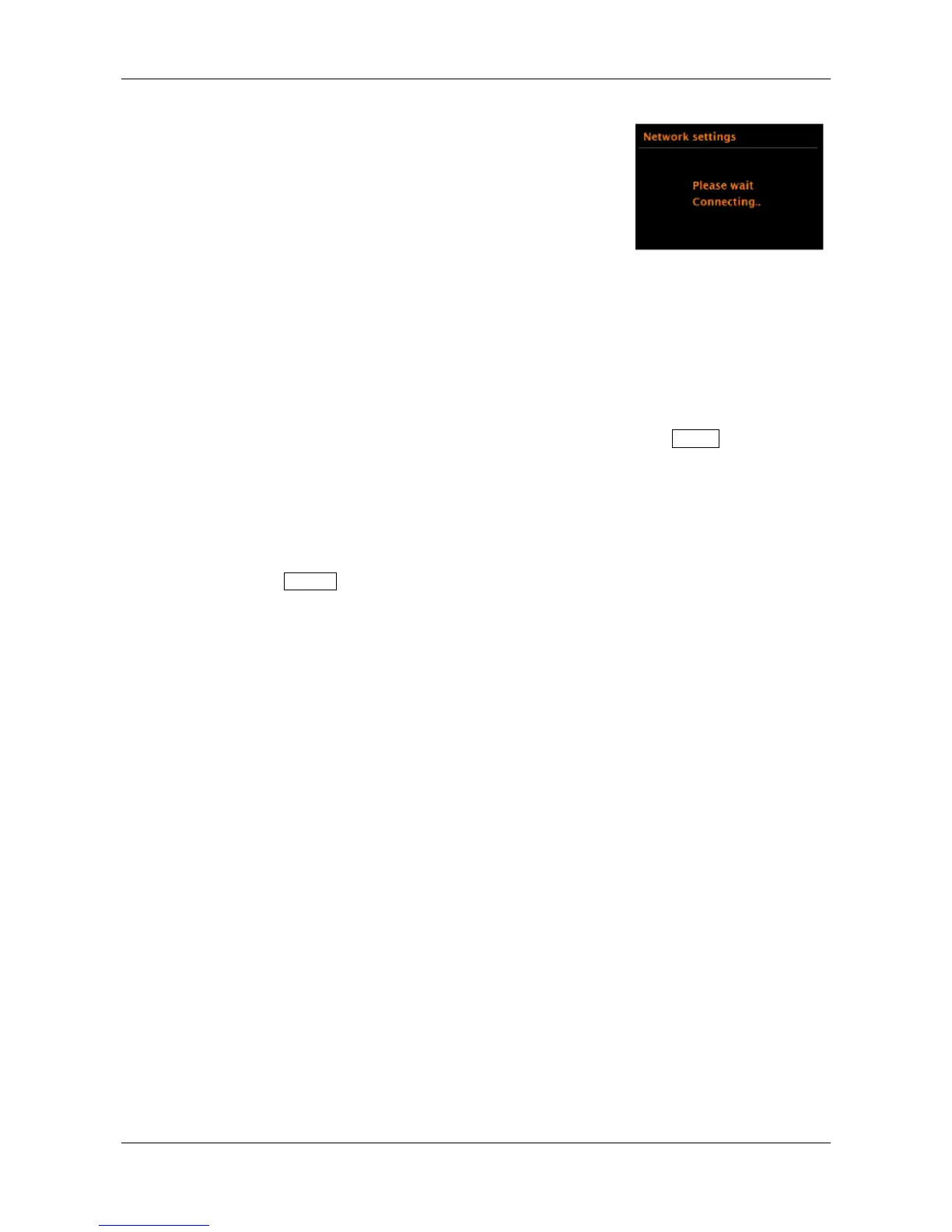
Solo or Duetto connects to the selected network.
If connecting fails, the unit returns to a previous screen to try
again. To exit the process, briefly press the Source knob in.
Web Based Configuration
Using PCs, Mac OS, or Android smart devices to connect Solo or Duetto to your network:
1. Ensure Solo or Duetto is active, if in Standby or Sleep mode press the Power knob in briefly
or press the Power key on the remote..
2. Ensure Solo or Duetto is in Device Setup mode:
If Solo or Duetto have not already been configured, they enter Device Setup mode
automatically on start-up.
If Solo or Duetto have previously been configured and already connected to a network,
select Menu > System settings > Network > Clear network settings
This will clear any current network settings and the unit will automatically enter Device
Setup mode.
Note: While configuring the unit it is recommended that your computer be disconnected from all other
networks (both wired and wireless).
In Device Setup mode, Solo and Duetto are set to act as a micro Access Point (µAP) and
broadcasts its own network name (SSID):
CA SOLO (or DUETTO)_xx:xx:xx:xx:xx:xx
On your computer
3. Ensure the Wi-Fi interface of your computer or device is switched on.
4. Select the network: CA SOLO (or DUETTO)_xx:xx:xx:xx:xx:xx from your computers list of
available Wi-Fi networks.
5. In a Web browser on the computer or device, navigate to the Solo or Duetto Web configuration
page using the following address:
i. IP address 172.24.0.1
6. The Solo or Duetto Web Configuration page opens:
7. Click the Network tab.


 To Next Page