22
Flight Screen
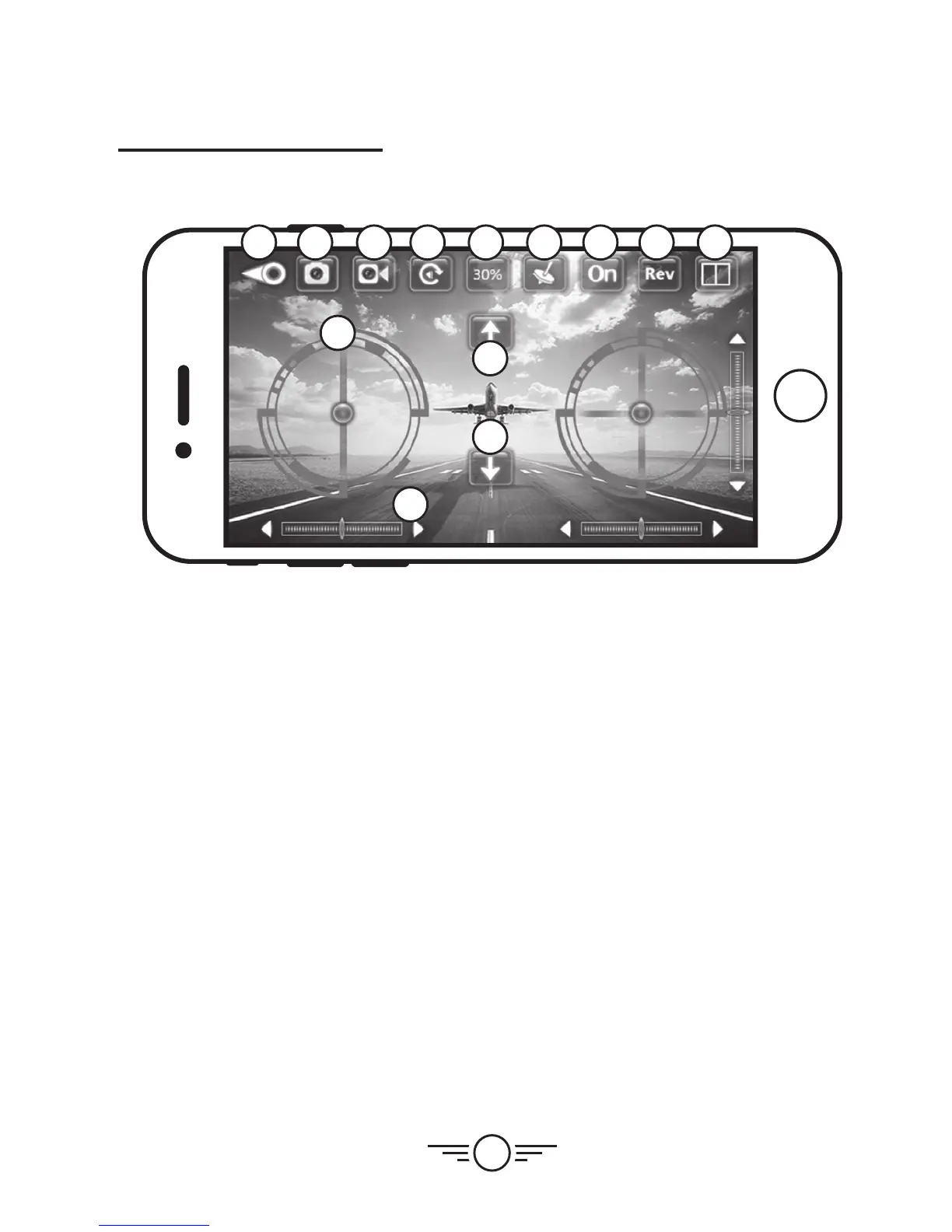
Camera & Video
Press the Photo and Video buttons to capture images and video during your flight. These are
saved to your phone and can be viewed later by pressing the Gallery button.
Intuitive Mode
This mode uses the gyroscopes in your phone to control the craft. Tilt the phone forward,
back, left and right to control the pitch and roll of the craft. Throttle and yaw are still
manually controlled from the Left Control Stick on the phone’s screen.
Start Up
Press the Up Arrow to start the craft’s motors. Use the flight controls to begin flying.
Auto-Land/Shut Down
When you are ready to land press the Down Arrow and the craft will make a gradual
descent until it has landed, wait for the rotors to stop spinning before handling. This button
will also power OFF the motors if the craft is resting on the ground with the motors ON.
1 2 3 4 5 6
7 9
11
11
10
12
8
1. Start Screen
2. Photo
3. Video
4. Photo/Video Gallery
5. Speed Setting
6. Intuitive Mode
7. Flight Controls ON/OFF
8. Reverse Camera Image
9. VR Mode
10. Flight & Trim Controls
11. Start Up/Auto-Land
12. Trim Controls
Wi-Fi Flight


 To Next Page