24
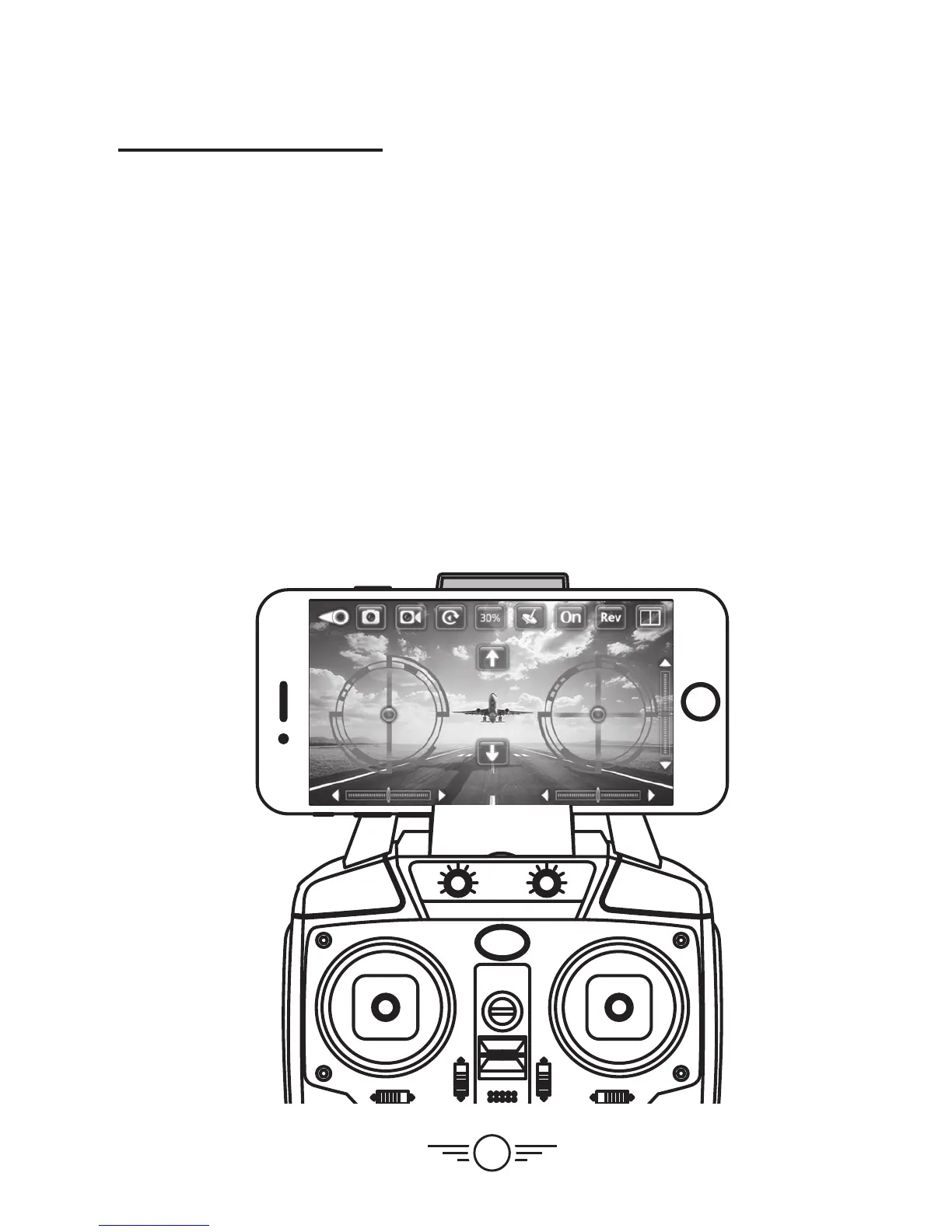
Using the Remote & Wi-Fi App Together
• First, connect the remote to the craft like normal. Connecting the remote first
overrides any control signals from the app.
• Next, use your phone to connect to the craft’s Wi-Fi and open the app. The image from
the camera should appear on the flight screen.
• The app’s flight controls will not be needed, disable them for a better view of the
camera feed.
• The Condor Pro features a motorized camera that can tilt and swivel, allowing for
more flexibility while capturing images and video. Use the controls on the remote to
fly the craft and adjust the camera position. Use the app camera/video controls to
capture images and video. Note: When using just the app to fly, the camera defaults
to a centered, forward looking position. The app does not have controls to adjust the
camera position.
• When you’re finished flying, power down the remote and craft like normal.
Wi-Fi Flight


 To Next Page