30 31
Pairing hearing instruments with Smart Remote
(for unprogrammed Smart Remote only)
This section is intended for Hearing Care Professionals.
The hearing instruments have to be paired once with
Smart Remote. Your Hearing Care Professional will do this
using professional software.
For selected hearing instrument models, the
unprogrammed Smart Remote can also be paired without
software. Smart Remote is made to be compatible with
the previous generation of hearing instruments that were
supported by Smart Remote 1.0. On top of this, in order
to support the new generation of hearing instruments,
you need to perform the below pairing process (only
once) before you start using the new Smart Remote with
the latest generation of hearing instruments.
XTo enter the menu, press the volume up button and the
volume down button simultaneously.
XNavigate to the menu entry Info by pressing the
volume up button or the volume down button.
XConfirm your selection by pressing the program change
button.
The battery status is displayed.
XScroll down by pressing the volume down button.
The serial number and other information are displayed.
XPress and hold the lower control
button and the volume down
button simultaneously for
5 seconds.
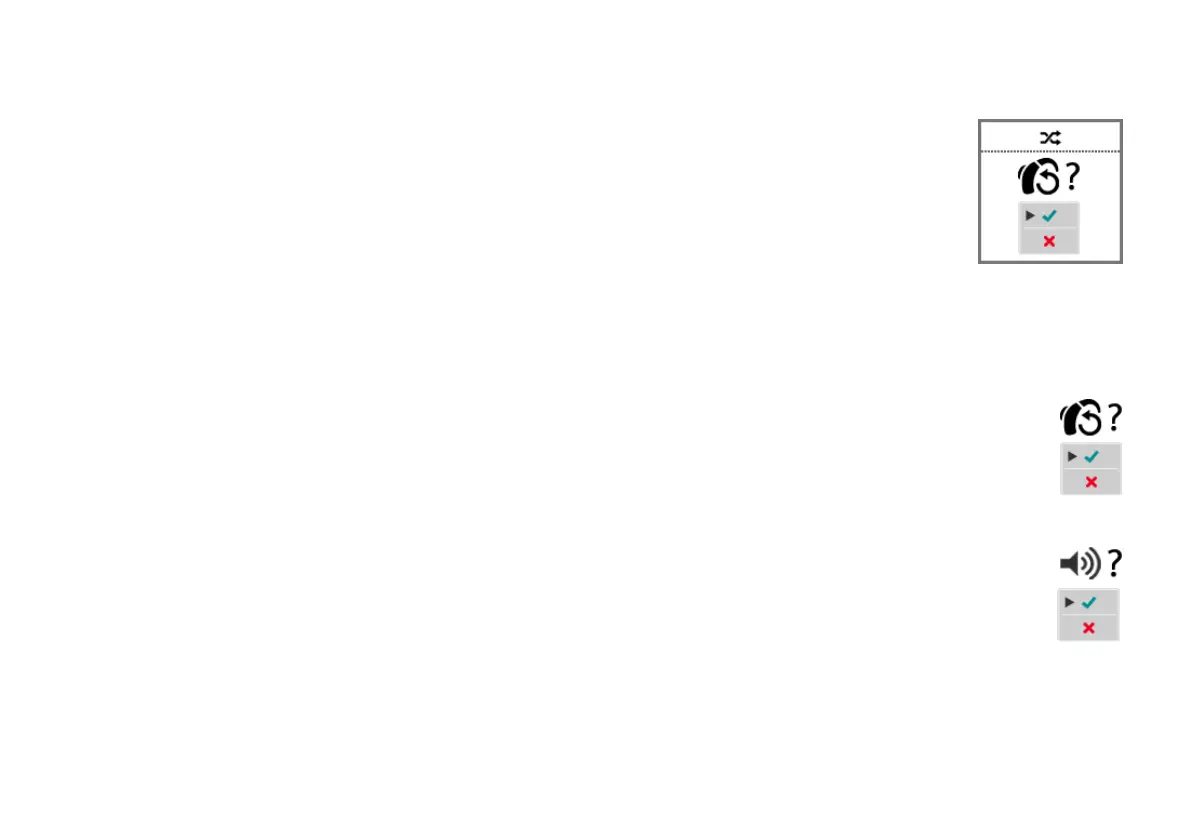
Smart Remote prompts you to
restart the hearing instruments
(refer to the picture).
XTo restart the hearing instruments, open and close the
battery compartments of both hearing instruments.
Wait until the hearing instruments are on and the
startup melody has finished.
XConfirm that the hearing instruments have
been restarted: Navigate to the green hook
and press the program change button.
If Smart Remote has entered
power save mode, press the program change
button to activate the display again.
XConfirm that an acoustic signal was played
by both hearing instruments: Navigate to the
green hook and press the program change
button.



 To Next Page