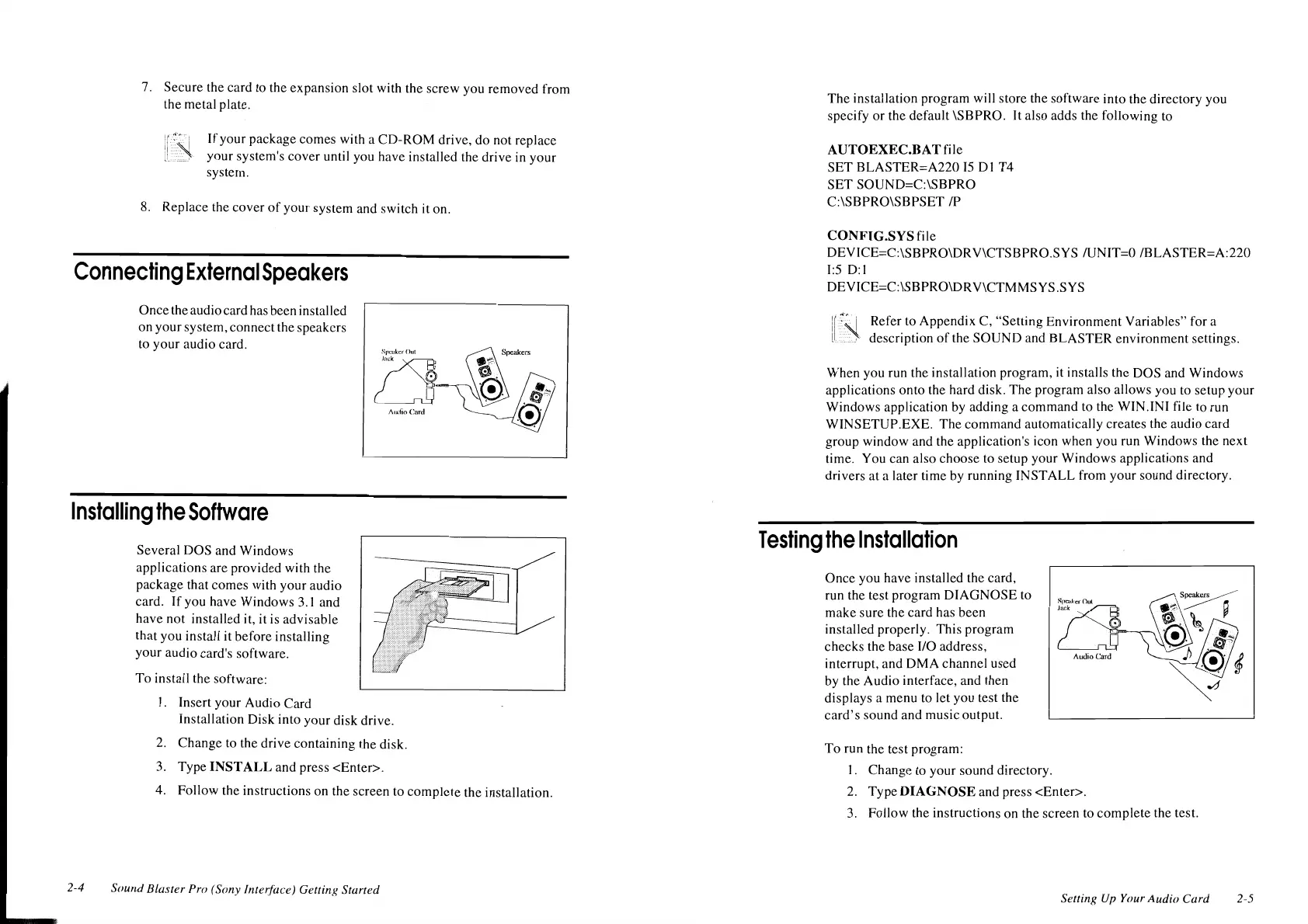
7. Secure the card to the expansion slot with the screw you removed from
the metal plate.
If
your package comes with a CD-ROM drive,
do
not replace
your system's cover until you have installed the drive in your
system.
8.
Replace the cover
of
your system and switch it on.
Connecting
External
Speakers
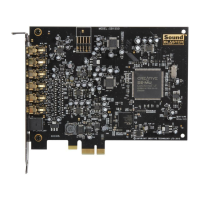
Once the audio card has been installed
on your system, connect the speakers
to
your
audio card.
d
i~:~""'.""'
~~·'¢'
Speak'"'
GI
.
.
A1uho Card -
Installing
the
Software
2-4
Several DOS and Windows
applications are provided with the
package that comes with your audio
card.
If
you have Windows
3.1
and
have not installed it, it is advisable
that you install it before installing
your audio card's software.
To
install the software:
I. Insert your Audio Card
Installation Disk into your disk drive.
2.
Change to the drive containing the disk.
3. Type
INSTALL
and press <Enter>.
4. Follow the instructions on the screen to complete the installation.
Sound
Blas/er Pro (Sony Interface) Gettini; Started
The
installation program will store the software into the directory you
specify
or
the default \SB PRO.
It
also adds the following to
AUTOEXEC.BAT
file
SET BLASTER=A220
IS
DI
T4
SET
SOUND=C:\SBPRO
C:\SBPRO\SBPSET
/P
CONFIG.SYS
file
DEVlCE=C:\SBPRO\DRV\CTSBPRO.SYS /UNIT=O /BLASTER=A:220
1:5
D:I
DEVICE=C:\SBPRO\DRV\CTMMSYS.SYS
Refer to Appendix C, "Setting Environment Variables" for a
description
of
the SOUND and BLASTER environment settings.
When you run the installation program, it installs the DOS and Windows
applications onto the hard disk. The program also allows you to setup your
Windows application by adding a command to the WIN.INI file to run
WINSETUP.EXE.
The
command automatically creates the audio card
group window and the application's icon when you run Windows the next
time. You can also choose to setup your Windows applications and
drivers at a later time
by
running INSTALL from your sound directory.
Testing
the
Installation
Once
you have installed the card,
run the test program DIAGNOSE to
make sure the card has been
installed properly. This program
checks the base I/O address,
interrupt, and OMA channel used
by the Audio interface, and then
displays a menu to let you test the
card's
sound and music output.
To
run the test program:
I. Change to your sound directory.
2.
Type
DIAGNOSE
and press <Enter>.
3.
Follow the instructions on the screen
to
complete the test.
Settini;
Up
Your
Audio
Card
2-5




 To Next Page