6. Viewer and USB Driver Installation
Note: If you have a previous version of the Credential Cam Pro USB camera software installed on your
computer, you should first remove this. To remove an older version, go to Start and select all programs
Find the Credential Cam Pro Cameras folder and select the Uninstall Viewer option.
6.1. Viewer Installation (All Models)
Insert the CD labeled USB Viewer Software. Click the executable file named SetupCred.exe.
Credential Cam Pro's viewer software automatically checks which operating system is running and loads
the appropriate drivers (32bit or 64bit).
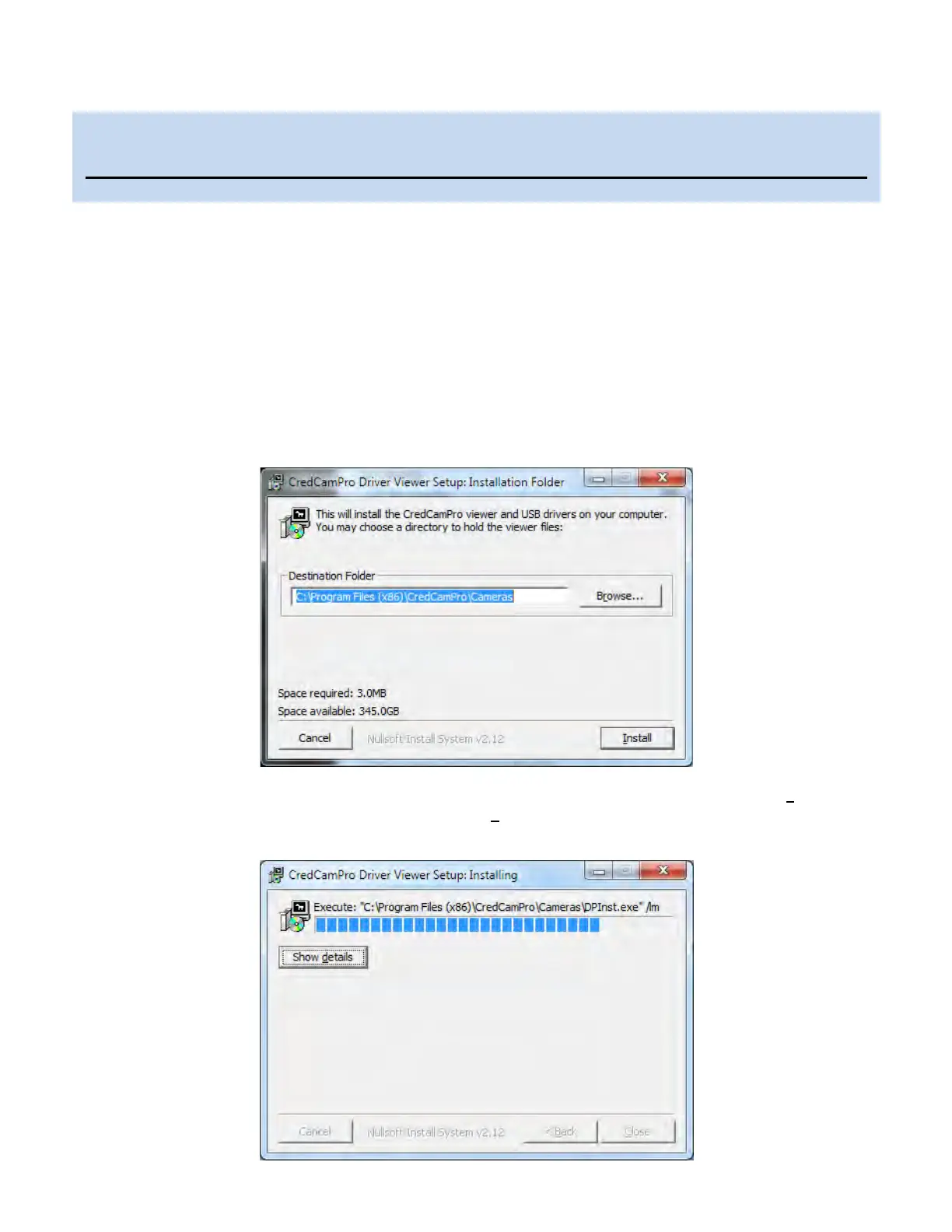
The following screen will appear:
If you wish to install the viewer in a location other than the default directories, click on the Browse button
and specify the desired location, otherwise click on the Install Button and the following screens will
appear:
Please install the software first.
Do not connect the camera to the computer before installing the software.



 To Next Page