The name of selected custom EDID file is displayed in the in the Load CEDID file
dialog.
4. Click Send EDID.
5. When the EDID is applied/sent successfully, a message box appears indicating
success. Close the message box by clicking OK or pressing the X in the upper
right-hand corner.
The custom EDID file is added to the list of available EDID files and it is shown in
the Select drop-down list for the HDMI input.
To delete a custom EDID file from the Select drop-down list, do the following:
NOTE: Only custom EDID files can be deleted. Built-in EDID files cannot be deleted.
1. In the Select drop-down list, select the custom EDID file to be deleted.
2. Click the Delete button. The Delete EDID message box appears, asking for
confirmation that the EDID be removed.
3. Click Yes to delete the EDID or click No to cancel the delete operation.
The custom EDID file is deleted from the list of available EDID files and is no longer
shown in the Select drop-down list.
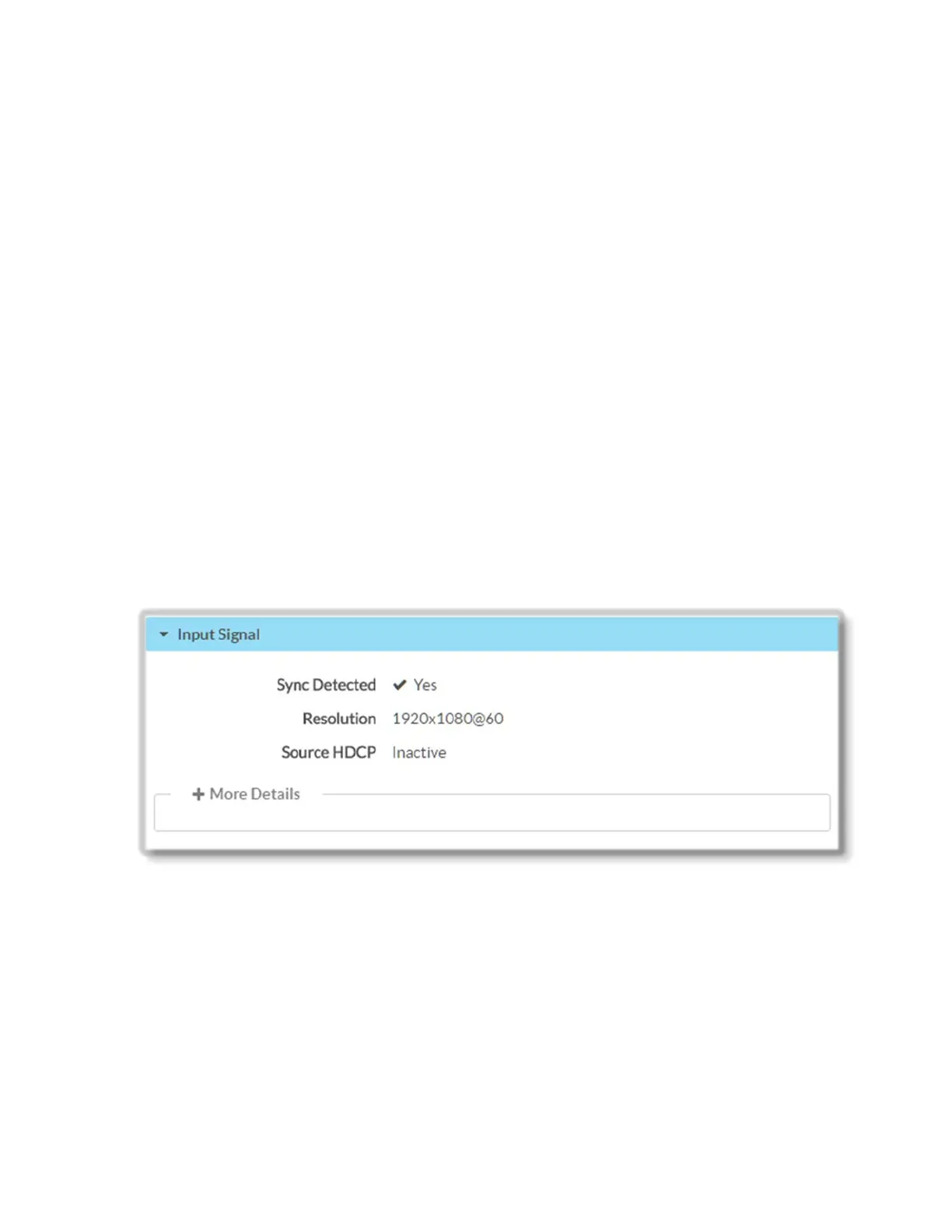
Input Signal
The Input Signal section displays the following read-only information about the signal on
the HDMI input:
• Sync Detected: Indicates if video sync levels are detected at the HDMI input.
• Resolution: Reports the resolution
• HDCP: Indicates the presence of HDCP (High-bandwidth Digital Content Protection),
which requires compatible players and displays
Click the + More Details link to view additional information about the HDMI input settings.
The + More Details section displays additional details about the HDCP state, horizontal
and vertical resolution, aspect ratio, audio format and audio channels and more:
20 • DM-NVX-E30(C)



 To Next Page