12
Riva
13
Share, inspire, have fun!
With CTOUCH by your side.
ctouch.eu
CONNECTIONS
CAUTIONS BEFORE CONNECTING
•
Please make sure the CTOUCH
display is turned off then
connecting an external device.
•
Check the plugs at the ends of
the cables to make sure that
they are the correct type before
plugging them into the jacks of
the CTOUCH interactive display.
•
Make sure that all plugs are
securely inserted into the jacks.
Loose connections can result in
image or color problems.
•
The illustration of the external
device may be different
depending on your model.
•
Refer to the operating manual of
the external device as well.
A C
B
A
C
B
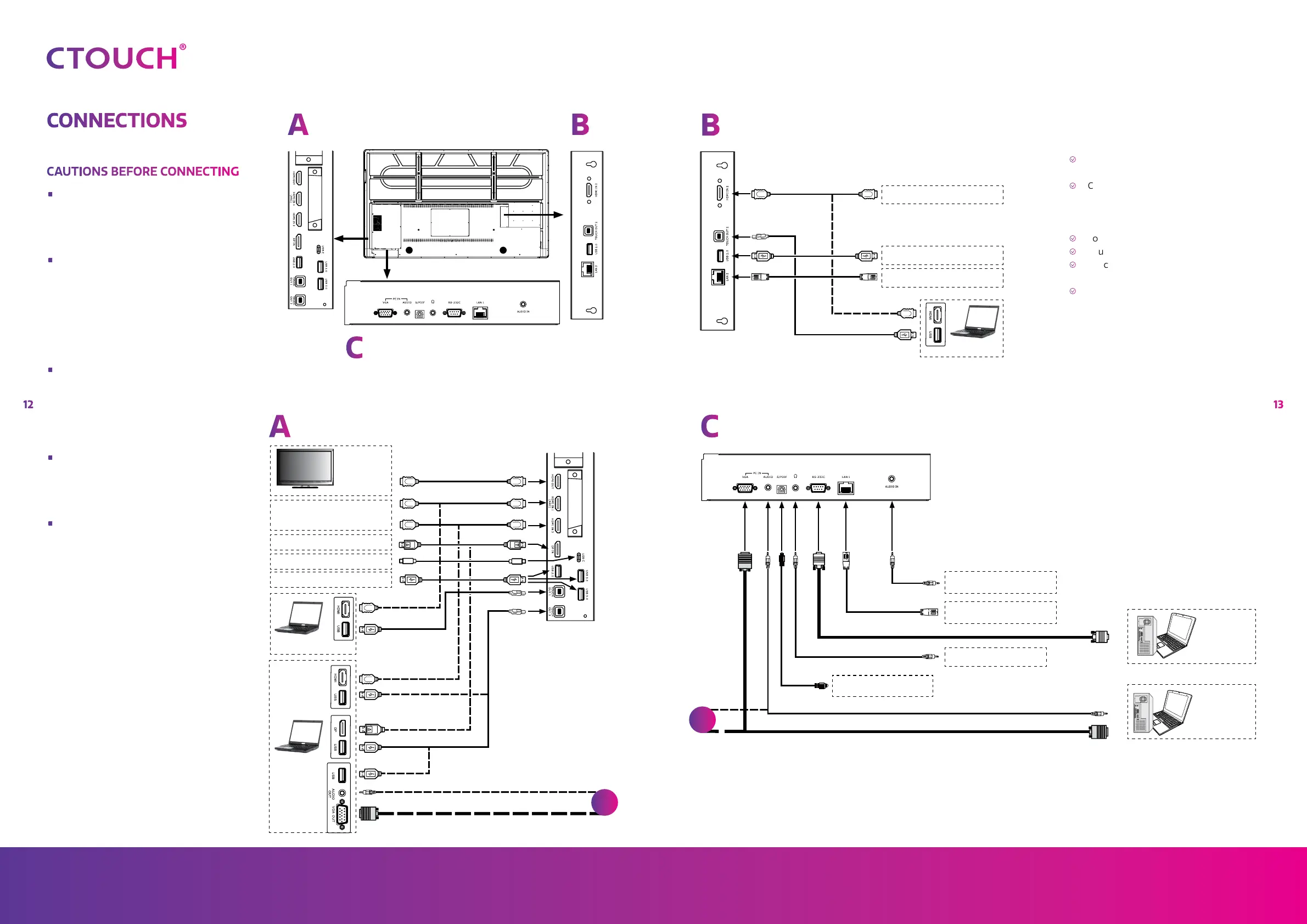
DP devices
USB cable
USB cable
USB cable
HDMI cable
HDMI devices
USB devices
Monitor
USB Type C devices
PC, etc.
PC, etc.
HDMI cable
HDMI cable
Audio cable
VGA cable
DP cable
USB cable
USB cable
HDMI cable
HDMI cable
DP cable
USB cable
A
HDMI devices
USB cable
HDMI cable
USB devices
Network
cable
Network connection
PC, etc.
HDMI cable
USB cable
Headphone cable
Serial port cable
Network connection
Before using headphones, adjust the
device volume to avoid excessive volume,
as hearing damage may result.
S/PDIF cable
Network cable
PC, etc.
VGA devices
PC, etc.
Digital sound system
Audio input devices
Audio output devices
Audio cable
Audio cable
VGA cable
e
Connect TOUCH OUT with USB cable to
PC USB port.
e
Connect PC with VGA cable, HDMI cable
or DP cable. Please choose the proper
method of connection based on your
device.(Only for PC, HDMI, DP signal)
e
Touch out 1 corresponds to the HDMI 1.
e
Touch out 2 corresponds to the HDMI 2.
e
Touch out 3 corresponds to the HDMI 3,
DP or VGA.
e
Note: After installation of the driver, it
can control the external computer
by native touch control.
A


 To Next Page