16D-Link DAP-1610 User Manual
Section 3 - Conguration
Wireless Setup Wizard
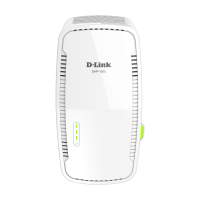
To access the setup utility for the DAP-1610 AC1200 Mesh Wi-Fi Range Extender-
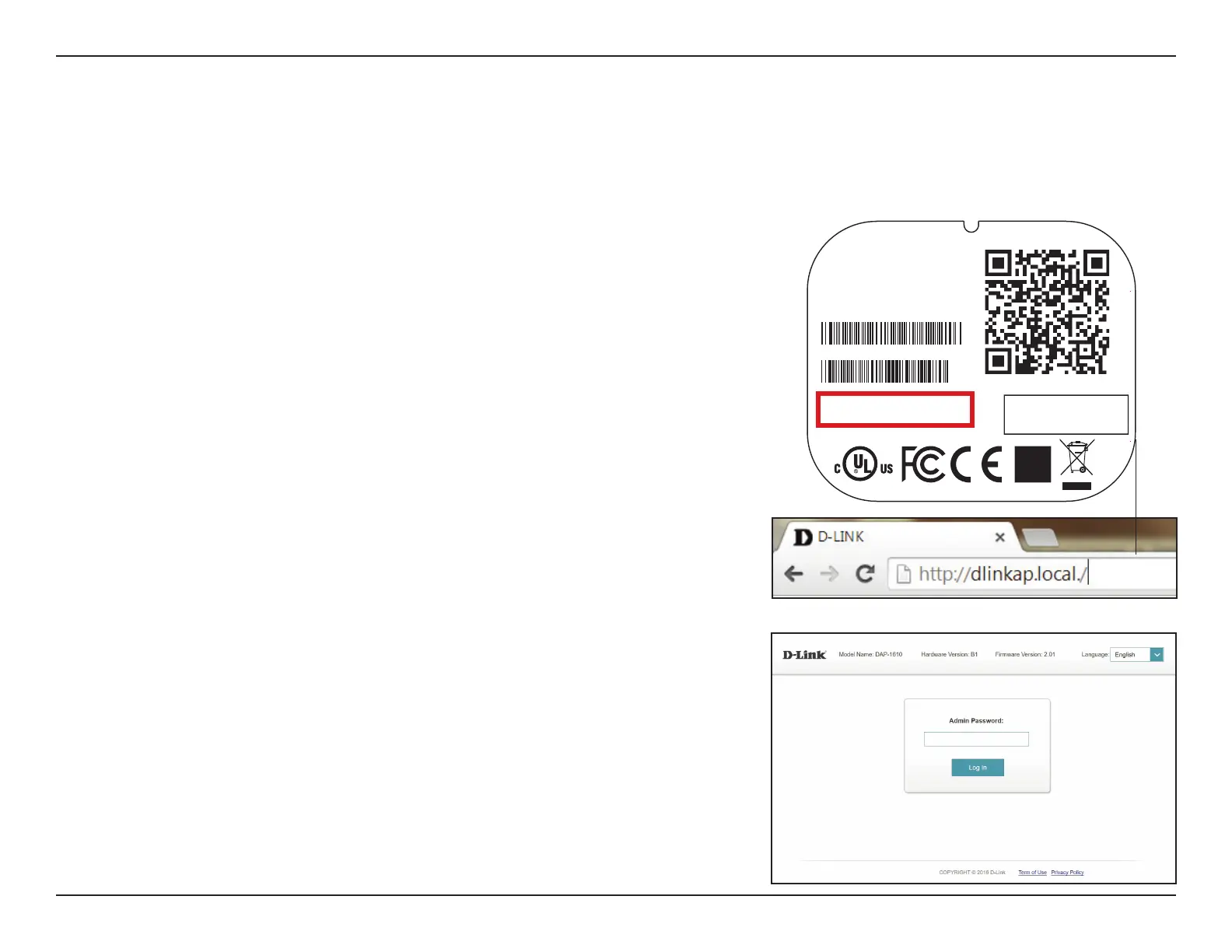
on your PC, rst connect to the DAP-1610 wirelessly using the Wi-Fi name (SSID)
and password located on the back of your DAP-1610. Then open a web browser
and enter http://dlinkap.local./ in your browser’s URL eld. You may also enter
the IP address* of the DAP-1610.
* The default IP address is 192.168.0.50. Once your DAP-1610 connects to the host network,
it will be assigned a new IP address based on your network’s DHCP settings. You will need
to log in to your router to see what IP address is assigned to your DAP-1610. For multiple
DAP-1610s, go to http://dlinkapxxxx.local. as shown on the included Quick Installation
Card, with “xxxx” being the last four digits of the DAP-1610’s MAC address.
If this is your rst time logging into the extender, you will be asked to enter a
password, the default password is “password”. If you have previously set up the
extender, enter the password you have created.
The setup wizard is designed to guide you through a step-by-step process to congure your new DAP-1610
AC1200 Mesh Wi-Fi Range Extender to extend your wireless network and connect to the Internet via a wireless setup process. To set
your DAP-1610 using an ethernet cable, please refer to “Access Point Mode Settings” on page 23.
FCC ID :KA2AP1610B1
I
C:4216A-AP1610B1
M/N:DAP-1610B1
CAN ICES-3 (B)/NMB-3(B)
P/N: CAP1610LCA....B1
S/N: S81P1YMXXXXXX
MAC ID: XXXXXXXXXXXX
H/W Ver.: B1 F/W Ver.: XXXX
Wi-Fi Name(SSID): dlink-xxxx
Wi-Fi Password: XXXXXXXX
DAP-1610
Input: 100-240Vac, 50/60 Hz, 0.3A Max
http://dlinkapwxyz.local./
Username: Admin
Device Password: password
Made In China



 To Next Page