-20-
1. Open the Sharing tab and select Share this printer.
2. The Share Name box is used to identify the printer to other computers on the net-
work.
3. Click Apply to activate your settings.
For a computer to access a Network Printer, the device driver or software for that
printer must be installed and pointed to the proper location of the printer. This is
done much the same way you installed the printer on the computer it is connected
to.
4. Go to a computer that does not have the printer connected to it. From the Start
button on the Task Bar select Settings and then Printers.
5. Double-click the Add Printer icon.
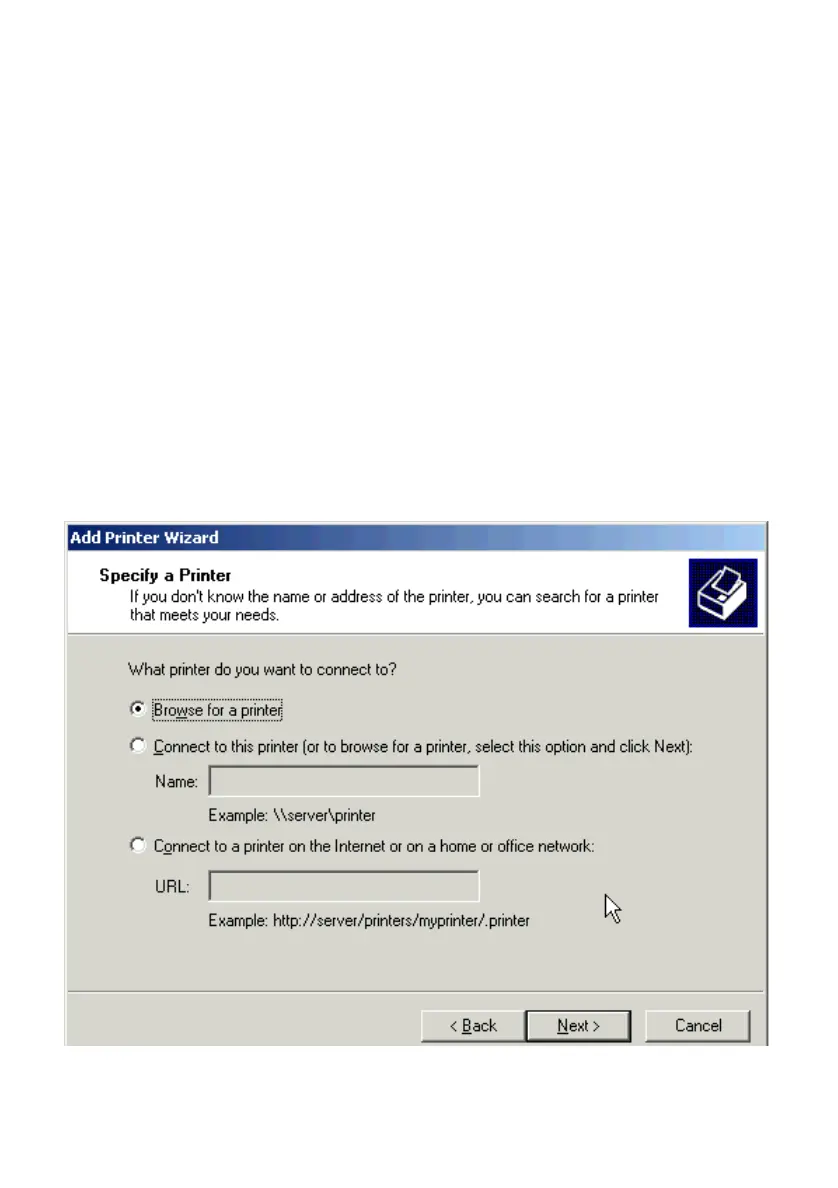
6. The “Add Printer Wizard” will appear. Click Next.
7. Choose Network printer and click Next.
8. Now you will identify the location of the Network Printer. If you know the name
of the computer and the share name of the printer, you can type it into the Net-
work path or queue name box. However, it is easier to click the Browse button
and navigate to the location of the printer.



 To Next Page