47D-Link DWR-712 User Manual
Section 3 - Conguration
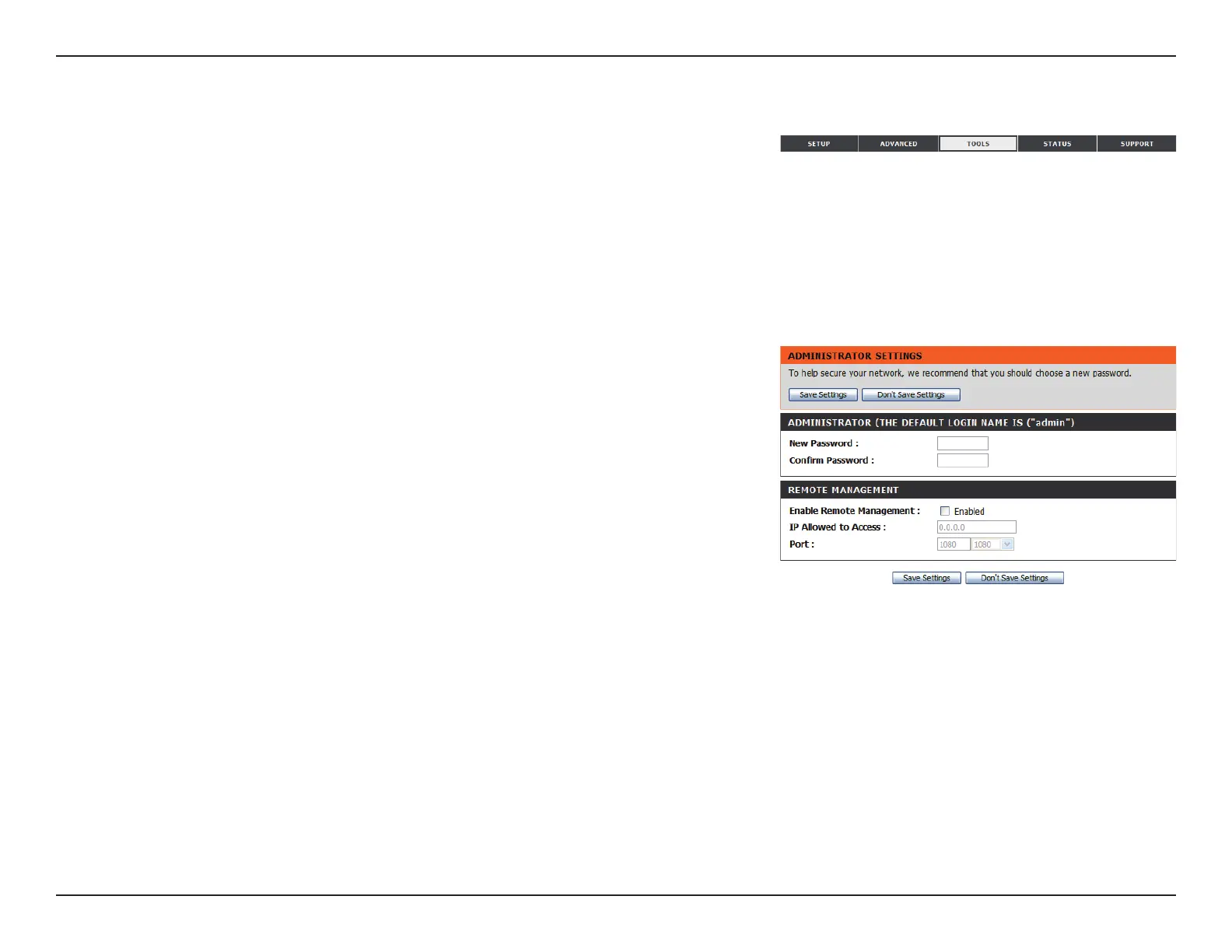
ADMINISTRATOR
Enter and conrm the password that the admin account will
use to access the router’s management interface.
REMOTE MANAGEMENT
Tick this check box to enable remote management. Remote
management allows the DWR-712 to be congured over the
Internet through a web browser. A username and password
will still be required to access the Web-Management interface.
Enter the Internet IP address of the PC that has access to the
Broadband Router. If you enter an asterisk (*) in this eld,
then anyone will be able to access the Router. Adding an
asterisk (*) into this eld could present a security risk and is not
recommended.
This is the port number used to access the router. 8080 is the
port usually used for the Web-Management interface.
Admin
The Admin page allows you to change the Administrator password and enable Remote Management. The admin has read/write access while users
only have read-only access. Only the admin has the ability to change both admin and user account passwords. After modifying any settings, click
Save Settings to save your changes.
Admin Password:
Remote Management:
IP Allowed to Access:
Port:
Tools
The TOOLS pages allow you to adjust various system setting for your router, such as the system
time, rmware, and custom schedules. To view the Tools pages, click on TOOLS at the top of
the screen.


 To Next Page