ENGLISH
48
Figure 14
When we press “ENTER” [
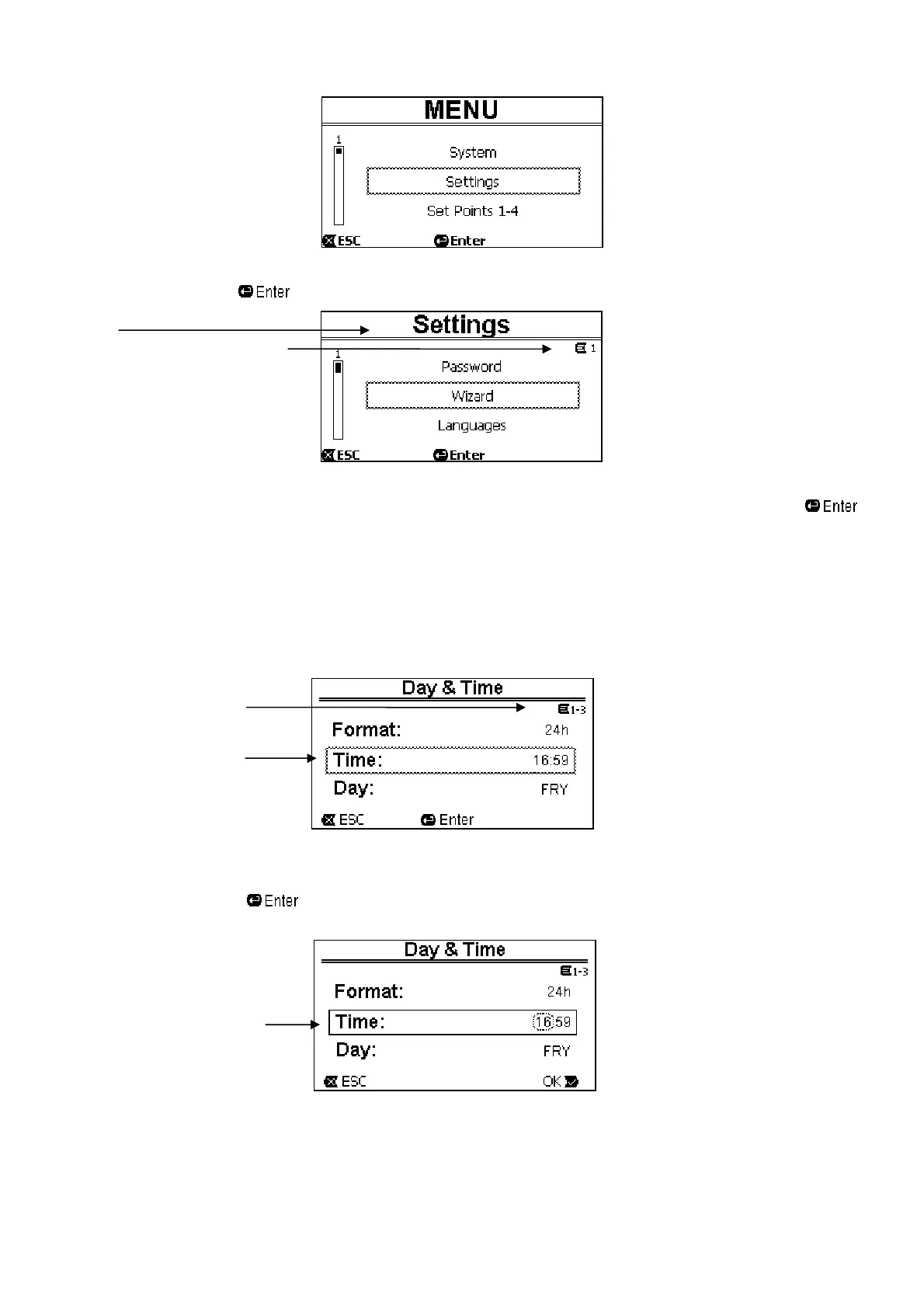
] to access the “Settings” item, we access the respective “Menu - Settings”:
Title
Position on the menu tree
(branch 1)
Figure 15
We can also navigate the sub-menus with the arrow keys and access the desired item by pressing “ENTER” [
].
The symbol at top right represents the position on the menu tree; here we are in branch number 1.
As well as the complete menu structure, paragraph 6.2 also shows the branch (and item) numbering of all the parts of
the menu.
6.1.3 Changing a parameter in the menu
Let us see how to change the value of a parameter, for example the time setting. Suppose we want to set 12:34 as the
current time.
1. Navigating in the menu (see table in par. 6.2), we arrive at this page:
Position on the menu tree
(branch 1, item 3)
Flashing selection
Figure 16
2. Pressing “ENTER” [
] opens the modification of the selected line:
Fixed box, only the figures to
be changed are flashing
Figure 17



 To Next Page