ENGLISH
49
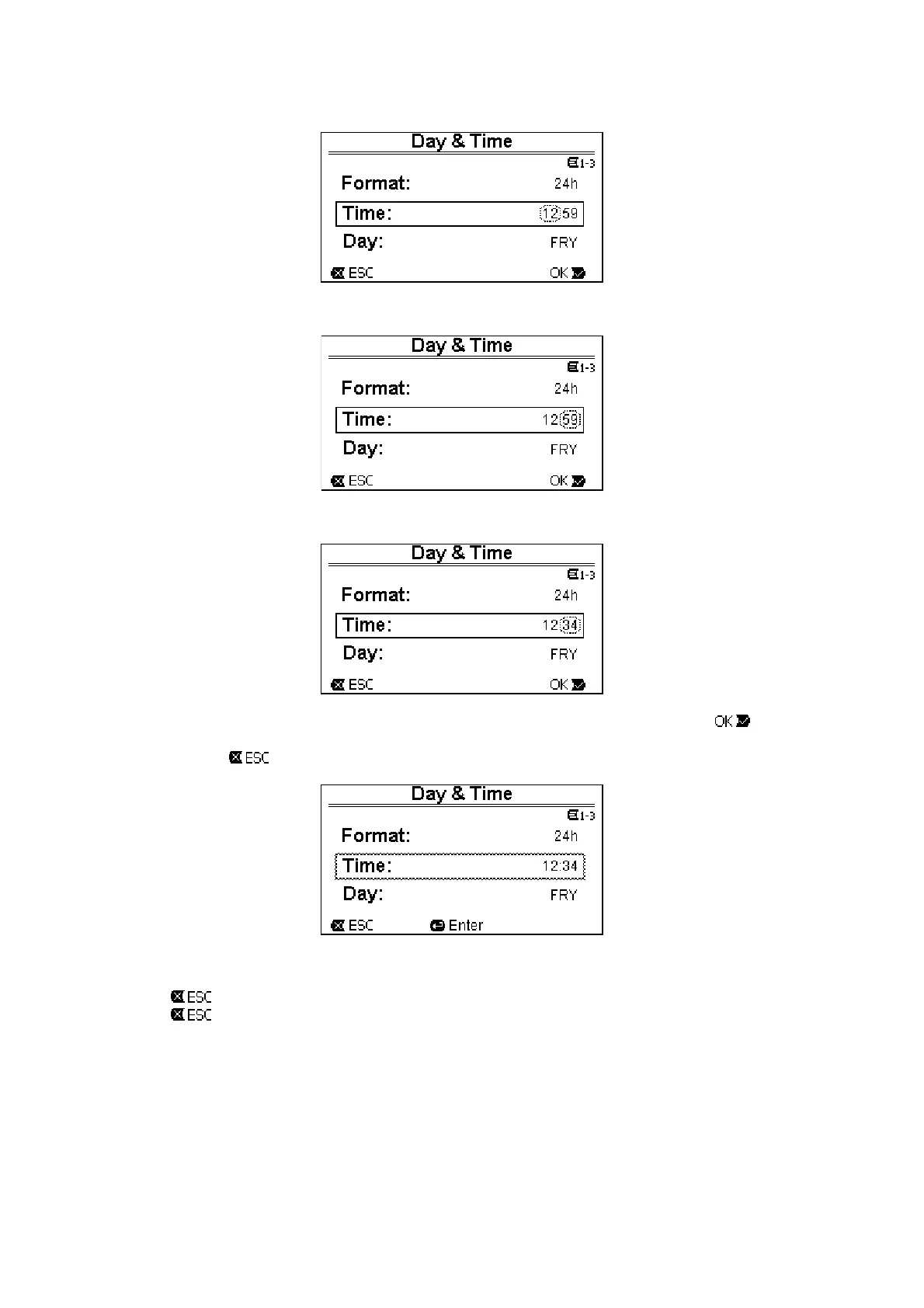
3. The figures for the hours are flashing and are changed as desired with the up arrow and down arrow keys:
Figure 18
4. When we reach the desired value, we proceed to the minutes with the right arrow key:
Figure 19
5. Now the figures for the minutes are flashing, they too are changed with the up arrow and down arrow keys:
Figure 20
6. When the new value is completed (12:34 in the example), we confirm by pressing “OK” [ ], and leave the
hour and minute setting, as shown in the following figure. (Instead, if we want to abandon the changes made,
we press “ESC” [
] to return to the figure in point 1).
Figure 21
If necessary, we can now move about the page (with the up and down arrow keys) to change the other values (format
and day of the week), proceeding in the same way as described so far.
Pressing “ESC” [
] takes us back in the (sub-) menu structure, and navigation can be continued in each of these.
Pressing “ESC” [
] several times takes us right out of the menu, until we return to the main page (par. 3.2).



 To Next Page