54
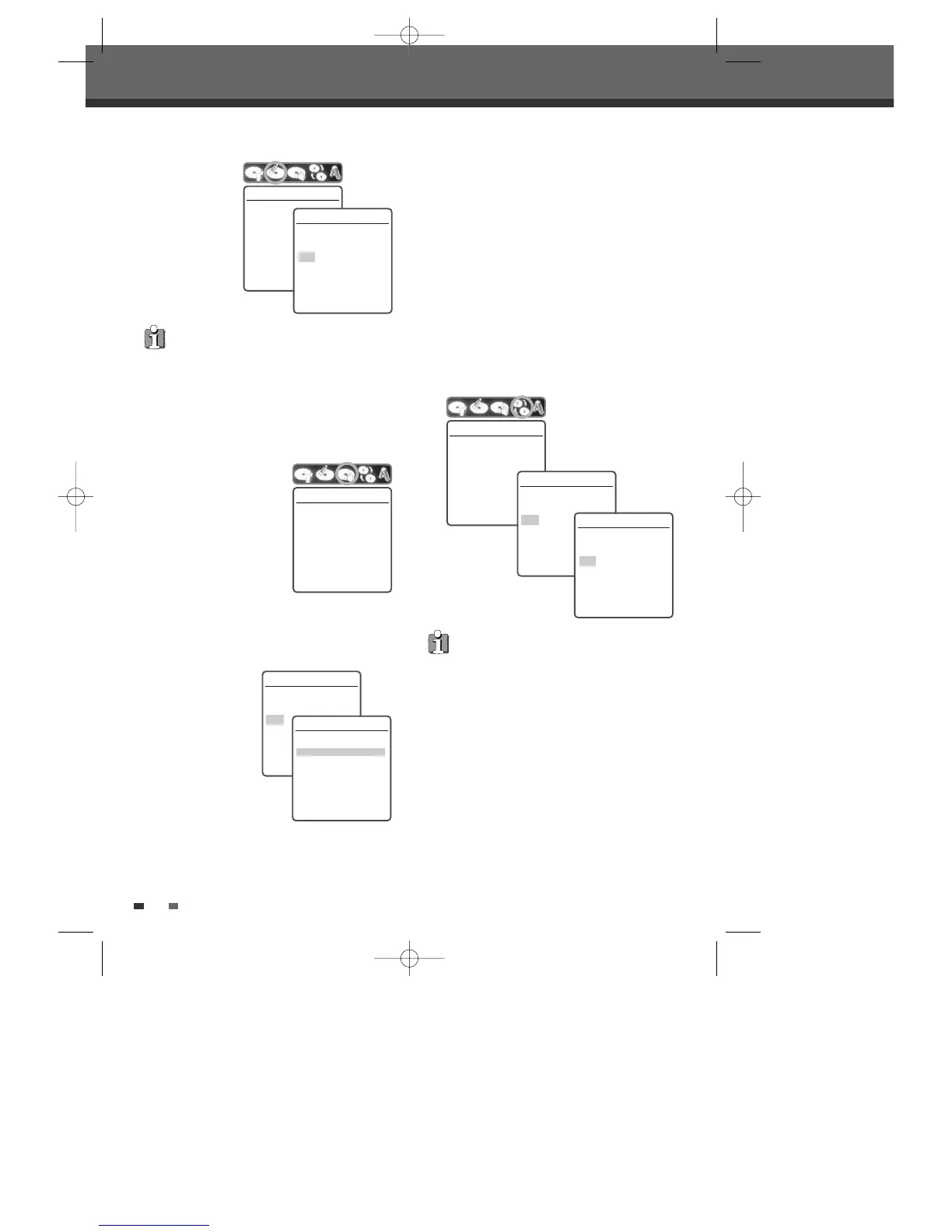
Lock/Unlock Disc (DVD±RW)
If you want to protect a disc from accidental
recording, editing, or erasing, you can lock the disc.
Later, if you change your mind, you can unlock the
disc.
4
Use [œ/√] to select
‘Lock/Unlock Disc’. Press
[ENTER] as shown on the
screen.
5
You can see the current
disc status (Locked or
Unlocked).
6
You can change the disc status by selecting
‘Yes‘ and pressing [ENTER]. The ‘Changing Disc
Status’ bar will appear. This process takes a
few seconds.
7
After the process
is finished the
menu disappears
automatically.
Disc Manager
Lock/Unlock Disc
Press [Enter] to lock the
disc. This prevents future
disc operations or
recordings.
Instructions
Enter-Confirm
Lock/Unlock Disc
Disc is unlocked.
Do you want to lock it?
Yes
No
Instructions
Enter-Confirm Move
…†
Lock/Unlock Disc
Changing disc lock status.
Please wait a moment....
DVD±R discs cannot be locked (unlocked) or
erased.
Erase the disc
Press [Enter] if you want
to erase the disc. All
existing recordings will
be cleared.
Instructions
Enter-Confirm
Erase the disc
Erase the disc?
All recordings will be lost.
Yes
No
Instructions
Enter-Confirm Move
…†
Make Compatible
'Make Compatible' for a DVD+RW will
automatically create a menu screen for navigating
the disc. This menu screen is accessible by pressing
[TITLE].
4
Use [œ/√] to select ‘Make Compatible‘ for
DVD+RW. Press [ENTER] as shown on the
screen.
5
Select 'Yes' using […] and press [ENTER] to
make the disc compatible.
6
Press [ENTER] again.
7
Press [SETUP] to go to the top disc menu.
• ‘Make Compatible’ can take up to 3-4 minutes
depending on the type of disc, how much is
recorded on the disc, and the number of titles
on the disc.
• If you do not make your DVD+RW disc
compatible, your edits will not be recognized
by other DVD players.
• It may take over 7 minutes for finalizing the
edited disk, you must wait till the set finishes
the finalizing operation.
Make Compatible
Press [Enter] to make any
previous title editing
compatible with your DVD
player.
Instructions
Enter-Confirm
Make Compatible
Make disc compatible with
your DVD player.
Yes
No
Instructions
Enter-Confirm Move
…†
Make Compatible
Finished.
This Disc should already
be compatible.
ok
Instructions
Enter-Confirm Move
…†
DG-M12D1P-SA(GB) 2005.11.1 11:27 AM ˘ ` 54 mac001 1200DPI 100LPI



 To Next Page