www.DaikinApplied.com 43 IM 1240-4 • INTELLIGENT EQUIPMENT
Potential issues:
Gateway does not power up (LED does not illuminate)
• Verify 120V at TB1
• Verify that power supply wires are properly installed in
terminals TB1-11B and TB1-32B (AGZD/E) or MQ-11 and
MQ-17 (AWV or AWS)
• Verify that power supply is properly connected to the
Gateway
• Contact Daikin Applied
Energy Management Module does not power up
• Verify USB cable connection to Gateway and Energy
Management Module
• Verify that Gateway has power
• Contact Daikin Applied
Cell connection cannot be established
• Check antenna connection to magnetic base
• Check antenna connection to 3G/GPRS connection on
Gateway
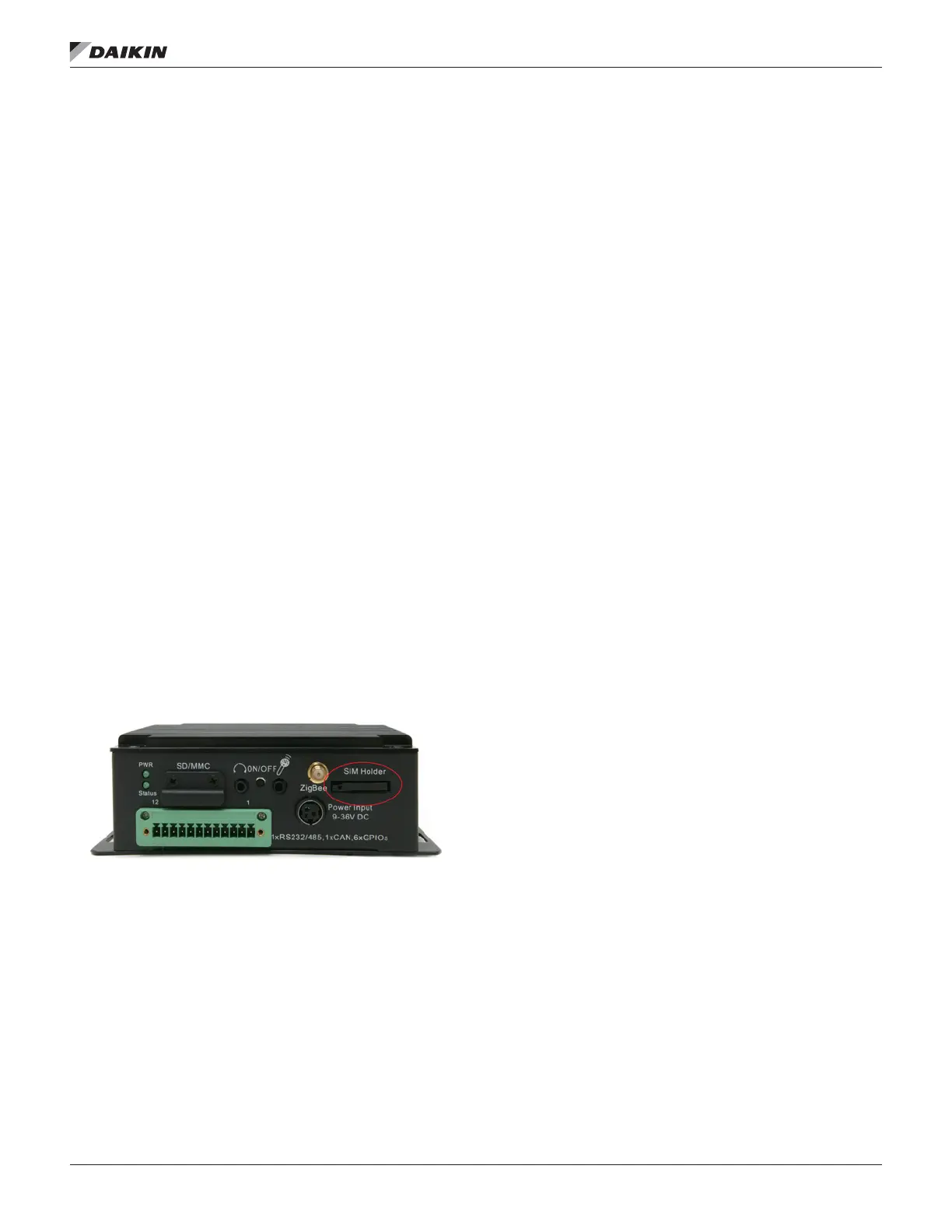
• Conrm SIM card is fully seated in the gateway; this
may require ejecting, then re-inserting the SIM card. See
Figure 81 for SIM card location.
• Check signal strength through WebIF
• Verify APN settings
• Verify that neither a LAN or Wi-Fi connection has been
established
• Contact Daikin Applied
Figure 91: SIM Card Location
Wi-Fi connection cannot be established
• Check antenna connection to magnetic base
• Check antenna connection to WLAN connection on
Gateway
• Check signal strength through WebIF
• Verify Wi-Fi IP addressing, ESSID, and login credentials
match customer supplied Wireless LAN requirements
• Connect to Wi-Fi network and try to ping the Gateway’s
WLAN IP address
• Verify that neither a LAN or Cell connection has been
established
• Contact Daikin Applied
LAN connection cannot be established
• Conrm proper installation of USB to Ethernet adapter
• Verify LED activity on USB to Ethernet adapter
• Verify LAN addressing through Web IP
• Connect to LAN and try to ping the Gateway’s LAN IP
address
• Verify that neither a Wi-Fi or Cell connection has been
established
• Contact Daikin Applied
MicroTech III Data Not Showing Up In User Interface
• Conrm Ethernet cable is plugged into ‘ETH’ port on
Gateway
• Conrm Ethernet cable is plugged into ‘TIP’ port on
MicroTech III controller
• Check for LED activity on Gateway’s ETH port
• Verify IP address of Eth0 on the Gateway is 192.168.1.40
• Verify IP address of the MicroTech III controller is
192.168.1.42
— View/Set Unit
—
> Ctrlr IP Setup
• Contact Daikin Applied



 To Next Page