Your Bob is unique and
has therefore a unique
ID or MAC address as
follows:
00:00:00:00:00:00
Once the Wi-Fi
network is selected,
Bob connects and
a validation screen
appears.
BRAVO, your Bob is
now connected to the
internet. Now, you
need to pair it to your
Daan Tech account.
If the connection is lost
during the pairing process,
an error message is
displayed.
You can either try again or
cancel your connection and
consequently not connect
Bob to your account (for
more information, please
refer to page52).
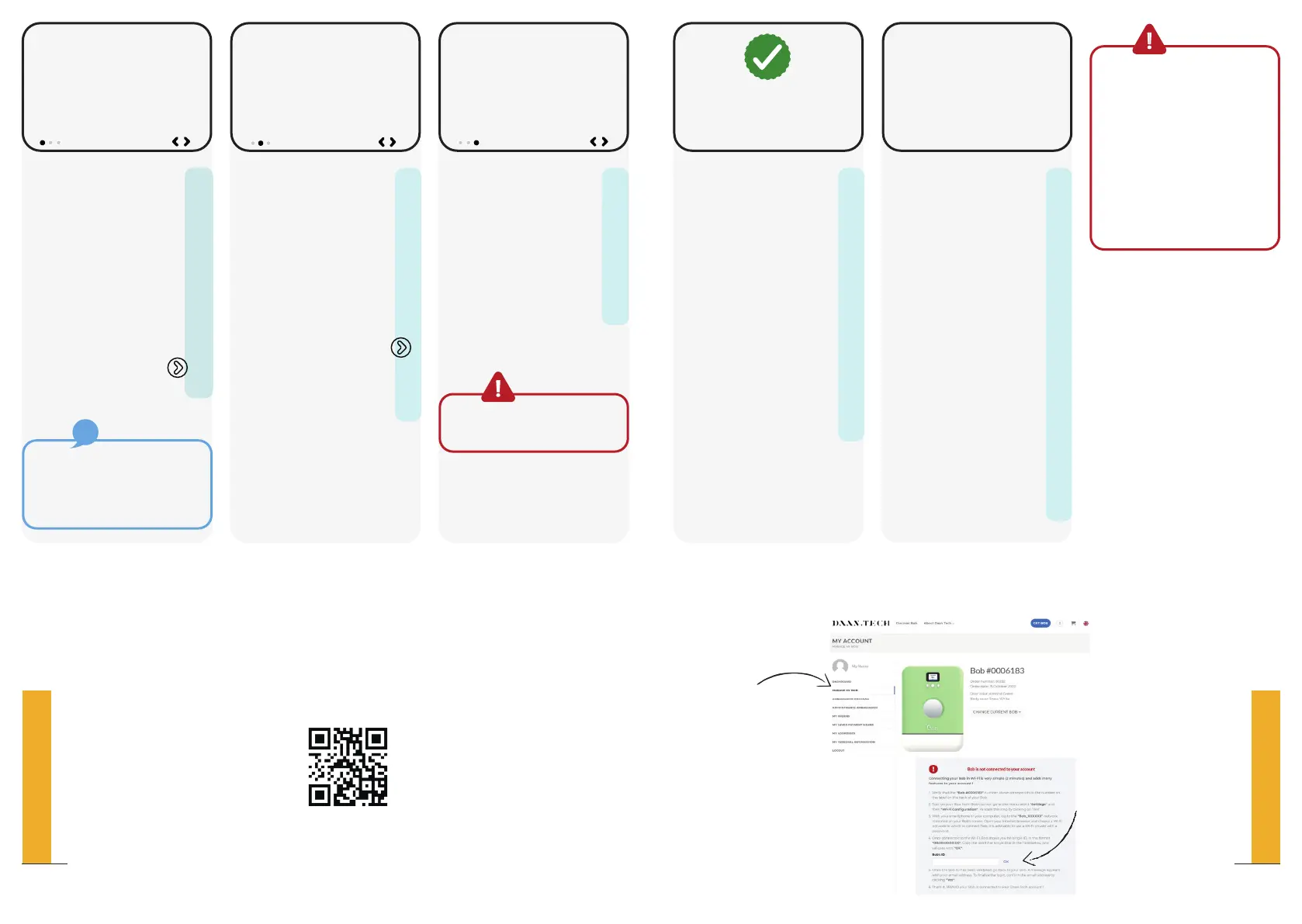
Connect to your Daan
Tech account on
www.daan.tech
In your account “My
account”
Select the “Manage my
Bob” tab.
Enter the unique ID
of your Bob in the
dedicated field.
Validate
On your web browser
Manage my Bob tab
Here you can connect Bob
Bob ID:
Login to your account on
www.daan.tech and enter
this ID in the "Manage my
Bob" tab
00:00:00:00:00:00
Bravo
Bob is now connected to
Wi-Fi
Step 1/3
Connect your
smartphone or a
computer to the Wi-Fi
network “Bob_XXXX”
with the following
password: XXXXXXXXXX
Once you are
connected, select to
go to the next step.
If you do not manage
to connect Bob, please
restart your smartphone or
computer.
If required, a video to guide you through the steps of the Wi-Fi
connection is available on our website.
Step 2/3
Enter the following in
the address bar of your
web browser :
10.10.0.1
Once the website is
loaded please select
to proceed to the next
step.
Step 3/3
In your web browser
on your smartphone or
computer, select the
Wi-Fi network to which
you want to connect
Bob.
Please use a private network
secured with a password.
Join network
Connect with a smartphone
or computer to the Wi-Fi
network
BOB_XXXX
with the following password
XXXXXXXXXX
Choose Wi-Fi
Choose a Wi-Fi network to
connect to Bob
On the Internet
Enter in your browser
10.10.0.1
Please scan the QR code to check it out.
13
QUICK SET-UP GUIDE
12
QUICK SET-UP GUIDE


 To Next Page