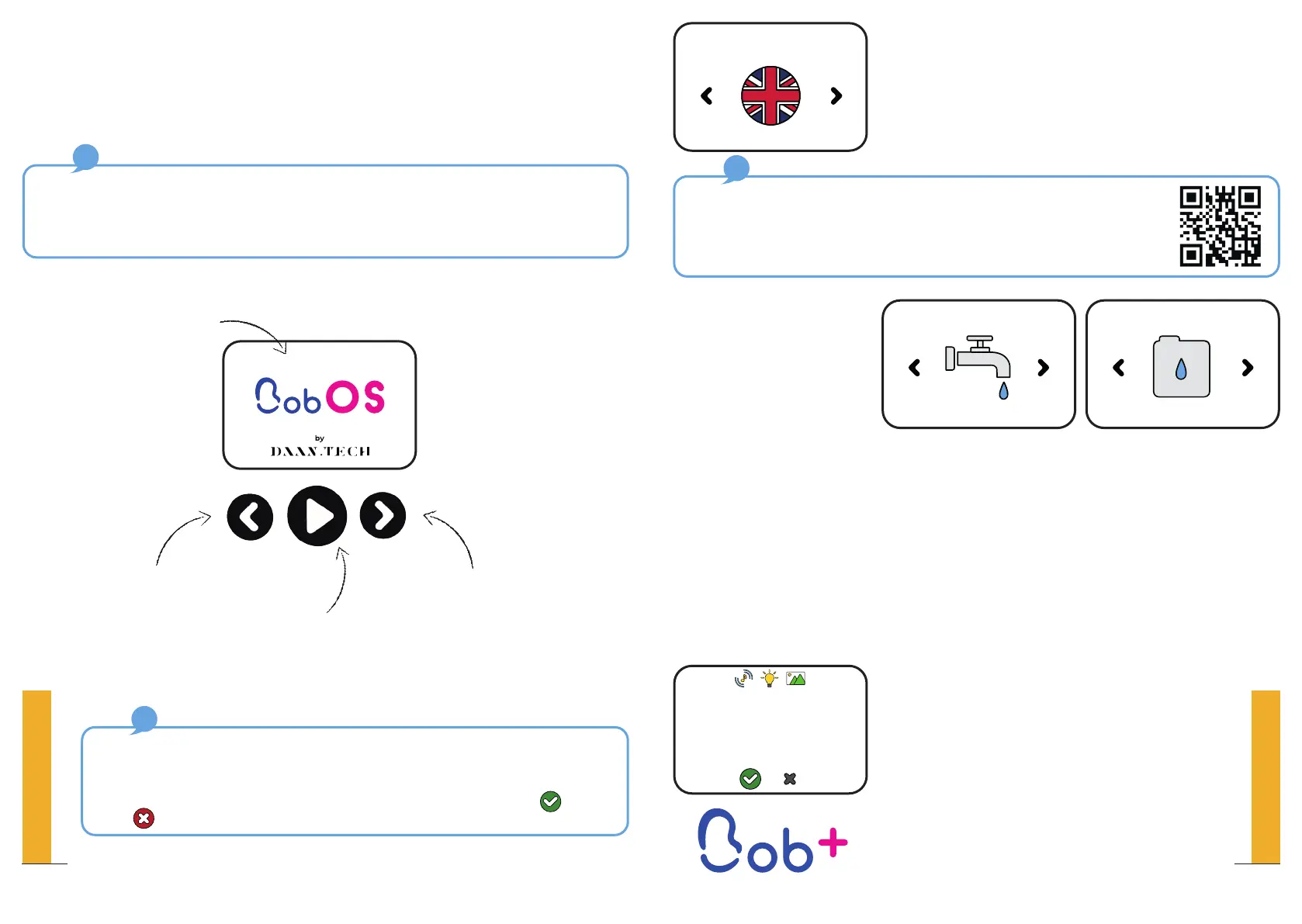
Step 2: Choose the
water supply mode
2 options:
y Use the water inlet pipe (available on our website). The water tank is
automatically filled before each cycle, so there is no need to fill it manually.
It is the preferred choice if you use Bob as a built-in dishwasher or if you have
close access to a water supply.
y Use the built-in water tank: convenient, because it makes Bob completely
autonomous to use wherever you are. Fill the built-in water tank with Bob
Carafe (available on our website). This is the preferred choice if you intend to
regularly move Bob around or if you do not have access to a water inlet.
Step 3: Add new features to Bob by
pairing Bob to your Daan Tech account
(free & simple on www.daan.tech)
To discover the benefits of pairing Bob to
your account, please refer pages 52 and 57.
Step 1: Choose your language.
Bob speaks 6 languages: English, French, Spanish,
Italian, German and Dutch.
Once you have chosen your language, a message pops-up asking you to
agree with the Terms and Conditions. To be able to use Bob, you have to
agree to our Terms and Conditions which you can find on the website.
Please scan the QR code to read the Terms and Conditions.
Water supply mode
Water inlet pipe
Water supply mode
Built-in water tank
Connect Bob?
Access many more
functionnalities by
connecting Bob to your
Daan Tech account
Bob OS is the operating system developed by Daan tech. Its colourful interface allows you
to easily navigate through the different menus.
Bob OS also allows you to connect Bob to the Internet via Wi-Fi, allowing for future evolutions
which will be accessible through updates enabling new features.
Choose your
language
English
4 | getting started
When you turn Bob on for the first time, you need to
configure it.
2.4” colour LCD display
Switch left
Central button (OK)
Switch right
How to choose an option?
To select an option, scroll from left to right until the icon indicating the desired option
appears and press the central button to choose it.
A confirmation message appears, which you can either confirm using or reject
using . The latter also redirects you to the previous screen.
11
QUICK SET-UP GUIDE
10
QUICK SET-UP GUIDE


 To Next Page