How to activate Bob+?
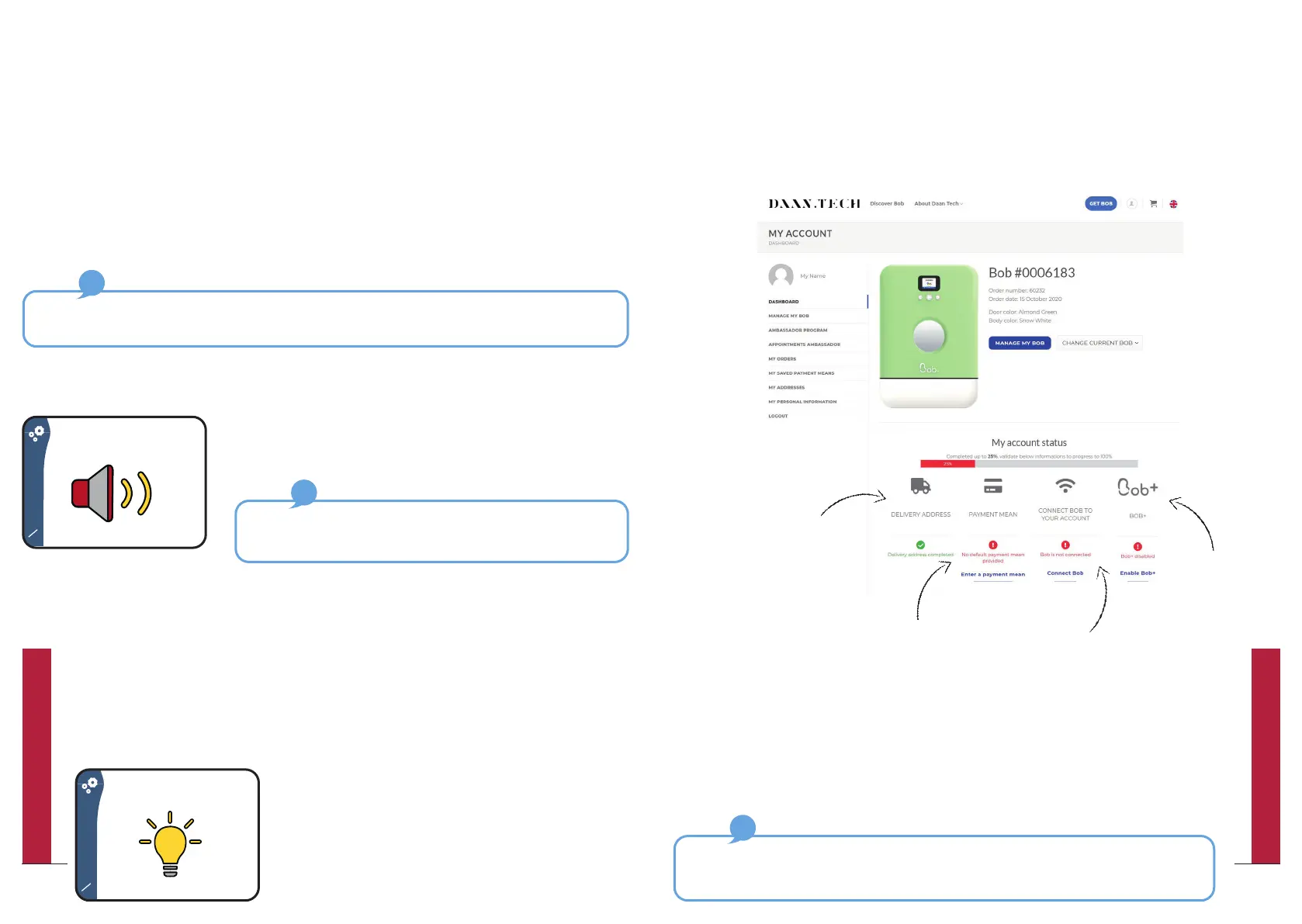
The activation of Bob+ can only be done via your Daan Tech account in “My
Account” on www.daan.tech
To activate Bob+, you have to follow the first 3 steps on your dashboard.
Step 1: Fill in a delivery
address
Finally, you can
activate Bob+ from
the “Manage my
Bob” tab.
Step 2: Register a payment card
(A ctive payment of 1€ is required for the
registration pf a new means of payment,
but this will not be debited from your
account)
Step 3: Connect your
Bob to Wi-Fi
You will receive a confirmation email confirming the activation of your
Bob+ subscription.
The Bob+ service is not binding and you can deactivate it at any time at the
bottom of the “Manage my Bob” page.
y On the page “Manage my Bob” within your Daan Tech account, you can
view the list of available signal sounds.
Modifications to signal sounds and sound effects can only be made directly on Bob’s user
interface.
On Bob’s display
y Navigate to the Settings menu and then to
“Sound effects” to access this feature.
Selection of the signal sound and sound effects (at the
beginning and end of the cycle)
With Bob+ you can select the signal tones of your Bob:
y At the start
y At the end of a cycle
On the Daan Tech Website (“My Account)
Even without Bob+, you can still change the volume between:
Mute, medium and loud
Choice of lighting
Bob+ allows you to select the lighting inside your Bob:
White (basic), blue, green , cyan, red, magenta, yellow, no lighting (LEDs
off).
On Bob’s display
y Navigate to the Settings menu and then
“Lighting” to access this feature.
57
QUICK UTILIZATION GUIDE
56
QUICK UTILIZATION GUIDE


 To Next Page