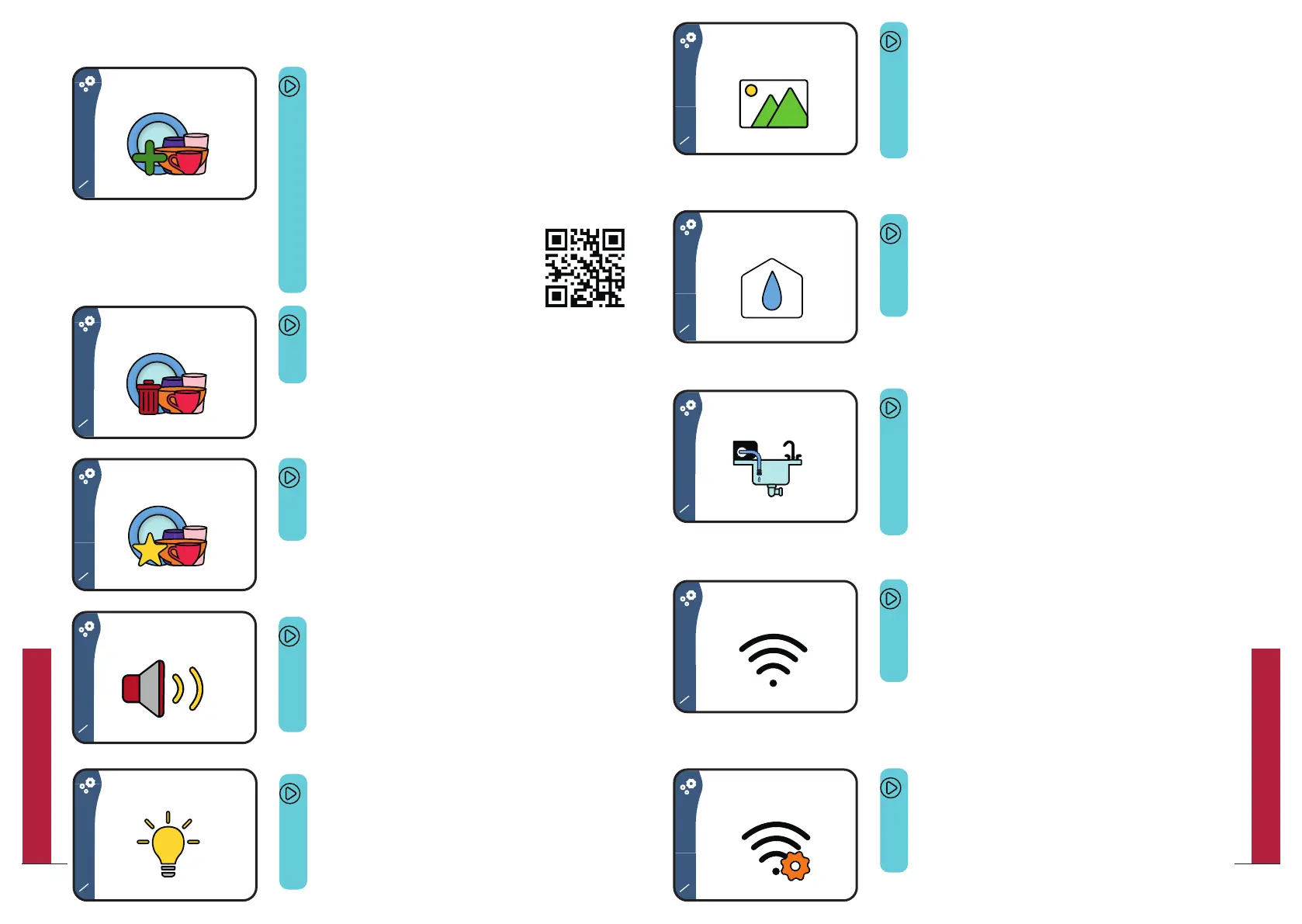
Screen 6/14
This screen allows you to add a customized image
when starting Bob or when Bob is running.
This feature is available only with Bob+
To learn more, please refer to page 55.
Screen 7/14
This screen allows you to choose your water supply
mode (water inlet or water tank). To learn more,
please refer to page 5.
Screen 8/14
This screen allows you to fully drain Bob (main
interior, water tank and pipes).
Please always mind draining Bob when you do not
use it for a long time or when the temperature is
likely to go below 0°C.
Screen 9/14
This screen allows you to pair Bob with you
Daan Tech account. To learn more, please
refer to page 52.
Screen 10/14
This screen allows you to change the Wi-Fi
settings. For instance, if you move to a new
place or change your internet provider.
1.3 | Settings
Screen 1/14
This screen allows you to create a new cycle,
including duration, temperature and a
custom icon.
You can create up to 4 custom programs.
To learn more, please either refer to page 44
or to our website.
Screen 2/14
This screen allows you to delete a cycle.
Screen 3/14
This screen allows you to choose your
favourite cycle as your start screen.
Please scan the QR code to check it out
on our website.
Screen 4/14
This screen allows you to choose a custom
sound effect (only available with Bob+)
To learn more, please refer to page 56.
Screen 5/14
This screen allows you to choose the degree
of lighting (only available with Bob+)
To learn more, please refer to page 56.
25
QUICK UTILIZATION GUIDE
24
QUICK UTILIZATION GUIDE


 To Next Page