Editing Functions
16
Section 2
DriveRack
®
PA
Navigating the Delay Section
The NEXT and PREV
buttons scroll through
the pages of selected module.
Delay - On/Off
L
ength - Delay Time - Course, Fine
Units - Seconds,Feet,Meters
DELAY
DELAY
From program mode, press the Delay button. Pressing the Data Wheel will select the effect parameter to be edited.
Successive presses of the Data wheel will select
e
ffect parameters within the currently selected page.
Navigating the Advanced Feedback Supression (AFS) Section
AFS On/Off
AFS Clear
Mode - Fixed/Live
Type- Speech, Low,Med and High
Number of Fixed filters 0-12
Live filter Lift - On/Off
Lift After - 0-60
FEEDBACK
FEEDBACK
From program mode, press the FEEDBACK button. Pressing the Data Wheel will select the effect parameter to be edited.
<PREV PG
NEXT PG>
The NEXT and PREV
buttons scroll through
the pages of selected module.
<
PREV PG
N
EXT PG>
The NEXT and PREV
buttons scroll through
the pages of selected module.
<PREV PG
NEXT PG>
S
uccessive presses of the Data wheel will select
effect parameters within the currently selected page.
Successive presses of the Data wheel will select
effect parameters within the currently selected page.
The NEXT and PREV
buttons scroll through
the pages of selected module.
Navigating the WIZARD Section
Input Setup - Stereo or
Mono
WIZARD
SYSTEM SETUP
AUTO EQ WIZARD
AFS WIZARD
GEQ Setup-Dual Mono
or Stereo Linked
Main Speaker Select-
See list
Sub Speaker Select-
See list
Amp Select-
High, Mid, Low
See list
Amp Sensitivity-
High, Mid, Low
Amp Level
High, Mid, Low
Low Amp
Bridged/
Normal-
Load New
Program-
Connect Mic
Pink Noise Level
-Inf to 20dB
Auto EQ - L
Auto EQ - R
Auto EQ - L-R
Left and Right when using
Linked Graphic EQ
Select Number of
Fixed Filters
- 0-12
Mixer gain turn
down prompt
Select Type -
Low, Med, High mode
Mixer Gain Adjust-
WIZARD
From program mode, press the WIZARD button. Pressing the Data Wheel will select the effect parameter to be edited.
<PREV PG
NEXT PG>
Fixed Filter Setup
Done-
Successive presses of the Data wheel will select
effect parameters within the currently selected page.
Navigating the Utility Section
L
CD Contrast 1-16
AEQ Plot - RTA/GEQ
Sales Banner - On/Off
UTILITY
C
ompressor/Limiter
Threshold Meters
UTILITY
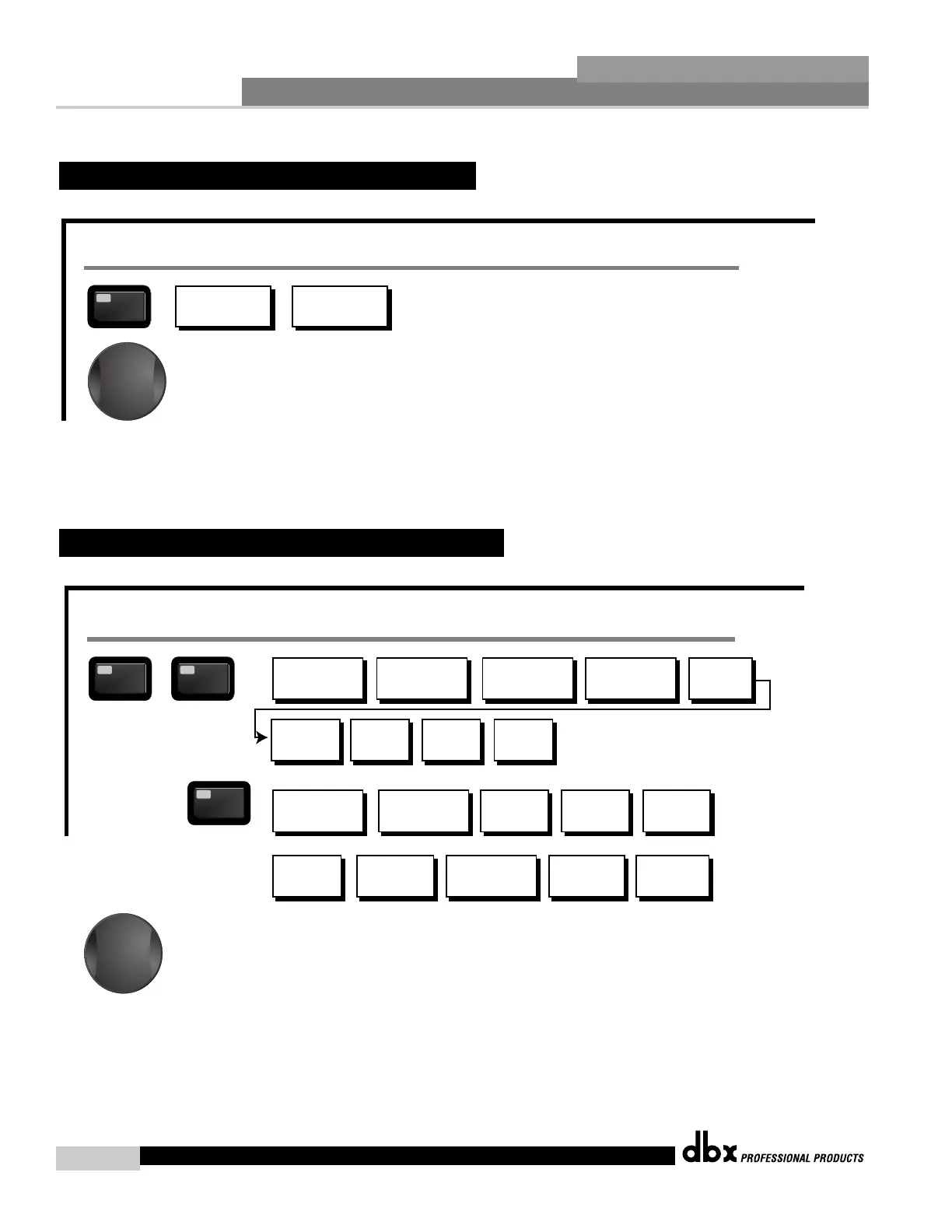
From program mode, press the UTILITY button. Pressing the Data Wheel will select the effect parameter to be edited.
Navigating the Subharmonic Synthesizer Section
Subharmonic - -On/Off
Subharmonics % 0-100
24-36Hz Level - 24-36Hz
36-56Hz Level - 36-56Hz
S
ubharmonic
S
UBHARMONIC
From program mode, press the SUBHARMONIC button. Pressing the Data Wheel will select the effect parameter to be edited.
Successive presses of the Data wheel will select
effect parameters within the currently selected page.
2.10 Navigating the Wizard Section
Navigating the Delay Section
The NEXT and PREV
buttons scroll through
the pages of selected module.
D
elay - On/Off
L
ength - Delay Time - Course, Fine
U
nits - Seconds,Feet,Meters
D
ELAY
DELAY
From program mode, press the Delay button. Pressing the Data Wheel will select the effect parameter to be edited.
Successive presses of the Data wheel will select
e
ffect parameters within the currently selected page.
Navigating the Advanced Feedback Supression (AFS) Section
AFS On/Off
AFS Clear
Mode - Fixed/Live
Type- Speech, Low,Med and High
Number of Fixed filters 0-12
Live filter Lift - On/Off
Lift After - 0-60
F
EEDBACK
FEEDBACK
From program mode, press the FEEDBACK button. Pressing the Data Wheel will select the effect parameter to be edited.
<
PREV PG
N
EXT PG>
The NEXT and PREV
buttons scroll through
the pages of selected module.
<PREV PG
NEXT PG>
The NEXT and PREV
buttons scroll through
the pages of selected module.
<PREV PG
NEXT PG>
Successive presses of the Data wheel will select
effect parameters within the currently selected page.
Successive presses of the Data wheel will select
effect parameters within the currently selected page.
The NEXT and PREV
buttons scroll through
the pages of selected module.
Navigating the WIZARD Section
Input Setup - Stereo or
Mono
WIZARD
SYSTEM SETUP
AUTO EQ WIZARD
AFS WIZARD
GEQ Setup-Dual Mono
or Stereo Linked
Main Speaker Select-
See list
Sub Speaker Select-
See list
Amp Select-
High, Mid, Low
See list
Amp Sensitivity-
High, Mid, Low
Amp Level
High, Mid, Low
Low Amp
Bridged/
Normal-
Load New
Program-
Connect Mic
Pink Noise Level
-Inf to 20dB
Auto EQ - L
Auto EQ - R
Auto EQ - L-R
Left and Right when using
Linked Graphic EQ
Select Number of
Fixed Filters
- 0-12
Mixer gain turn
down prompt
Select Type -
Low, Med, High mode
Mixer Gain Adjust-
WIZARD
From program mode, press the WIZARD button. Pressing the Data Wheel will select the effect parameter to be edited.
<PREV PG
NEXT PG>
Fixed Filter Setup
Done-
Successive presses of the Data wheel will select
effect parameters within the currently selected page.
Navigating the Utility Section
LCD Contrast 1-16
AEQ Plot - RTA/GEQ
Sales Banner - On/Off
U
TILITY
Compressor/Limiter
Threshold Meters
UTILITY
F
rom program mode, press the UTILITY button. Pressing the Data Wheel will select the effect parameter to be edited.
Navigating the Subharmonic Synthesizer Section
Subharmonic - -On/Off
Subharmonics % 0-100
24-36Hz Level - 24-36Hz
36-56Hz Level - 36-56Hz
S
ubharmonic
SUBHARMONIC
From program mode, press the SUBHARMONIC button. Pressing the Data Wheel will select the effect parameter to be edited.
Successive presses of the Data wheel will select
effect parameters within the currently selected page.
2.9 Navigating the Utility Section
DriveRack
®
PA User Manual



 To Next Page