Dedicated Micros Page 73
How to Configure an Alarm Schedule
It’s possible to utilise the onboard schedule function of the Digital Sprite 2 to
enable and disable alarm triggers and VMD activation and to determine when
specific record rates will be enabled. This can reduce unnecessary alarm
triggers, e.g. during office hours it would be unnecessary to have VMD active
and ensure the correct record rates are set during night, day and weekend time
periods.
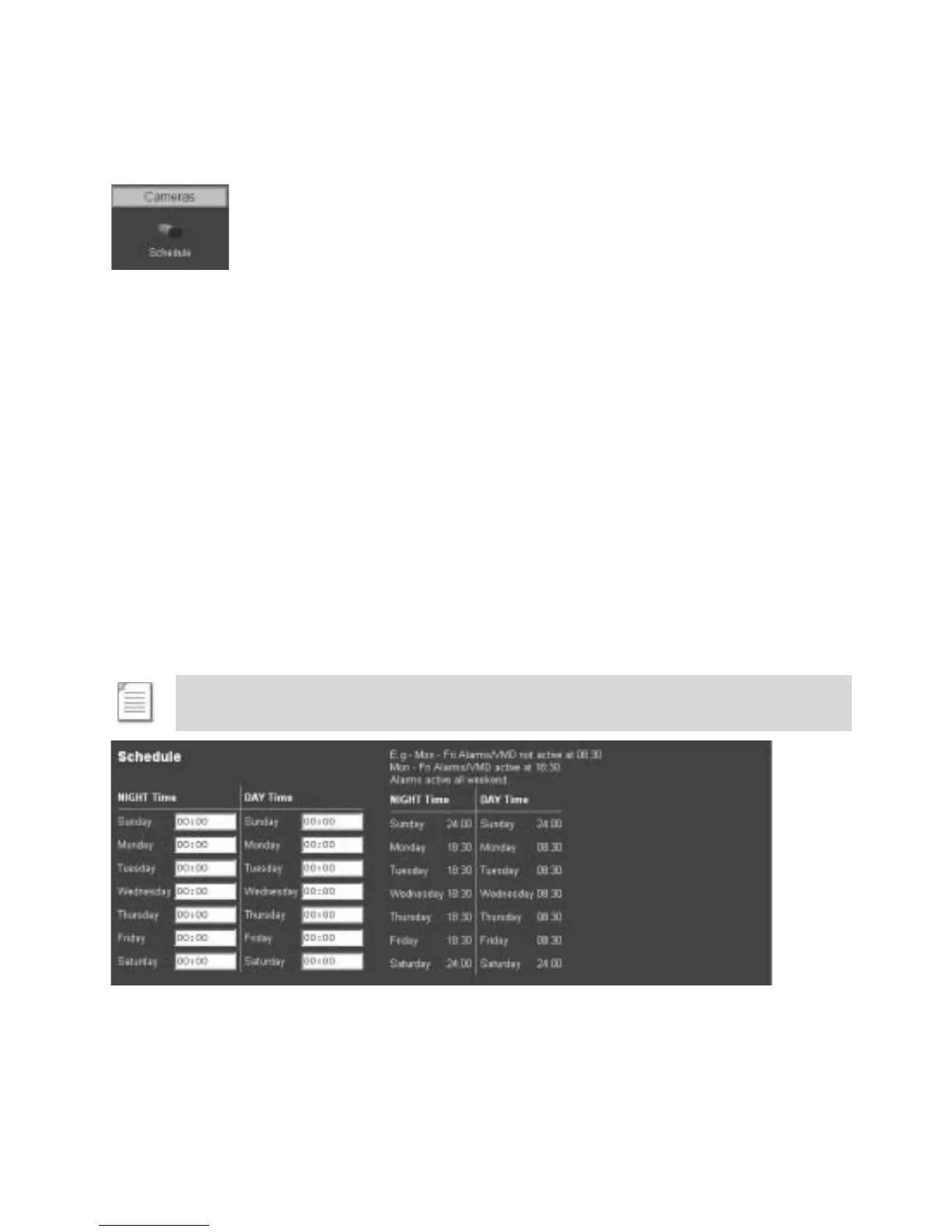
To Set the Schedule function we will use a typical example,
Monday to Friday – Alarms/VMD are not active from 08:30
Monday to Friday – Alarms/VMD become active from 18:30
Weekend – Alarms/VMD are active all weekend
1. Enter 24:00 in the Day box adjacent to Sunday and Saturday.
2. Enter 24:00 in the Night box adjacent to Sunday and Saturday.
3. Enter 18:30 in the Night box adjacent to Monday, Tuesday, Wednesday, Thursday and
Friday.
4. Enter 08:30 in the Day box adjacent to Monday, Tuesday, Wednesday, Thursday and
Friday.
5. Save the information configured by selecting Save Settings!
The example on the menu page shows how the schedule option can be configured.
Note: 24:00 -24:00 = Schedule 24 hour enabled, 00:00 – 00:00 = Schedule disabled.


 To Next Page