Dedicated Micros ©2009
92
EcoSense
View Control
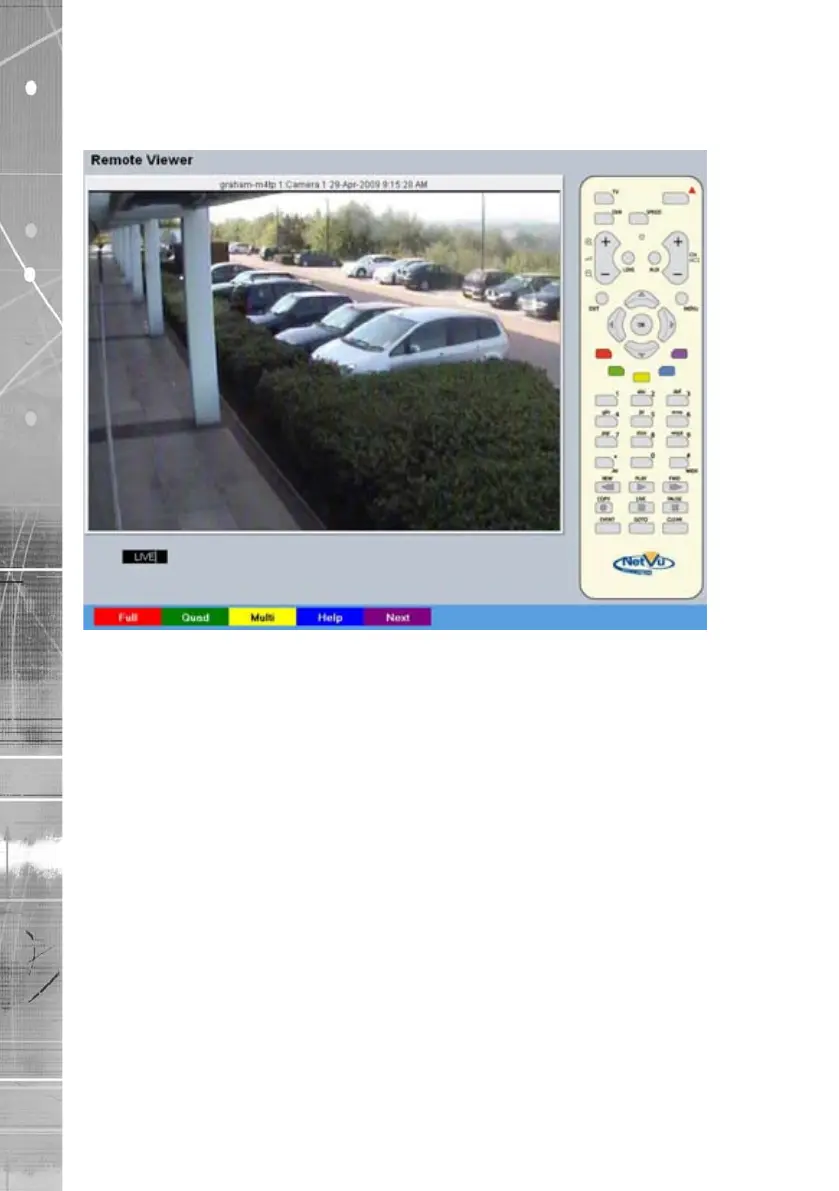
The View Control page allows connected video inputs to be displayed full screen or in Quad/Multi
way display format. The Help Video page can also be accessed.
Red Full Show currently selected camera full screen.
Green Quad
Displays four images on-screen, putting the
currently selected camera in the top left segment
of the four, and will increment all cameras by one
if pressed again i.e. if cam 1 is shown top left,
cam 2 top right etc. then the views will increment
to cam 2 top left, cam 3 top right etc.
Note: When a camera button is pressed to select a new camera, the new selection will be
displayed in the top left hand corner of the display. The next three connected cameras will
be displayed in the following three positions.
Yellow Multi By default displays nine images on-screen,
putting the currently selected camera in the top
left segment, followed by the next eight cameras
and will increment all cameras by one if pressed
again i.e. if cam 1 is shown top left, cam 2
adjacent etc. then the views will increment to
cam 2 top left, cam 3 adjacent etc.
Note: The Multi option not available on 4-way model.
Blue Help Select to display the Video Help menu.
Purple Next Opens the next page of the Viewer menu.


 To Next Page