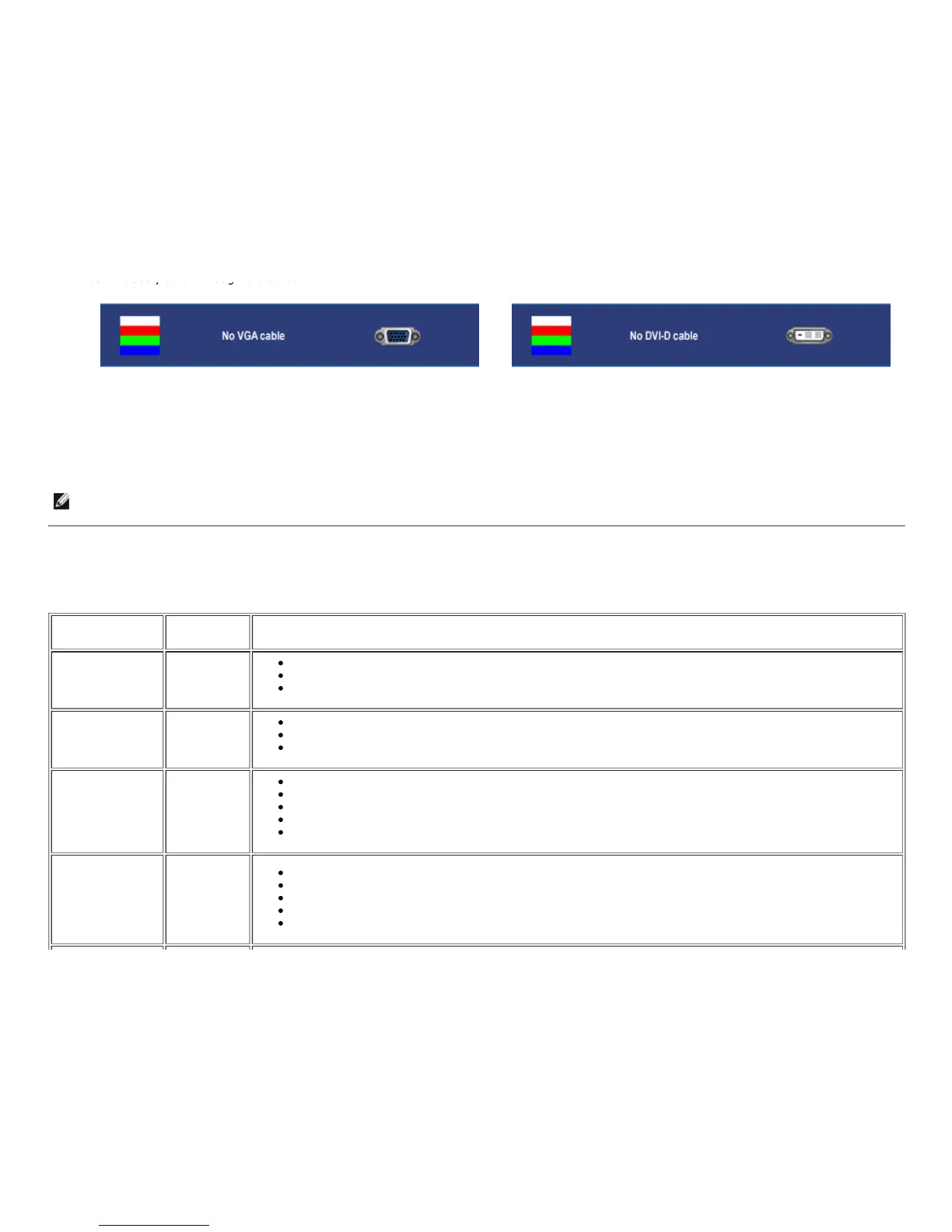
continuously scroll through the screen.
or
4. This box also appears during normal system operation if the video cable becomes disconnected or damaged.
5. Turn off your monitor and reconnect the video cable; then turn on both your computer and the monitor.
If your monitor screen remains blank after you use the previous procedure, check your video controller and computer system, because your monitor is
functioning properly.
NOTE: Self test feature check is not available for S-Video and Composite video modes.
Common Problems
The follow ing table contains general information about common monitor problems you might encounter.
COMMON
SYMPTOMS
WHAT YOU
EXPERIENCE
POSSIBLE SOLUTIONS
No Video/ Power
LED off
No picture Check connection integrity at both ends of the video cable
Electric outlet verification
Ensure power button depressed fully
No Video/ Power
LED on
No picture or
no
brightness
Increase brightness & contrast controls via OSD
Perform monitor self-test feature check
Check for bent or broken pins
Poor Focus Picture is
fuzzy, blurry
or ghosting
Auto Adjust via OSD
Adjust Phase and Pixel Clock controls via OSD
Eliminate video extension cables
Perform monitor reset
Low er video resolution or increase font size
Shaky/Jittery
Video
Wavy picture
or fine
movement
Auto Adjust via OSD
Adjust Phase and Pixel Clock controls via OSD
Perform monitor reset
Check environmental factors
Relocate and test in another room







 To Next Page