40
Operating the monitor
Accessing the Menu Launcher
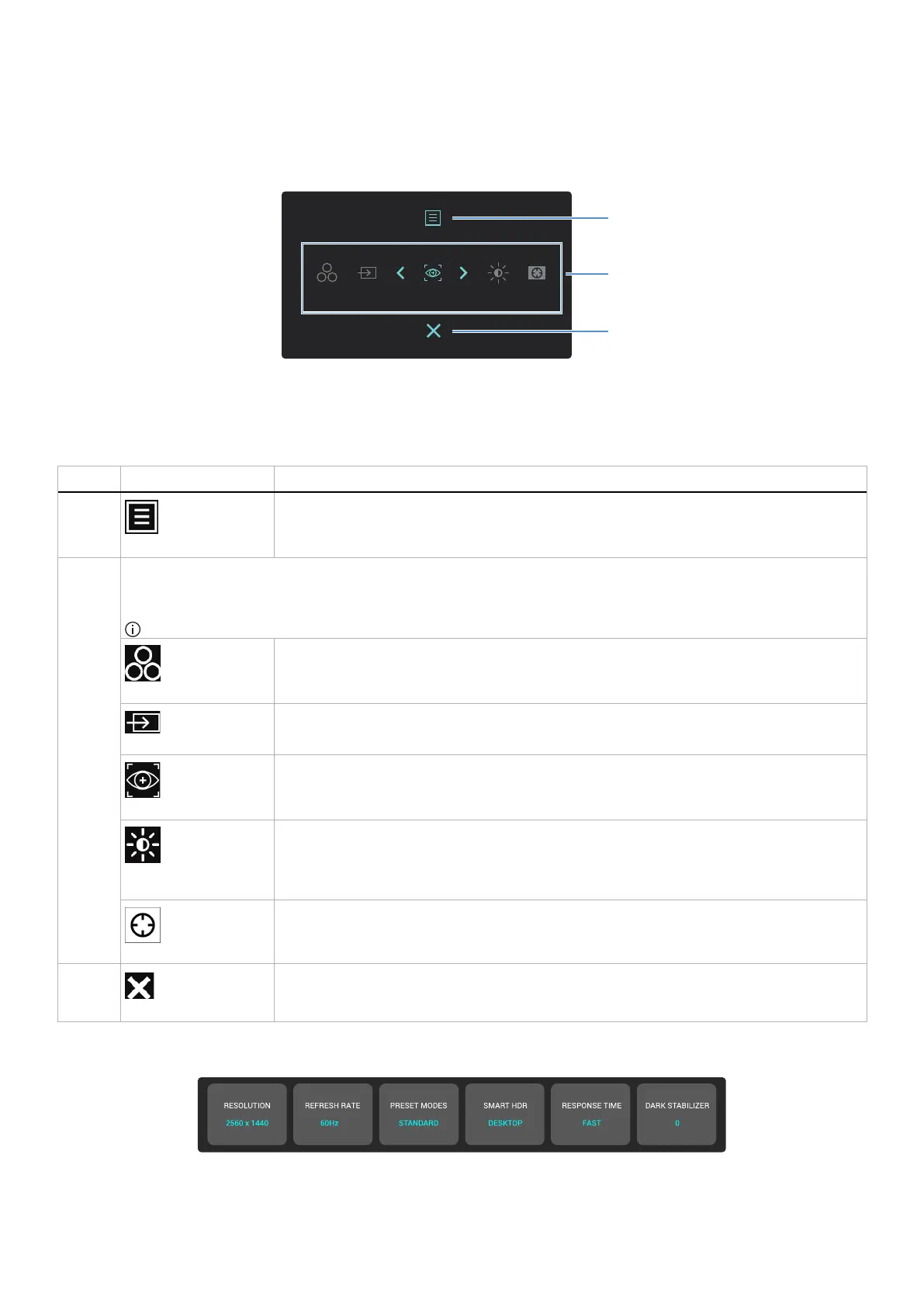
When you move or press the joystick button, the Menu Launcher appears at the bottom center of the screen, allowing you to access
the OSD menu and shortcut functions.
To select a function, move the joystick button.
ALIENVISION
1
2
3
Figure 37. On-Screen Display (OSD) menu
The following table describes the Menu Launcher functions:
Table 23. Description of the Menu Launcher functions.
Label
Icon Description
1
MENU
Use this MENU button to launch the On-Screen Display (OSD) and select the OSD menu. See
Accessing the menu system.
2 When you move the joystick button to the left or right to toggle through the shortcut functions, the selected item will be
highlighted and shifted to the center position. Press the joystick button to enter its submenu and make adjustments by
moving the joystick button.
NOTE: You can set your preferred shortcut keys. For more information, see Personalize.
PRESET MODES
To choose a preferred color mode from the list of PRESET MODES.
INPUT SOURCE
To choose an input source from the list of video signals that may be connected to your monitor.
ALIENVISION
To choose a preferred display mode for gameplay or turn off ALIENVISION.
BRIGHTNESS/
CONTRAST
To access the adjustment sliders of brightness and contrast.
DARK STABILIZER
To access the DARK STABILIZER adjustment slider.
3
EXIT
Use this button to go back to the main menu or EXIT the OSD main menu.
When the Menu Launcher is on, the OSD Status Bar appears at the top in the center of the screen, displaying the current settings of
some OSD functions.
Figure 38. OSD Status Bar




 To Next Page