57
Using AlienFX™ function
Installing AWCC from the Dell Support website
1.
Go to Dell support site at Drivers at Dell Support Site, enter AW3425DWM in the search box. You will land on the product
support page.
2.
Go to Drivers & Downloads. Download the latest version of the Alienware Command Center application.
3.
Navigate to the folder in which you saved the downloaded setup files.
4.
Double-click the downloaded setup file and follow the on-screen instructions to complete the installation.
Adjusting the gaming features
1.
Launch the AWCC application from the Start menu.
2.
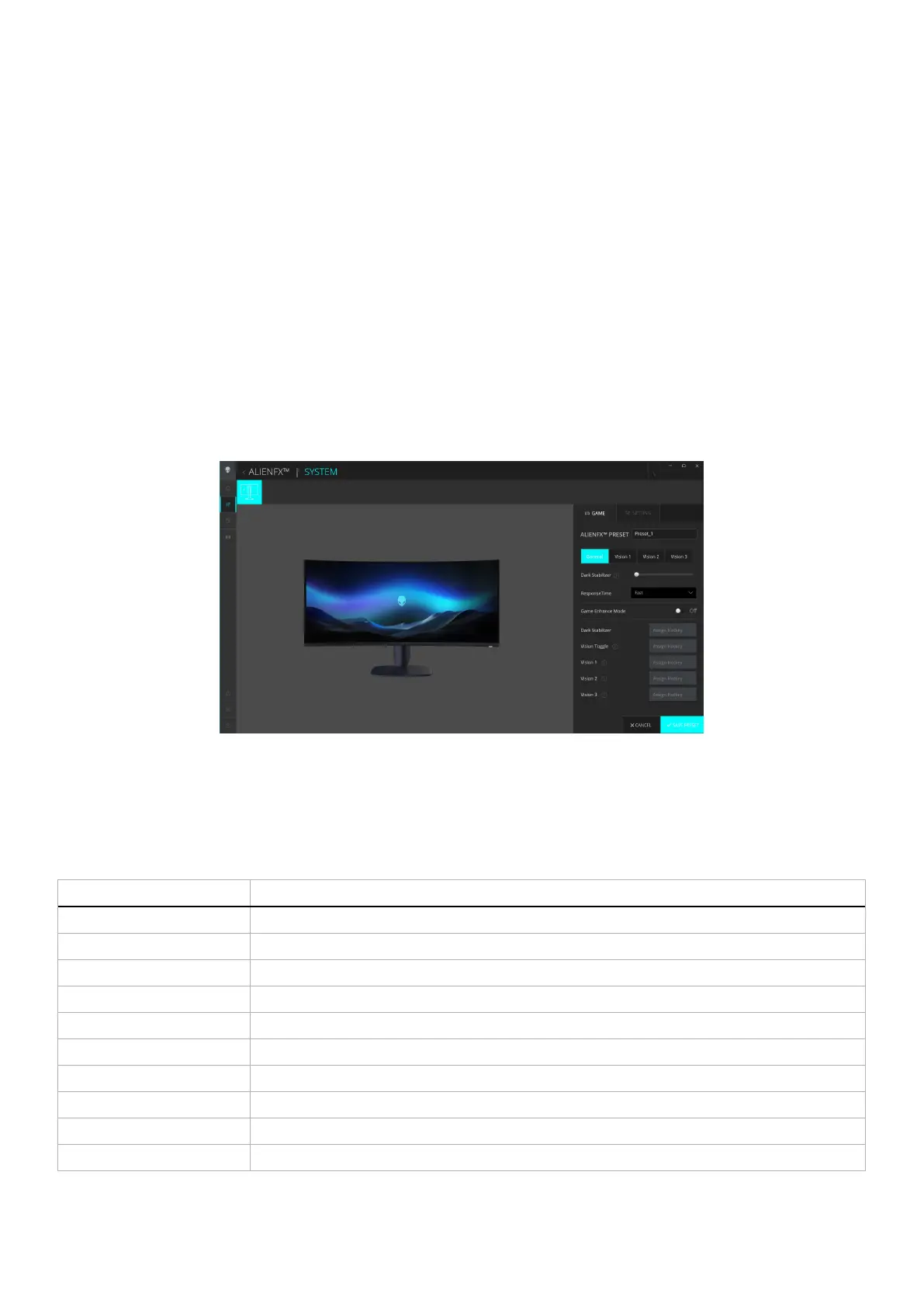
In the window of Dashboard view, click the monitor image to access the device view.
3.
Select the GAME panel to customize the following features:
• General Configuration: To adjust the Dark Stabilizer, Response Time, Game Enhance Mode, and setting hotkey with Dark
Stabilizer, Vision Toggle, Vision 1/Vision 2/Vision 3.
• Vision 1/Vision 2/Vision 3 Configuration: To customize vision mode features.
Figure 43. Launch the AWCC application
General configuration
Click the General button to enhance your gameplay experience by using the provided features.
Table 25. Customization of General.
Feature Description
Dark Stabilizer Refer to Dark Stabilizer.
Response Time Allows you to set the response time to Fast, Super Fast or Extreme.
Game Enhance Mode Refer to Frame Rate and Timer.
Frame Rate/Timer Position Adjust the position of Top Left, Bottom Left, Top Right and Bottom Right.
Timer To adjust the timer with Off, 30 min, 40 min, 50 min, 60 min, 90 min.
Hotkeys - Dark Stabilizer Refer to Dark Stabilizer.
Hotkeys - Vision Toggle Toggle active vision enabled and saved in preset.
Hotkeys - Vision 1 Turn On/Off Preview Vision 1 mode.
Hotkeys - Vision 2 Turn On/Off Preview Vision 2 mode.
Hotkeys - Vision 3 Turn On/Off Preview Vision 3 mode.



 To Next Page