Paper feed problems
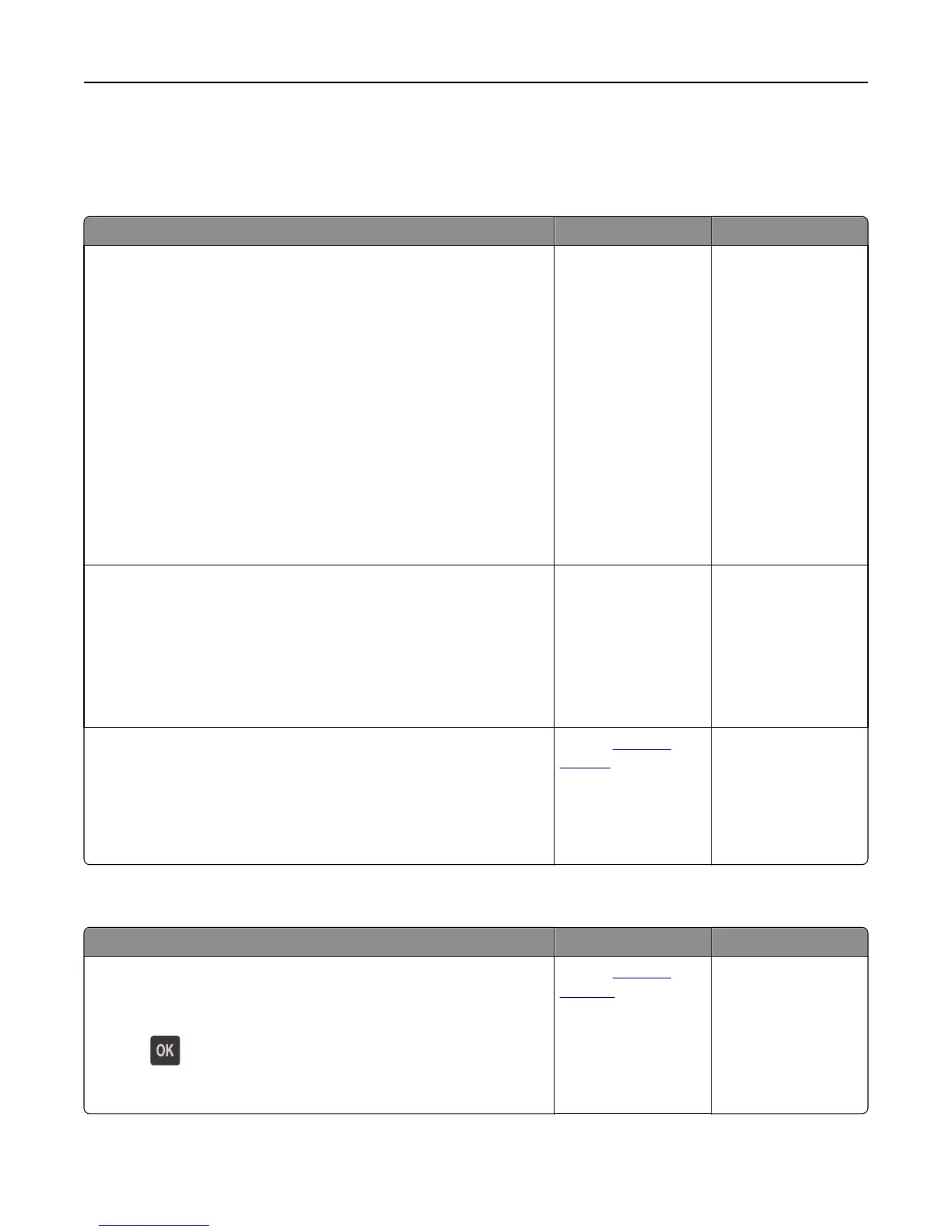
Paper frequently jams
Action Yes No
Step 1
a Pull out the tray, and then do one or more of the following:
• Make sure paper lies flat in the tray.
• Check if the paper size indicators on the paper guides are aligned
with the paper size indicators on the tray.
• Check if the paper guides are aligned against the edges of the
paper.
• Make sure the paper is below the maximum paper fill indicator.
• Check if you are printing on a recommended paper size and type.
b Insert the tray properly.
If jam recovery is enabled, then the print jobs will reprint
automatically.
Do paper jams still occur frequently?
Go to step 2. The problem is solved.
Step 2
a Load paper from a fresh package.
Note: Paper absorbs moisture due to high humidity. Store paper in
its original wrapper until you use it.
b Resend the print job.
Do paper jams still occur frequently?
Go to step 3. The problem is solved.
Step 3
a Review the tips on avoiding jams. For more information, see “Avoiding
jams” on page 102.
b Follow the recommendations, and then resend the print job.
Do paper jams still occur frequently?
Contact
technical
support.
The problem is solved.
Paper jam message remains after jam is cleared
Action Yes No
Open front door and remove all trays.
a Clear any jammed pages.
Note: Make sure all paper fragments are removed.
b Press to clear the message and continue printing.
Does the paper jam message remain?
Contact
technical
support.
The problem is solved.
Troubleshooting 126








 To Next Page