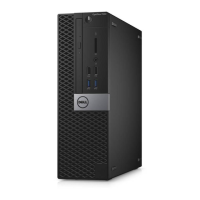
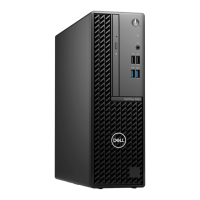
This document is a service manual for the Dell OptiPlex 3080 Tower, providing detailed instructions for disassembly, reassembly, troubleshooting, and BIOS setup. It serves as a comprehensive guide for technicians and users needing to perform maintenance or repairs on the device.
Function Description:
The Dell OptiPlex 3080 Tower is a desktop computer designed for various computing tasks. The manual outlines procedures for accessing and replacing major internal components, configuring system settings via BIOS, and diagnosing common issues. It covers the physical handling of components, ensuring proper installation and removal, and provides guidance on software-related aspects like driver installation and BIOS updates. The device is intended for use in environments where a tower form factor is suitable, offering expandability and serviceability.
Important Technical Specifications (as inferred from the manual):
- Regulatory Model: D29M
- Regulatory Type: D29M002
- Processor: Supports various processors, with procedures for removal and installation. The BIOS setup details processor information such as type, core count, ID, current/minimum/maximum clock speed, L2/L3 cache, HT capability, and 64-Bit Technology.
- Memory: Supports memory modules (DIMMs). The BIOS setup provides information on memory installed, available, speed, channel mode, technology, and DIMM sizes.
- Storage:
- 2.5-inch hard-disk drive assembly
- 3.5-inch hard drive
- M.2 2230 PCIe solid-state drive
- M.2 2280 PCIe solid-state drive
- Slim optical disk drive (ODD)
- SATA-0 (enabled by default) and M.2 PCIe SSD-0 (enabled by default) are listed in BIOS.
- Graphics: Supports graphics cards, including powered GPUs. The BIOS setup allows selection of primary display (Auto, Intel HD Graphics) and provides information on video controller.
- Connectivity:
- WLAN card (M.2 WLAN)
- USB ports (Front and Rear, with boot support options in BIOS)
- Optional I/O modules: Type C, HDMI, VGA, DP, Serial
- LOM MAC Address and Wi-Fi Device listed in BIOS.
- Power Supply: PSU (Power Supply Unit) with a maximum output power of 260W (H260EBM-00 model mentioned).
- System Board: The central component, housing the CPU, memory, and various connectors.
- Cooling: Includes a processor fan and heat-sink assembly, and a fan duct.
- Security Features:
- Chassis Intrusion switch
- Admin Password, System Password, Internal HDD-0 Password
- Password Configuration (4 to 32 characters)
- Password Bypass (Disabled by default, Reboot Bypass)
- Password Change (Allow Non-Admin Password Changes enabled by default)
- UEFI Capsule Firmware Updates (enabled by default)
- TPM 2.0 Security (TPM On, Clear, PPI Bypass for Enable Commands)
- Absolute Persistence Module service (Enabled by default)
- SMM Security Mitigation
- Secure Boot (Secure Boot Enable disabled by default, Deployed Mode default for Secure Boot Mode, Expert Key Management options for PK, KEK, db, dbx)
- Intel Software Guard Extensions (SGX) Enable (Software controlled default), Enclave Memory Size (32 MB, 64 MB, 128 MB default).
- BIOS: Dell BIOS setup program with various configurable options for system information, boot sequence, system configuration, security, performance, and post behavior.
- Operating System: Supports Windows and Linux/Ubuntu, with instructions for driver installation and BIOS updates.
Usage Features:
- Disassembly and Reassembly: Step-by-step instructions with images for removing and installing components like the side cover, front bezel, fan shroud, hard drives (2.5-inch, 3.5-inch, M.2 SSDs), memory modules, processor fan and heat-sink, processor, graphics card, coin-cell battery, WLAN card, slim optical drive, slim-ODD bracket, speaker, power button, power-supply unit, intrusion switch, optional I/O modules, and the system board.
- BIOS Setup: Access to system information (BIOS Version, Service Tag, Asset Tag, Manufacture Date, Ownership Date, Express Service Code), memory details, PCI information, processor details, and device information (SATA, M.2 PCIe SSD, LOM MAC Address, Video Controller, Audio Controller, Wi-Fi Device, Bluetooth Device).
- Boot Options: Configuration of boot sequence (UEFI Boot Path Security), One Time Boot Menu (Removable Drive, STXXXX Drive, Optical Drive, SATA Hard Drive, Diagnostics).
- System Configuration: Control over Integrated NIC (Disabled, Enabled, Enabled w/PXE), SATA Operation (Disabled, AHCI, RAID ON), Drives (SATA-0, M.2 PCIe SSD-0), Smart Reporting (disabled by default), USB Configuration (Enable USB Boot Support, Front/Rear USB Ports), Audio (Enable Microphone, Internal Speaker), Dust Filter Maintenance (Disabled, 15 days, 30 days).
- Performance Settings: Multi Core Support (All, 1, 2, 3), Intel SpeedStep (Enable Intel SpeedStep enabled by default), C-States Control (C states enabled by default), Intel TurboBoost (Enable Intel TurboBoost enabled by default).
- Power Management: AC Recovery (Power Off, Power On, Last Power State), Enable Intel Speed Shift Technology (enabled by default), Auto On Time, Deep Sleep Control (Disabled, Enabled in S5 only, Enabled in S4 and S5), USB Wake Support (enabled by default), Wake on LAN/WWAN (Disabled, LAN or WLAN, LAN Only, LAN with PXE Boot, WLAN Only), Block Sleep (disabled by default).
- POST Behavior: Adapter Warnings (enabled by default), Numlock LED (enabled by default), Keyboard Errors (Enable Keyboard Error Detection enabled by default), Fast Boot (Minimal, Thorough, Auto), Extend BIOS POST Time (0, 5, 10 seconds), Full Screen Logo (Enable Full Screen Logo not set by default), Warnings and Errors (Prompt on Warnings and Errors, Continue on Warnings, Continue on Warnings and Errors).
- Troubleshooting:
- Dell SupportAssist Pre-boot System Performance Check diagnostics for hardware.
- Power LED summary for diagnostic codes (Amber/White LED states indicating system state and notes).
- Amber LED blinking failures for specific component issues (Bad MBD, PSU, DIMMs, CPU, Bad coin cell).
- Diagnostic error messages for various hardware and software problems (e.g., BAD COMMAND OR FILE NAME, CACHE DISABLED, HARD-DISK DRIVE FAILURE).
- System error messages for boot failures, CMOS checksum errors, fan failures, hard-disk drive failures, keyboard failures.
- Recovering the operating system using Dell SupportAssist OS Recovery.
- Backup media and recovery options.
- WiFi power cycle procedure for connectivity issues.
Maintenance Features:
- Safety Instructions: Emphasizes reading safety information, disconnecting power, avoiding static discharge (using ESD field service kit, wrist strap, anti-static mat), proper handling of components, and caution with Lithium-ion batteries.
- Screw List: Detailed table of screw types, quantities, and images for various components to ensure correct reassembly.
- Thermal Management: Instructions for applying thermal grease when replacing the processor or heat sink to ensure thermal conductivity.
- BIOS Updates: Procedures for updating BIOS in Windows, Linux/Ubuntu, and from the F12 One-Time boot menu using a FAT32 USB drive.
- Password Management: Assigning, deleting, or changing system and setup passwords.
- CMOS Clearing: Instructions for clearing CMOS settings by removing the coin-cell battery.
- System Logs: Ability to view and clear BIOS POST events.
- SupportAssist System Resolution: Auto OS Recovery Threshold, SupportAssist OS Recovery, and BIOSConnect for cloud service OS upon absence of local OS recovery.
- Data Wipe: Securely erase data from internal storage devices (Wipe on Next Boot).
- BIOS Recovery: Recover corrupted BIOS from hard drive or external USB key.
- Integrity Check: Always Perform Integrity Check on every boot.
- First Power On Date: Set Ownership date.
- Dust Filter Maintenance: BIOS messages for cleaning or replacing the optional dust filter.

 Need help?

 To Next Page
 General