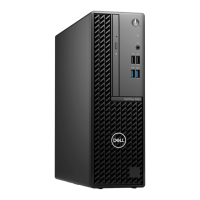
3.5-inch hard drive
Removing the 3.5 inch hard drive
Prerequisites
1. Follow the procedure in before working inside your computer.
2. Remove the side cover.
3. Remove the fan duct.
About this task
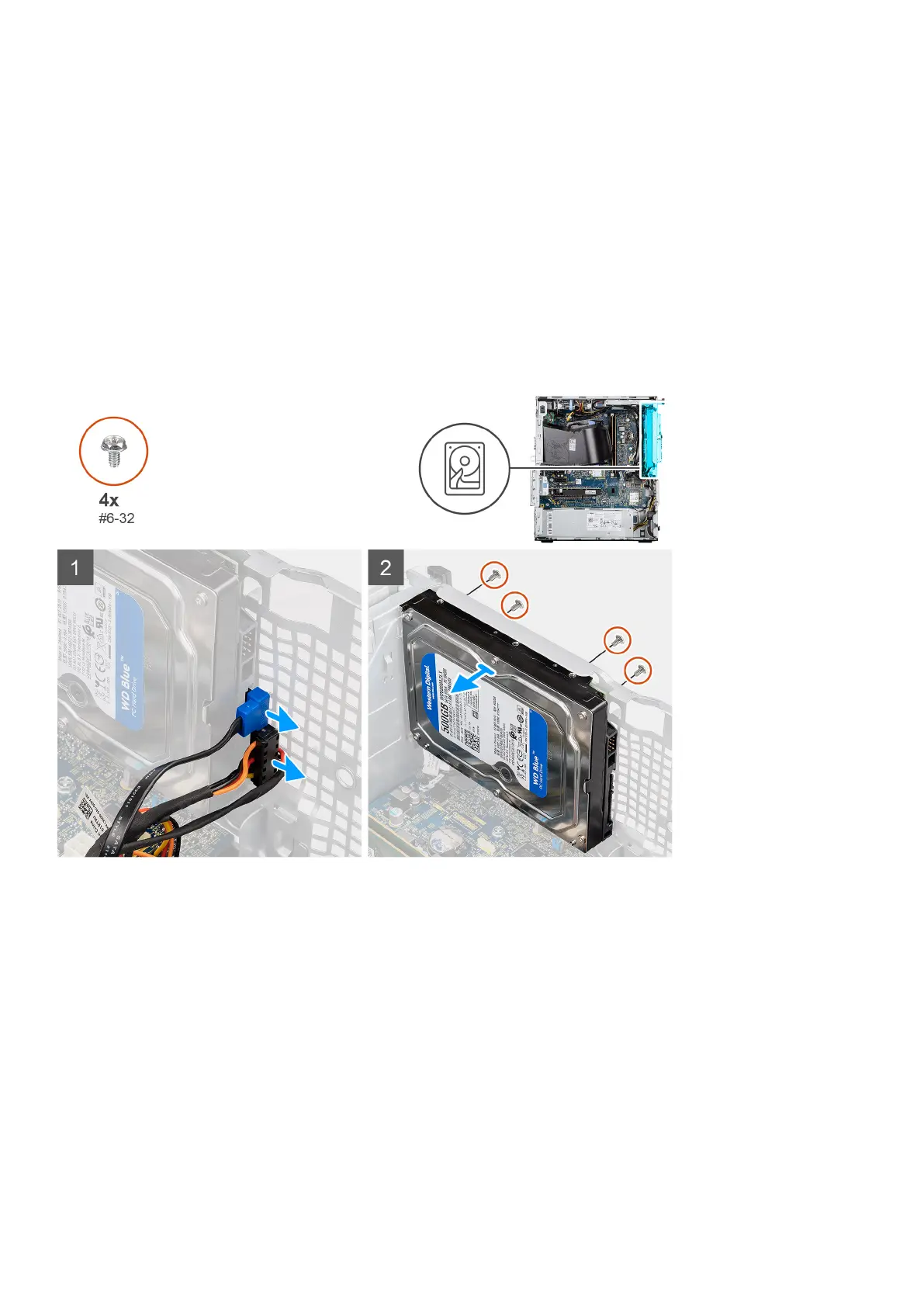
The following images indicate the location of the 3.5 inch hard drive and provides a visual representation of the removal
procedure.
Steps
1. Disconnect the data and power cables from the 3.5 inch hard drive.
2. Remove the four (#6-32) screws from the front-side of the chassis that secures the hard drive to the chassis.
3. Remove the 3.5 inch hard drive away from the chassis.
Installing the 3.5 inch hard drive
Prerequisites
If you are replacing a component, remove the existing component before performing the installation procedure.
About this task
The following images indicate the location of the 3.5-inch hard drive and provides a visual representation of the installation
procedure.
Disassembly and reassembly
25



 To Next Page