Dell DCS-1130 Setup and Features Information
Accessing System Features During Startup | Page 5
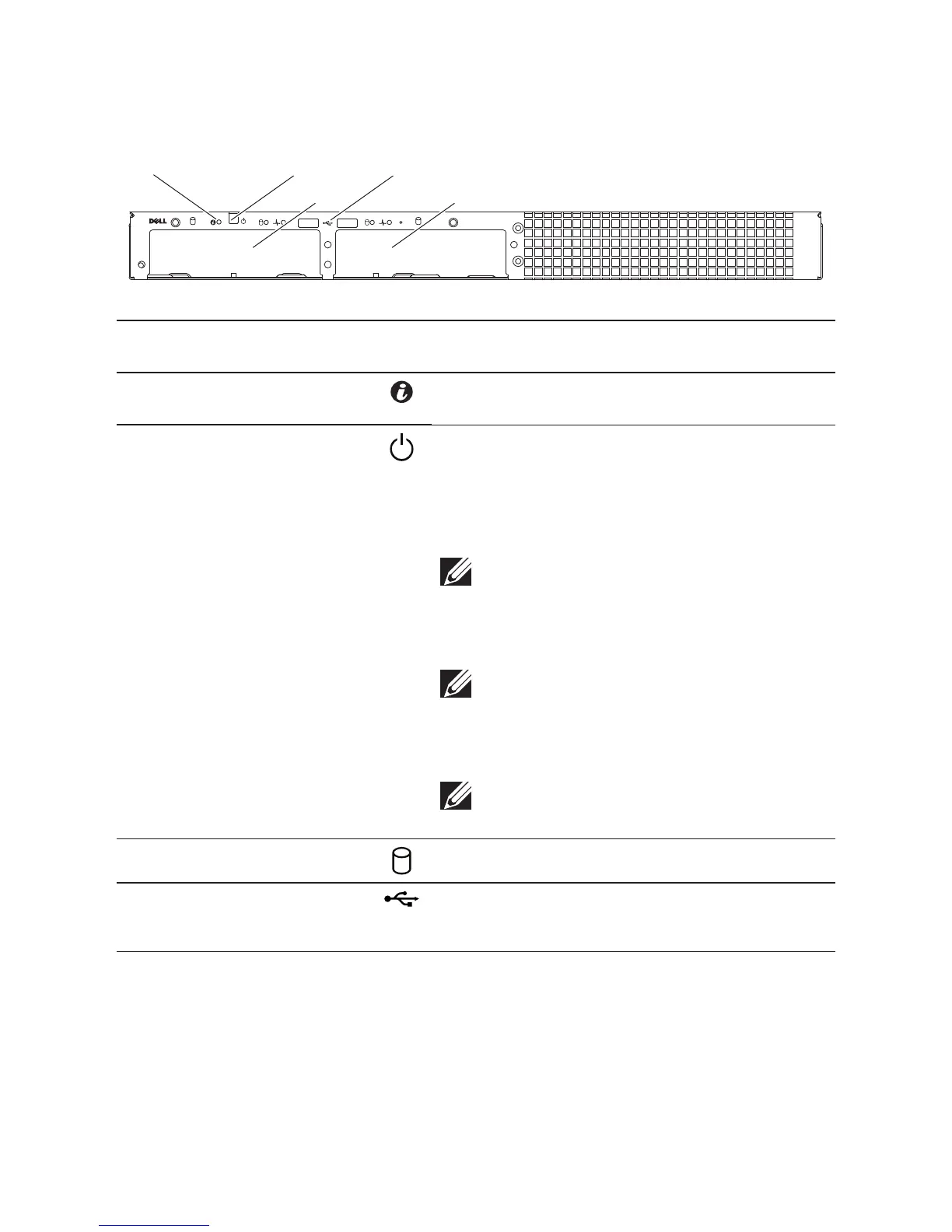
Front-Panel Features and Indicators
Figure 1. Front Panel
10
33
Item Indicator, Button, or
Connector
Icon Description
1 System identication
indicator
e identication LED can be used to locate a
particular system
2 Power-on indicator/
power button
e power-on indicator lights when the system
power is on.
e power button controls the DC power supply
output to the system.
NOTE: When powering on the system, the video
monitor can take from several seconds to over
2 minutes to display an image, depending on the
amount of memory installed in the system.
NOTE: On ACPI-compliant operating systems,
turning off the system using the power button
causes the system to perform a graceful shut-
down before power to the system is turned off.
NOTE: To force an ungraceful shutdown, press
and hold the power button for 5 seconds.
3 Hard drives Hot-swappable hard drives
4 USB connectors (2) Connect USB devices to the system.
e ports are USB 2.0-compliant


 To Next Page