18 Setting Up and Using Your Computer
If you purchased a graphics card that supports dual monitors, follow these instructions to connect and
enable your monitors. The instructions tell you how to connect two monitors with VGA connectors, one
monitor with a VGA connector and one monitor with a DVI connector, or a television.
Connecting Two Monitors With VGA Connectors
1
Follow the procedures in "Before You Begin" on page 77.
2
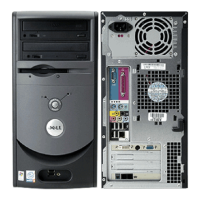
Connect one of the monitors to the (blue) VGA connector on the back of the computer.
3
Connect the other monitor to the optional DVI-to-VGA adapter, then connect the adapter to the
(white) DVI connector on the back of the computer.
Connecting One Monitor With a VGA connector and One Monitor With a DVI Connector
1
Follow the procedures in "Before You Begin" on page 77.
2
Connect the VGA connector of the first monitor to the (blue) VGA connector on the back of the
computer.
3
Connect the DVI connector of the second monitor to the (white) DVI connector on the back of the
computer.
1 optional DVI-to-VGA adapter 2 DVI connector (white) 3 TV-OUT connector
4 VGA connector (blue)
4
2
1
3
Two VGA Connectors
One VGA Connector and
one DVI Connector




 To Next Page
