EasyManua.ls Logo

Dell E2318H - User Manual

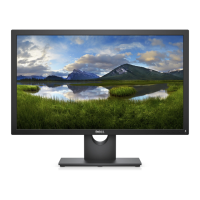
Dell E2318H
51 pages
Print Icon
To Next Page IconTo Next Page
Loading...
Regulatory Model: E2318Hf / E2318HNf
User‘s Guide
Dell E2318H
Dell E2318HN
Dell E2318HX
Dell E2318HR

Other manuals for Dell E2318H

Questions and Answers

  • U
    ugriffinSep 2, 2025
    What to do if no sound from Dell E2318H's Soundbar with AC adapter?
    • B
      bjuarezSep 2, 2025
      If you are experiencing no sound for a system where the Soundbar draws power from an AC adapter, turn the Power/Volume knob on the Soundbar clockwise to the middle position and check if the power indicator (white LED) on the front of the Soundbar is illuminated. Also, confirm that the power cable from the Soundbar is plugged into the adapter.
  • R
    richmichaelAug 31, 2025
    How to fix distorted sound on Dell E2318H?
    • D
      Donald FieldsAug 31, 2025
      If the sound from your Dell monitor is distorted, clear any obstructions between the Soundbar and the user. Confirm that the audio line-in plug is completely inserted into the jack of the audio source. Decrease the volume of the audio source. Turn the Power/Volume knob on the Soundbar counter-clockwise to a lower volume setting. Clean and reseat the audio line-in plug. Test the Soundbar using another audio source (e.g., portable CD player, MP3 player).
  • D
    donald85Aug 29, 2025
    How to adjust Dell E2318H Monitor when buttons on front panel don't work?
    • T
      Todd GregoryAug 29, 2025
      If you cannot adjust your Dell monitor with the buttons on the front panel, turn off the monitor, unplug the power cord, plug it back in, and then turn on the monitor. Also, check whether the OSD menu is locked. If it is, press and hold the button beside the Power button for 10 seconds to unlock it.
  • S
    Stephen JonesAug 27, 2025
    What to do if Dell E2318H is missing color?
    • M
      mlawrenceAug 28, 2025
      If your Dell monitor is missing color, perform a monitor self-test feature check. Also, ensure that the video cable connecting the monitor to the computer is properly connected and secure. Check for bent or broken pins in the video cable connector.
  • D
    Donna CohenAug 26, 2025
    How to fix shaky or jittery video on Dell E2318H?
    • D
      Danielle DuncanAug 26, 2025
      If your Dell monitor displays shaky or jittery video, try the following: Perform Auto Adjust via the OSD. Adjust the Phase and Pixel Clock controls via the OSD. Reset the monitor to Factory Settings. Check environmental factors. Relocate the monitor and test it in another room.
  • J
    Jasmine StewartAug 25, 2025
    How to fix no sound on Dell Monitor?
    • W
      wallacebrandiAug 25, 2025
      To resolve the issue of no sound on your Dell monitor, plug the audio line-in cable into the computer’s audio out jack. Set all volume controls to their maximum and ensure that the mute option is not enabled. Play some audio content on the computer (e.g., audio CD, or MP3). Turn the Power/Volume knob on the Soundbar clockwise to a higher volume setting. Clean and reseat the audio line-in plug. Test the Soundbar using another audio source (e.g., portable CD player, MP3 player).
  • J
    Jerry HernandezAug 22, 2025
    What to do if Dell Monitor has no video but power LED is on?
    • J
      Jimmy HoffmanAug 22, 2025
      To troubleshoot a Dell monitor displaying no video but the power LED is on, try the following: Increase brightness and contrast controls via the OSD. Perform a monitor self-test feature check. Inspect the video cable connector for bent or broken pins. Ensure the correct input source is selected using the Input Source Select menu. Run the built-in diagnostics.

Summary

Product Features

Identifying Parts and Controls

Front View Controls

Details the function of each button on the front panel of the monitor.

Back View Connections

Identifies the connectors and labels on the back of the monitor.

Monitor Specifications

Flat-Panel Specifications

Lists the physical and electrical specifications of the monitor's flat panel display.

Resolution Specifications

Details the scan range and maximum preset resolution supported by the monitor.

Supported Video Modes

Preset Display Modes

Electrical Specifications

Physical Characteristics

Monitor Connection and Maintenance

Maintenance Guidelines

Provides essential guidelines for cleaning and maintaining the monitor safely.

Setting Up the Monitor

Attaching the Stand

Step-by-step instructions for assembling and attaching the monitor stand.

Connecting Your Monitor

Connecting VGA Cable

Illustrates the process of connecting the monitor using a VGA cable.

Connecting DisplayPort Cable

Illustrates the process of connecting the monitor using a DisplayPort cable.

HDMI Cable Connection and Cable Management

Connecting HDMI Cable

Illustrates the process of connecting the monitor using an HDMI cable.

Operating the Monitor

Using the Front-Panel Controls

Describes the function of each button on the monitor's front panel for adjustments.

Accessing the Menu System

Main Menu Navigation

OSD Menu Options and Functions

Brightness and Contrast Adjustment

Explains how to adjust the brightness and contrast settings of the monitor.

Auto Adjust Functionality

Input Source Selection

Color Settings Adjustment

Preset Modes and Color Settings

Display Settings Adjustment

Energy Settings

Menu Settings Adjustment

Personalize and Other OSD Settings

Advanced OSD Settings

No Signal Messages

Setting the Maximum Resolution

Updating Graphics Drivers

Troubleshooting

Monitor Self-Test

Explains how to perform a self-test to check if the monitor is functioning correctly.

Built-in Diagnostics

Common Monitor Problems and Solutions

Product-Specific Problems

Appendix

Safety Instructions

Provides important warnings and guidance for safe usage of the monitor.

Contact Dell Support

Provides contact information and support channels for Dell customers.

Dell E2318H Specifications

General IconGeneral
3DNo
Color gamut85 %
Pixel pitch0.265 x 0.265 mm
Screen shapeFlat
Pixel density96 ppi
Response time8 ms
Backlight typeLED
Display surfaceMatt
Display diagonal23 \
Display technologyLCD
Native aspect ratio16:9
Vertical scan range50 - 75 Hz
Maximum refresh rate60 Hz
Response time (fast)5 ms
Horizontal scan range30 - 83 kHz
Supported video modes480i, 480p, 576i, 576p, 720p, 1080i, 1080p
Viewable size diagonal584.2 mm
Viewable size, vertical286.42 mm
Contrast ratio (typical)1000:1
Display number of colors16.78 million colors
Viewable size, horizontal509.18 mm
Display brightness (typical)250 cd/m²
Supported graphics resolutions1920 x 1080 (HD 1080)
On/off switchYes
Tilt angle range-5 - 21 °
Cable lock slot typeKensington
Panel mounting interface100 x 100 mm
DisplayPort version1.2
HDMI ports quantity0
Input current1 A
AC input voltage100 - 240 V
AC input frequency50 - 60 Hz
Energy efficiency scaleA to G
Power consumption (max)20 W
Power consumption (off)0.2 W
Power consumption (standby)0.3 W
Power consumption (typical)12.9 W
Power consumption (PowerSave)16 W
Operating altitude0 - 5000 m
Non-operating altitude0 - 12191 m
Storage temperature (T-T)-20 - 60 °C
Operating temperature (T-T)0 - 40 °C
Storage relative humidity (H-H)5 - 90 %
Operating relative humidity (H-H)10 - 80 %
CertificationTCO
Product colorBlack
Market positioningBusiness
Cables includedAC, DisplayPort, VGA
Package depth595.12 mm
Package width372.11 mm
Package height131.06 mm
Package weight5470 g
Sustainability certificatesRoHS, EPEAT Gold, ENERGY STAR
Weight and Dimensions IconWeight and Dimensions
Bezel width (top)17.8 mm
Bezel width (side)17.81 mm
Depth (with stand)180 mm
Width (with stand)544.8 mm
Height (with stand)415 mm
Weight (with stand)3890 g
Depth (without stand)53.42 mm
Height (without stand)322 mm
Weight (without stand)3170 g

Related product manuals