EasyManua.ls Logo

Dell Inspiron 14 Plus 7430 - User Manual

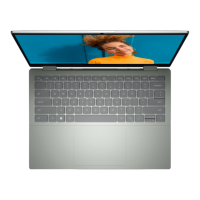
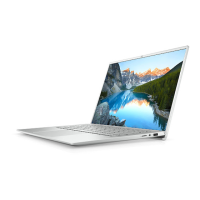
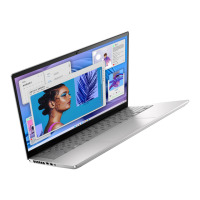
Dell Inspiron 14 Plus 7430
103 pages
Print Icon
To Next Page IconTo Next Page
Loading...
Inspiron 14 Plus 7430
Owner's Manual
Regulatory Model: P171G
Regulatory Type: P171G004
March 2023
Rev. A00

Table of Contents

Questions and Answers

  • K
    Kimberly WongSep 23, 2025
    What to do if my Dell Laptop has EC internal failure?
    • J
      John PerezSep 23, 2025
      If your Dell Laptop experiences an EC internal failure, disconnect all power sources (AC, battery, coin cell) and drain flea power by pressing and holding down the power button for 3~5 seconds.
  • J
    Jessica DuncanAug 23, 2025
    What to do if my Dell Inspiron 14 Plus 7430 Laptop has memory or RAM failure?
    • S
      sandra34Aug 23, 2025
      If your Dell Laptop experiences a memory or RAM failure, ensure the memory module is properly installed. If the issue persists, try replacing the memory module.
  • J
    James HarrisAug 25, 2025
    What to do if my Dell Laptop has invalid memory module installed?
    • T
      tyler06Aug 25, 2025
      If your Dell Laptop indicates an invalid memory module is installed, first, confirm that the memory module is installed correctly. If the problem persists, replace the memory module.
  • X
    xtaylorAug 27, 2025
    What to do if my Dell Inspiron 14 Plus 7430 has CMOS battery failure?
    • R
      Richard WilliamsAug 27, 2025
      If your Dell Laptop experiences a CMOS battery failure, try resetting the CMOS battery connection. If the problem continues, replace the coin-cell battery.
  • D
    dramseyAug 27, 2025
    What to do if short in hinge cable tripped OCP1 in Dell Inspiron 14 Plus 7430 Laptop?
    • J
      Jesus PowellAug 28, 2025
      If a short in the hinge cable has tripped OCP1 in your Dell Laptop, check if the display-assembly cable (EDP) is properly seated or pinched at the hinges. If the problem continues, replace either the display-assembly cable (EDP) or the display assembly (LCD).
  • D
    Deanna LeeSep 18, 2025
    What to do if my Dell Laptop has Management Engine (ME) error?
    • D
      David RodriguezSep 18, 2025
      If your Dell Laptop shows a Management Engine (ME) error, it indicates a timeout waiting on ME to reply to HECI message. If the problem continues, replace the system board.
  • A
    Andre SmithSep 15, 2025
    What to do if my Dell Inspiron 14 Plus 7430 Laptop has System board: BIOS or ROM (Read-Only Memory) failure?
    • J
      Jodi RobinsonSep 15, 2025
      If your Dell Laptop's system board experiences a BIOS or ROM (Read-Only Memory) failure, replace the system board.
  • C
    Christopher GordonSep 16, 2025
    What to do if my Dell Inspiron 14 Plus 7430 Laptop has Power-rail failure?
    • J
      Jane MannSep 16, 2025
      If your Dell Laptop experiences a power-rail failure, it means the EC ran into a power sequencing failure. If the problem persists, replace the system board.
  • C
    Christopher SanchezSep 6, 2025
    What to do if my Dell Inspiron 14 Plus 7430 Laptop has Unrecoverable SPI flash failure?
    • L
      Louis SmithSep 6, 2025
      If your Dell Laptop has an unrecoverable SPI flash failure, replace the system board.
  • L
    Logan NealSep 3, 2025
    What to do if my Dell Inspiron 14 Plus 7430 Laptop has System BIOS Flash corruption?
    • G
      ginathomasSep 3, 2025
      If your Dell Laptop detects System BIOS Flash corruption, flash the latest BIOS version. If the problem persists, replace the system board.

Summary

Set up your Inspiron 14 Plus 7430

Specifications of Inspiron 14 Plus 7430

Working inside your computer

General Safety Instructions

General safety guidelines for working inside the computer.

Pre-Disassembly Preparation

Steps to prepare the computer before disassembly.

Safety Precautions

Detailed safety measures to prevent damage and injury.

ESD Protection Guidelines

Information on preventing ESD damage to components.

ESD Field Service Kit Usage

Details components and usage of the ESD field service kit.

Removing and Installing Customer Replaceable Units (CRUs)

Base Cover Removal and Installation

Procedure for removing and installing the laptop's bottom cover.

Solid-State Drive (SSD) Service

Instructions for removing and installing M.2 SSDs.

Wireless Card Service

Procedures for removing and installing the wireless card.

Cooling Fan Service

Procedures for removing and installing cooling fans.

Removing and Installing Field Replaceable Units (FRUs)

Battery Handling and Replacement

Precautions and procedures for handling the laptop battery.

Battery Cable Service

Procedures for removing and installing the battery cable.

Display Assembly Service

Procedures for removing and installing the display assembly.

I;O Board Service

Procedures for removing and installing the I/O board.

Speaker Service

Procedures for removing and installing the speakers.

Heat Sink Service

Procedures for removing and installing heat sinks.

Power-Adapter Port Service

Procedures for removing and installing the power-adapter port.

Power-Button Board Service

Procedures for removing and installing the power-button board.

Power Button with Fingerprint Reader Service

Procedures for removing and installing the power button with fingerprint reader.

System Board Replacement

Procedures for removing and installing the system board.

BIOS Setup and Configuration

Updating the BIOS

Procedures for updating the system's BIOS.

Troubleshooting and Support

Swollen Lithium-ion Battery Handling

Safety and handling guidelines for swollen laptop batteries.

SupportAssist Pre-boot Diagnostics

Information on running hardware diagnostics before OS boot.

System Diagnostic Light Codes

Lists blinking patterns of diagnostic lights and their meanings.

Operating System Recovery

Guidance on using Dell SupportAssist OS Recovery to fix boot issues.

Dell Inspiron 14 Plus 7430 Specifications

General IconGeneral
ModelDell Inspiron 14 Plus 7430
Processor13th Gen Intel Core i7-13620H
GraphicsIntel Iris Xe Graphics or NVIDIA GeForce RTX 3050
Display Size14 inch
Display Resolution1920 x 1200 (WUXGA) or 2560 x 1600 (QHD+)
Display Refresh Rate60 Hz
MemoryUp to 32GB DDR5
Storage1 TB SSD
Operating SystemWindows 11 Home or Windows 11 Pro
Battery64 Wh
Ports2 x Thunderbolt 4, 1 x USB 3.2 Gen 1, 1 x HDMI 2.0, 1 x SD card reader, 1 x 3.5mm audio jack
WirelessWi-Fi 6E, Bluetooth 5.2
Dimensions17.99 mm

Related product manuals