Pairing multiple devices with your Bluetooth mouse │ 15
Pairing multiple devices with your Bluetooth
mouse
Pair the mouse with second Bluetooth enabled device
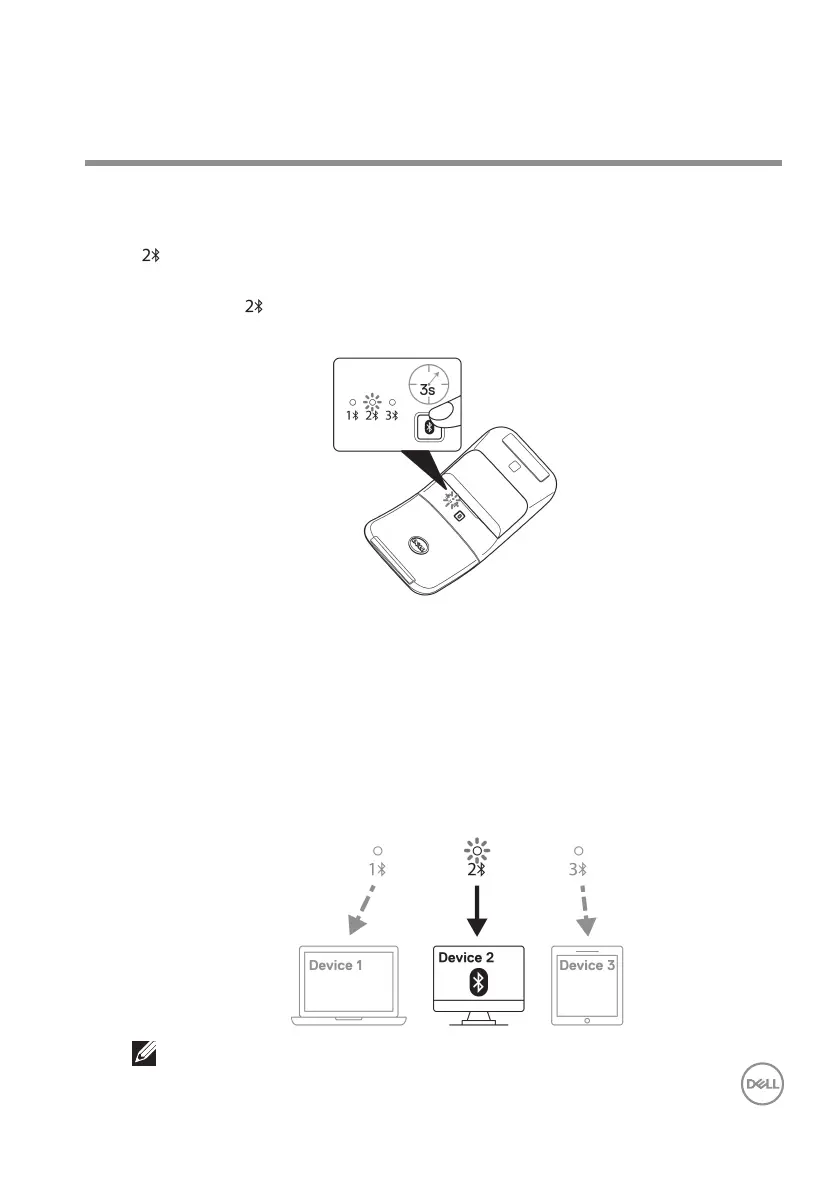
1. Press the Bluetooth pairing button twice to switch to the second pairing mode
( ).
2. Press the Bluetooth pairing button for three seconds until the second Bluetooth
channel LED ( ) blinks white. The Bluetooth channel LED blinks white for one to
two minutes, indicating that the mouse is in Bluetooth broadcast mode.
3. In Windows Search, type Bluetooth.
4. Click Bluetooth and other devices settings. The Settings window appears.
5. Click Bluetooth & other devices.
6. Ensure that the Bluetooth is turned on.
7. Click Add Bluetooth or other device. The Add a device dialog box appears. The
detected devices appear on the screen of your second device.
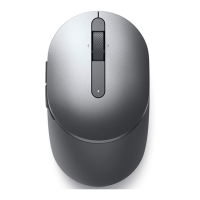
8. From the list of devices, click Dell MS700.
9. Click Done to complete the Bluetooth pairing in your device.
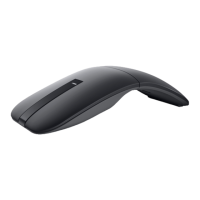
NOTE: The above image indicates the second Bluetooth enabled device
pairing (Identity B).


 To Next Page