Dell P170S/P190S Flat Panel Monitor User's Guide
file:///S|/SSA_Proposal/P170S_P190S/UG/setup.htm[7/8/2011 4:49:17 PM]
Back to Contents Page
Setting Up the Monitor
Dell™ P170S/P190S Flat Panel Monitor User's Guide
Attaching the Stand
Connecting the Monitor
Organizing Your Cables
Attaching the Soundbar (Optional)
Removing the Stand
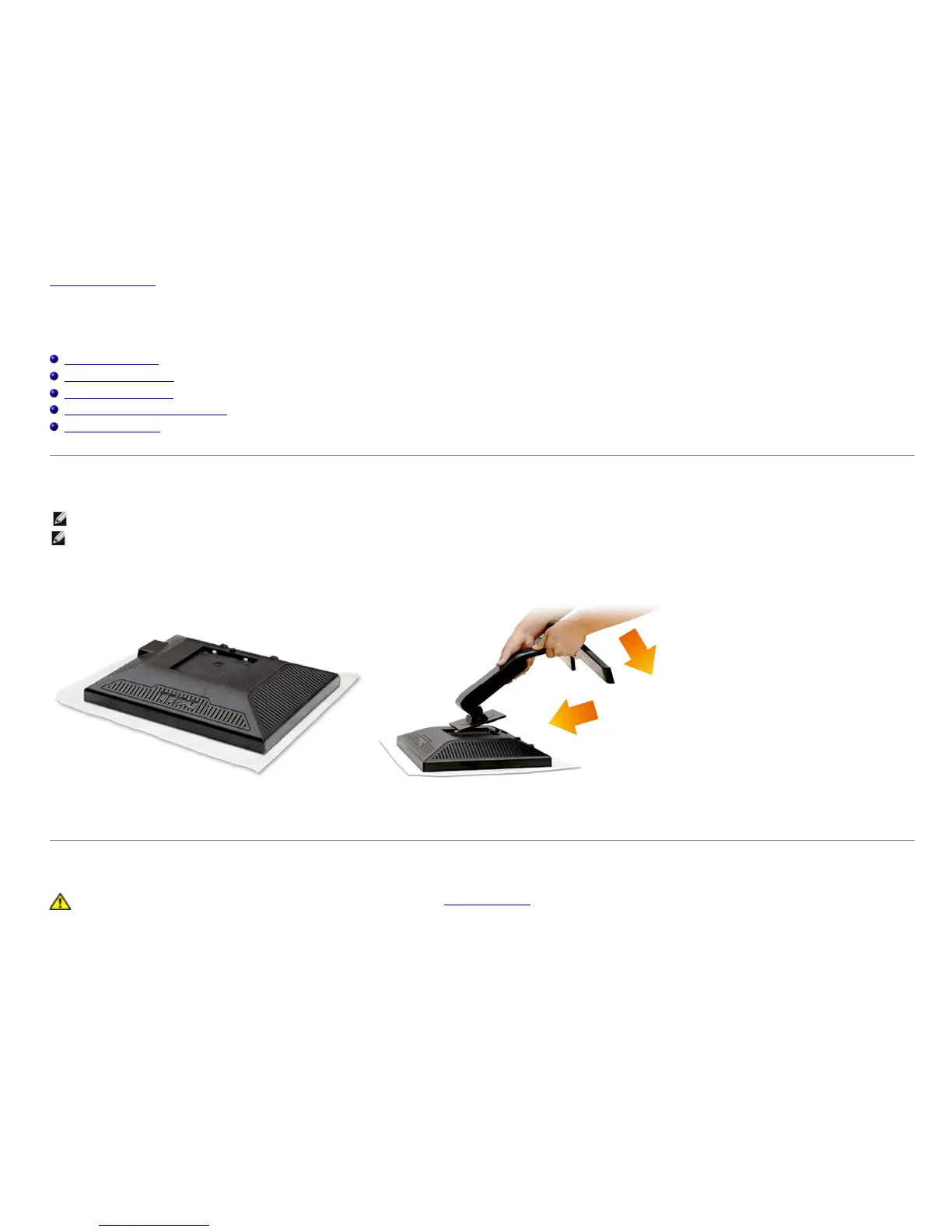
Attaching the Stand
NOTE: Stand is detached when the monitor is shipped from the factory.
NOTE: This is applicable for a monitor with a stand. When the OptiPlex™ USFF 780/OptiPlex™ SFF 980 AIO Stand is bought, please refer to the respective
AIO stand
setup guide for set up instructions.
Remove the monitor cover and place the monitor on it.
1. Fit the two tabs on the upper part of the stand to the groove on the back of the monitor.
2. Lower the stand so that the monitor mounting area snaps onto the stand.
Connecting the Monitor
WARNING: Before you begin any of the procedures in this section, follow the safety instructions.
To connect your monitor to the computer perform the following steps/instructions:
1. Turn off your computer and disconnect the power cable.


 To Next Page