Editing photos using the printer control panel
1 Load photo paper.
2 Insert a memory card or flash drive.
If document files and image files are stored on the memory device, then press
to select Photos.
3 From the printer control panel, press to select Select and Print.
4 Press the left or right arrow button to select the layout of the photo you want to print, and then press .
5 Press the left or right arrow button to select a photo for editing and printing.
6 Press the up or down arrow button to scroll to , and then press .
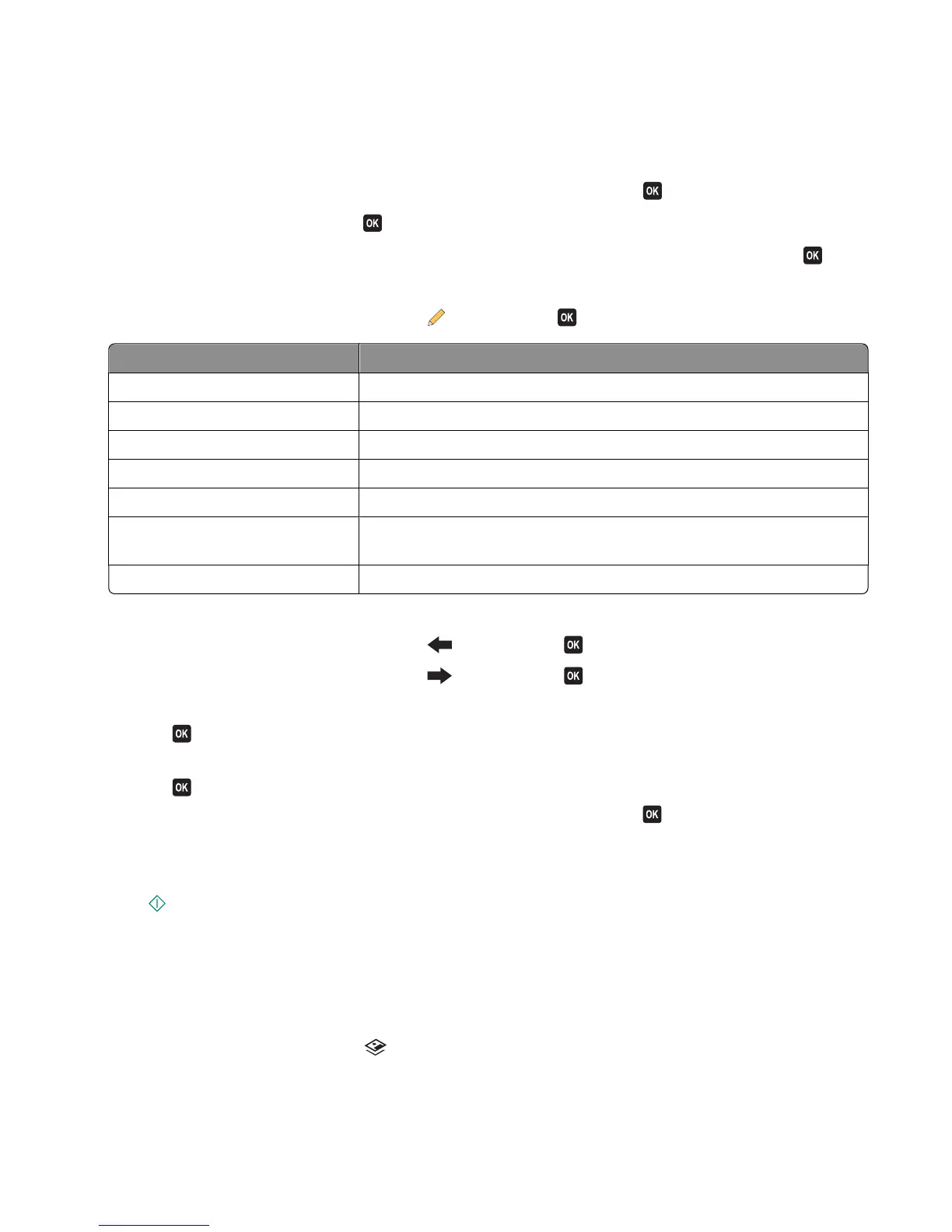
From here You can
Brightness Adjust the brightness of a photo.
Crop Crop a photo.
Auto Enhance Enhance a photo automatically.
Reduce Red Eye Reduce the red-eye effect caused by light reflection.
Rotate Rotate a photo in 90-degree increments clockwise or counterclockwise.
Colorized Effect Select whether to print a photo in black and white, sepia, antique brown, or
antique gray.
Frames Select a frame for the photo.
7 Press the arrow buttons to make your selections.
8 Press the up or down arrow button to scroll to , and then press .
9 Press the up or down arrow button to scroll to , and then press .
10 If you want to adjust the print settings:
a Press again.
b Press the arrow buttons to make your selections.
c Press to save your selections.
d Press the up or down arrow button to scroll to Continue, and then press .
11 Press the Color/Black button to set a color or black-and-white print.
When you select color or black-only printing, the light near your choice comes on.
12 Press .
Note: For best results, allow the prints to dry at least 24 hours before stacking, displaying, or storing.
Printing photos from a memory device using the printer software
1 Load photo paper.
2 From the printer control panel, press .
3 Insert a memory card or flash drive.
4 Transfer or print the photos:
Printing
31












 To Next Page