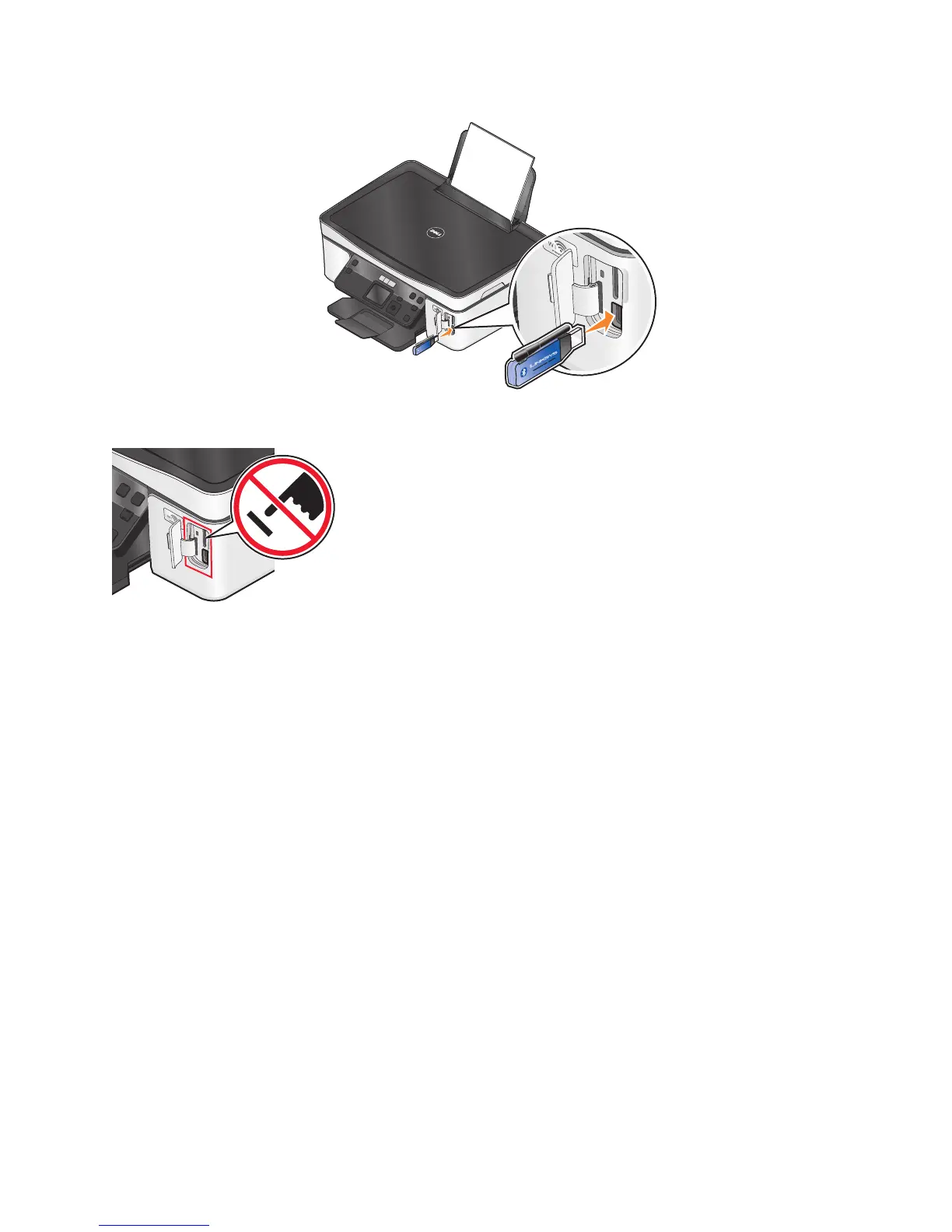
1 Insert a USB Bluetooth adapter into the USB port.
Bluetooth
R
Bluetooth Dongle Connected appears on the display.
Warning—Potential Damage: Do not touch any cables, any network adapter,
any connector, the USB Bluetooth adapter, or the printer in the areas shown while
actively printing, reading, or writing from a Bluetooth-enabled device. A loss of
data can occur.
Notes:
• A Bluetooth adapter is not included with the printer.
• Your printer automatically switches to Bluetooth mode when you insert a USB Bluetooth adapter.
2 Make sure the printer is set up to receive Bluetooth connections. For more information, see “Setting up a
connection between your printer and a Bluetooth-enabled device” on page 35.
3 Set up the Bluetooth device to print to the printer. For more information, see the documentation for your
Bluetooth device.
4 See the documentation for your Bluetooth device to begin printing.
Note: If the Bluetooth Security Level on the printer is set to High, you must enter a pass key.
Printing on both sides of the paper (duplexing)
Printing on both sides of the paper (duplexing) automatically
The automatic duplex unit, available only on selected printer models, supports letter- and A4-size paper. If you
purchased a model without automatic duplex, or if you need to print duplex using other paper sizes, then see the
instructions for printing on both sides of the paper (duplexing) manually.
1 With a document open, click File Print.
2 Click Properties, Preferences, Options, or Setup.
Printing
37












 To Next Page