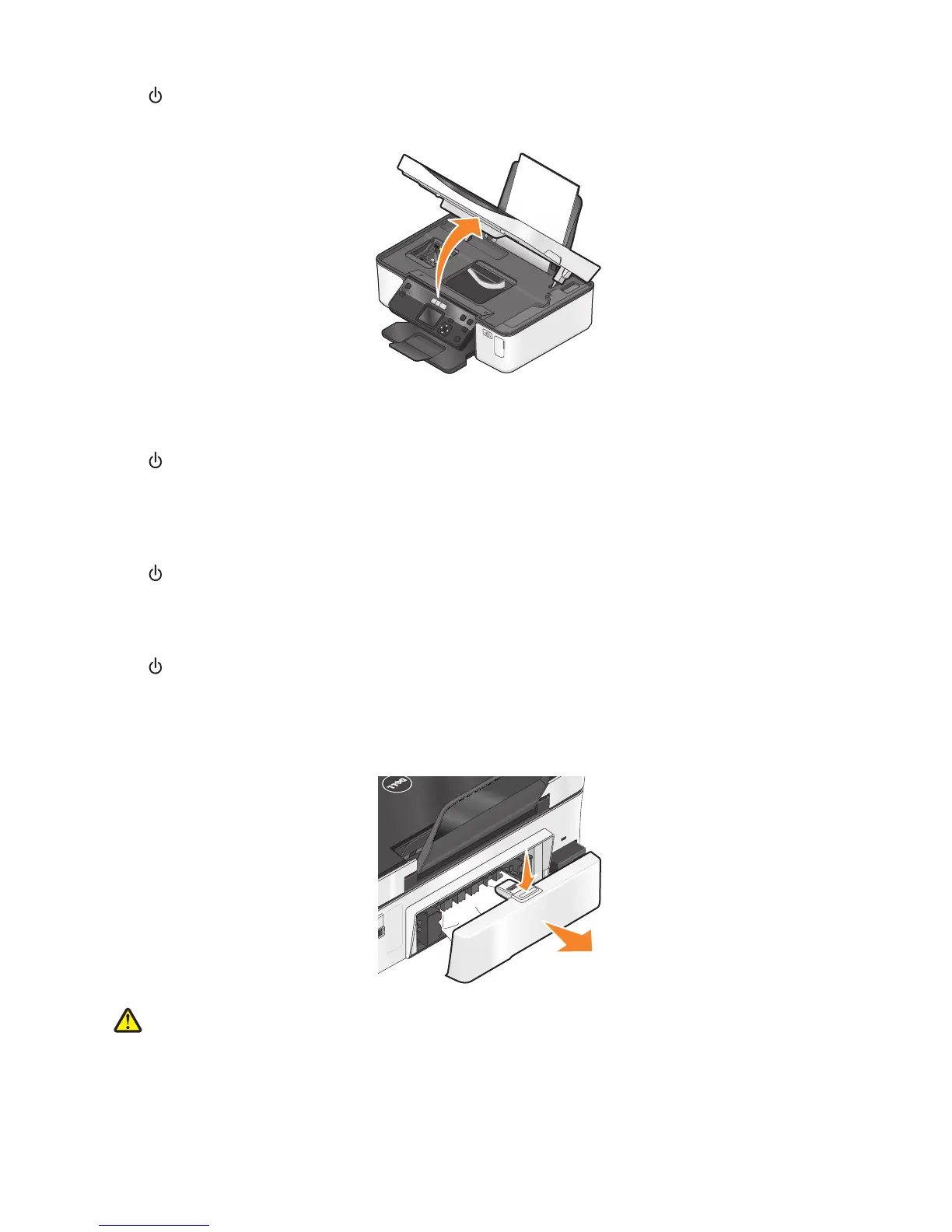
1 Press to turn off the printer.
2 Check the paper tray or lift the scanner unit to check for jammed paper.
3 Firmly grasp the paper, and then gently pull it out.
Note: Be careful not to tear the paper while removing it.
4 Press to turn the printer back on.
Paper jam in the paper support
Note: The parts inside the printer are sensitive. Avoid unnecessarily touching these parts while clearing jams.
1 Press to turn off the printer.
2 Firmly grasp the paper, and then gently pull it out.
Note: Be careful not to tear the paper while removing it.
3 Press to turn the printer back on.
Paper jam in the duplex unit
1 Push down the duplex latch and pull out the duplex unit.
CAUTION—POTENTIAL INJURY: The area behind the duplex cover has protruding ribs as part of the paper
path. To avoid injury, use caution when accessing this area for clearing a paper jam.
Troubleshooting
81












 To Next Page