3 Click the Advanced tab.
4 From the 2-Sided Printing section, select On from the drop-down menu.
Note: To use the settings defined in the printer, select Use Printer Settings.
5 Select either the Sideflip or Topflip option. Sideflip is the setting most often used.
6 Select Extend Dry Time, and then select a setting. In regions with high humidity, select Extended.
7 Click OK to close any printer software dialogs.
8 Click OK or Print.
Note: To return to single-sided printing, return to the Advanced tab. From the 2-Sided Printing section, select
Off from the drop-down menu.
Printing on both sides of the paper (duplexing) manually
1 With a document open, click File Print.
2 Click Properties, Preferences, Options, or Setup.
3 Click the Advanced tab.
4 From the 2-Sided Printing section, select Manual.
Note: The Print Instruction Page to Assist in Reloading item is selected automatically.
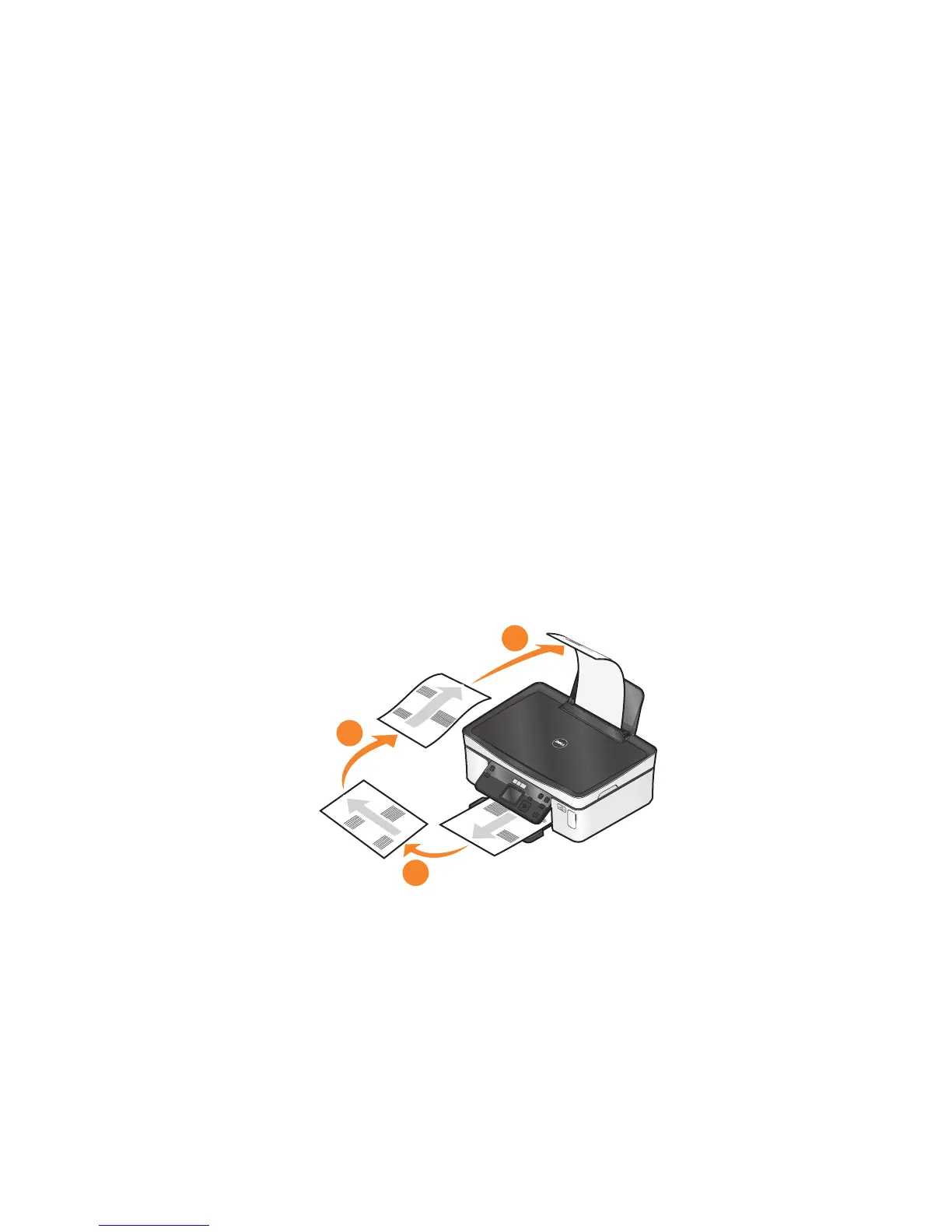
5 Click OK. The printer prints the odd-numbered pages and the instruction sheet.
6 Flip and reload the paper, following the directions on the instruction sheet to complete the print job.
3
1
2
Note: To return to single-sided printing, return to the Advanced tab. From the 2-Sided Printing section, select
Off from the drop-down menu.
Printing
38












 To Next Page