16 │ Troubleshooting
Troubleshooting
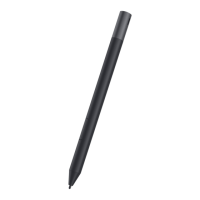
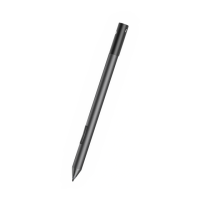
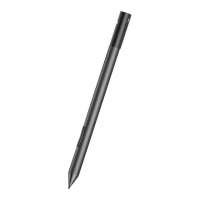
NOTE: You can use Dell Premium Active Pen only with selected
Dell computers and tablets. For a list of supported devices,
see www.dell.com.
Problem Possible causes Possible solutions
Pen does not work. • Battery is installed
incorrectly.
• Ensure the battery is
correctly installed. For
more information, see
Installing the battery.
• Battery is out of charge. • Replace the battery. For
more information, see
Installing the battery.
Pen is not functioning
properly with the
Notebook.
Pen could be using a mode
that is not compatible with
the Notebook.
Switch the Inking mode
if Notebook is not
detecting Inking Cursor
when the pen is near the
screen, see Inking Mode
Switching.
Pen does not write and
the barrel buttons do not
work.
Battery is either incorrectly
installed or out of charge.
Replace the battery. For
more information, see
Installing the battery.
Default functions for the
barrel buttons do not
work.
Functions not supported
by application.
Test the barrel buttons
in OneNote or another
application that supports
these features.
Pressing the top button
once, twice, or for 1.5
seconds does not open
the desired application.
• The desired application
is not installed or not
supported.
• Ensure that the
desired application
is installed and in
the list of available
applications in Active
Pen Control Panel.
See Using Active Pen
Control Panel.




 To Next Page