Setting Up the Monitor | 27
Connecting Your Monitor
WARNING: Before you begin any of the procedures in this section, follow the
Safety Instructions
.
NOTE: Do not connect
all cables to the computer at the same time.
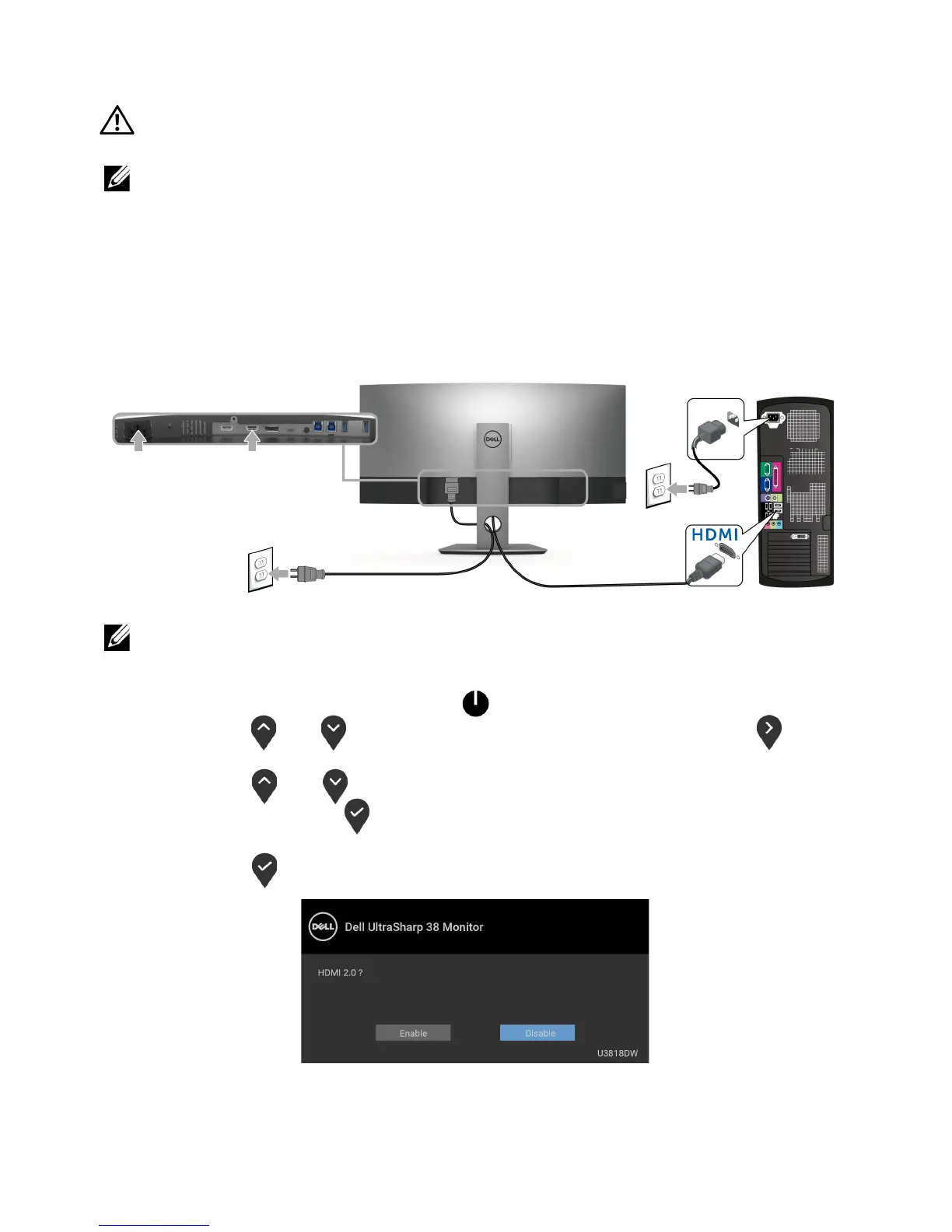
To connect your monitor to the computer:
1 T
urn Off your computer and disconnect the power cable.
2 Connect the
HDMI/DP/USB Type-C cable from the monitor to your computer or
USB Type-C device.
Connecting the HDMI cable
NOTE: The default out of factory setting in the U3818DW is HDMI 2.0. If the
monitor fails to show any content after the HDMI cable is connected, follow the
procedures below to change the settings from HDMI 2.0 to HDMI 1.4:
• Press second button next to the button to activate the OSD menu.
• Use the
and buttons to highlight Input Source, then use the button
enter the submenu.
• Use the
and buttons to highlight HDMI.
• Pr
ess and hold the button for approximately 10 seconds, and the HDMI
configuration message appears.
• Use the
button to select Disable and change the settings.
Repeat the above steps to change the HDMI format settings if necessary.




 To Next Page