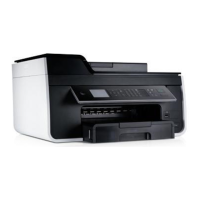
NOTICE: Do not remove the memory card or USB key, or touch the printer near the area
of the memory card or USB key while actively reading, writing, or printing from these
devices. Data corruption can occur.
2. In Windows Vista:
a. Click Programs.
b. Click Dell Printers.
c. Click Dell V305.
In Windows XP and 2000:
Click Start Programs or All Programs Dell Printers Dell V305.
3. Select Activate Memory Card Manager.
RemovingandReinstallingSoftware
If your printer does not function properly, or communication error messages appear when using your
printer, you can remove and reinstall the printer software.
1. In Windows Vista:
a. Click Programs.
b. Click Dell Printers.
c. Click Dell V305.
In Windows XP and WIndows 2000:
Click Start Programs or All Programs Dell Printers Dell V305.
2. Click Uninstall Dell V305.
3. Follow the instructions on the screen.
4. Restart your computer.
5. Insert the Drivers and Utilities CD, and then follow the instructions on the screen.
If the installation screen does not appear:
a. In Windows Vista, click Computer.
In Windows XP, click Start My Computer.



 To Next Page