EasyManua.ls Logo

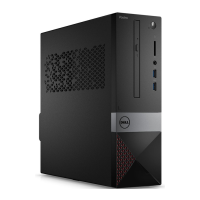
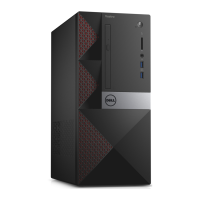
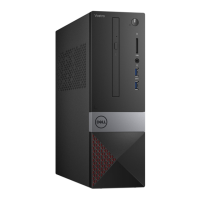
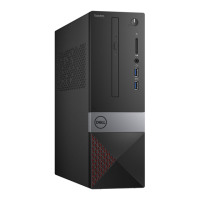
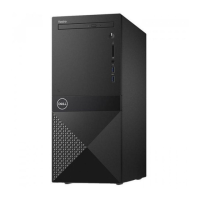
Dell Vostro 3267 - User Manual

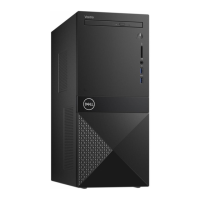
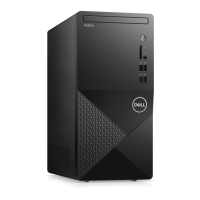
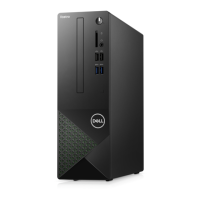
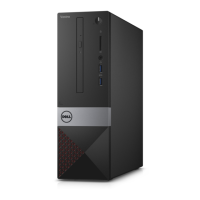
Dell Vostro 3267
91 pages
Print Icon
To Next Page IconTo Next Page
Loading...
Dell Vostro 3267/3268
Owner's Manual
Regulatory Model: D13S
Regulatory Type: D13S002
April 2022
Rev. A02

Table of Contents

Other manuals for Dell Vostro 3267

Questions and Answers

  • S
    Samuel KnightSep 2, 2025
    How to troubleshoot a bad processor on Dell Vostro 3267?
    • D
      Darryl FergusonSep 2, 2025
      If your Dell Desktop has a bad processor, it means either CPU configuration activity is in progress or a CPU failure was detected. The solution is to replace the processor.
  • J
    Jackson EvansAug 31, 2025
    What to do if my Dell Desktop has no memory detected?
    • M
      Michael BridgesAug 31, 2025
      If your Dell Desktop isn't detecting memory, and if you can assist in troubleshooting, try removing the memory modules one by one to identify any faulty modules. If available, swap each module with a known good one to confirm. If a memory module is identified as faulty, replace it. If none of the modules are faulty, the motherboard might need to be replaced.
  • C
    Christina MurphyAug 29, 2025
    What does solid amber light mean on Dell Vostro 3267 Desktop?
    • C
      Chris RichardsonAug 29, 2025
      The solid amber or blinking amber light on your Dell Desktop during power up indicates that the POWER_GOOD signal is active, suggesting the power supply is likely fine. Try removing and reinstalling any cards, including the graphics card if applicable. Also, ensure the power cable is connected to the system board and processor.
  • T
    Timothy SmithAug 28, 2025
    How to fix a Dell Desktop with a bad motherboard?
    • L
      Lauren JacksonAug 28, 2025
      If your Dell Desktop has a bad motherboard, the solution is to replace the motherboard.
  • A
    Angela Hughes PhDAug 26, 2025
    What does slow blinking white light mean on Dell Vostro 3267 Desktop?
    • R
      Richard SmithAug 27, 2025
      A slow blinking white light on your Dell Desktop indicates that the system is in a low power state, either S1 or S3, which doesn't necessarily mean there's a fault. To bring the computer out of sleep mode, press the power button. Also, make sure all power cables, including the main power cable and front panel cable, are securely connected to the system board.
  • T
    tiffany72Aug 25, 2025
    How to fix a Dell Vostro 3267 Desktop with a BIOS Checksum Failure?
    • G
      George DyerAug 25, 2025
      If your Dell Desktop is showing a BIOS Checksum Failure, the system is likely in Recovery Mode. To resolve this, flash the latest BIOS version. If the problem continues after updating the BIOS, the motherboard may need to be replaced.
  • M
    Michele RichardsonAug 22, 2025
    What to do if my Dell Desktop has memory failures?
    • J
      Jason BushAug 23, 2025
      If your Dell Desktop is experiencing memory failures, it could be due to memory subsystem configuration activity or a memory failure. If you can assist with troubleshooting, try reseating the memory modules and swapping them with known good memory modules, if available. If the problem persists, the memory may need to be replaced.

Summary

Working on Your Computer

Safety Instructions

Guidelines to protect computer and ensure personal safety.

Preparation for Internal Work

Steps to take before performing any internal computer operations.

Computer Shutdown Procedure

Procedure to properly shut down the computer before maintenance.

Disassembly and Reassembly

Hard Drive Removal and Installation

Procedures for removing and installing the 3.5-inch hard drive and its chassis.

Optical Drive Removal and Installation

Instructions for removing and installing the drive cage and optical drive.

WLAN Card Removal and Installation

Steps for removing and installing the WLAN card.

Heat Sink Assembly Removal and Installation

Procedures for removing and installing the heat sink assembly.

Memory Module Removal and Installation

Steps for removing and installing memory modules (RAM).

Power Supply Unit (PSU) Removal and Installation

Procedures for removing and installing the power supply unit (PSU).

System Board Removal and Installation

Detailed steps for removing and installing the system board.

Troubleshooting

Power LED Status and Diagnostic Codes

Explains power LED states and diagnostic amber LED blink codes.

Diagnostic Error Messages

Lists and describes diagnostic error messages encountered during system startup.

System Error Messages

Lists and describes system error messages that may appear.

ePSA Diagnostics for Hardware Checks

Details on using the ePSA diagnostics tool for hardware checks.

System Setup Overview

Contacting Dell

Dell Vostro 3267 Specifications

General IconGeneral
Optical DriveDVD-RW
ConnectivityWi-Fi 802.11ac, Bluetooth 4.0
ProcessorIntel Core i3-7100
RAM4GB DDR4
Storage1TB HDD
GraphicsIntel HD Graphics 630
Operating SystemWindows 10 Pro
PortsUSB 3.0, USB 2.0, HDMI, Ethernet

Related product manuals